Studio Mobile empowers mobile teams with configurable, offline-capable GIS apps for data collection and productivity anywhere. Build custom, branded mobile apps, sync edits when online, integrate workflows, and stay current with Esri tech. Apps are configured in a Web Based Designer using layouts and components to define behavior, structure, and data. Use High-Precision GPS devices such as EOS Arrow devices, Leica Zeno FLX100 plus and GG04, Trimble R1 and R2 as well as Bad Elf Bluetooth GPS devices.
-
Introduction to Studio Mobile (5-minute read)
- Studio Mobile is a framework for building offline-capable mobile apps on ArcGIS. Using Mobile Designer, Studio Go, custom apps, and Workflows, organizations can create, test, deploy, and manage field applications for Android, iOS, and Windows.
-
Mobile App Development, Simplified: 5 Easy Steps
- Creating a powerful and easy-to-use mobile GIS app is easier than many organizations expect. Studio Mobile guides you from ArcGIS web maps to a branded, offline-capable mobile app in a straightforward workflow, helping teams get mobile solutions into the hands of field users without extensive custom development.
-
Studio Mobile Requirements (5-minute review/ongoing reference)
- For on-premises deployments, review requirements for servers, clients, supported ArcGIS software, cookies, and CORS. These prerequisites help ensure VertiGIS Studio Mobile functions correctly and securely. SaaS customers do not need to meet these requirements.
-
- Access licensed VertiGIS Studio SaaS products through apps.vertigisstudio.com. Select the product you want to use and sign in with your ArcGIS Online account or ArcGIS Enterprise Portal credentials if a registered subdomain is configured.
-
Studio Go Requirements (5-minute read/ongoing reference)
- Hardware recommendations depend on app complexity. Simple apps run on mid-range devices with 6 GB RAM, while advanced apps require at least 8 GB RAM (16 GB recommended). Performance depends on layers, features, and efficient app design following Mobile Performance Guidelines.
-
Map Areas - Work Offline (5-minute review)
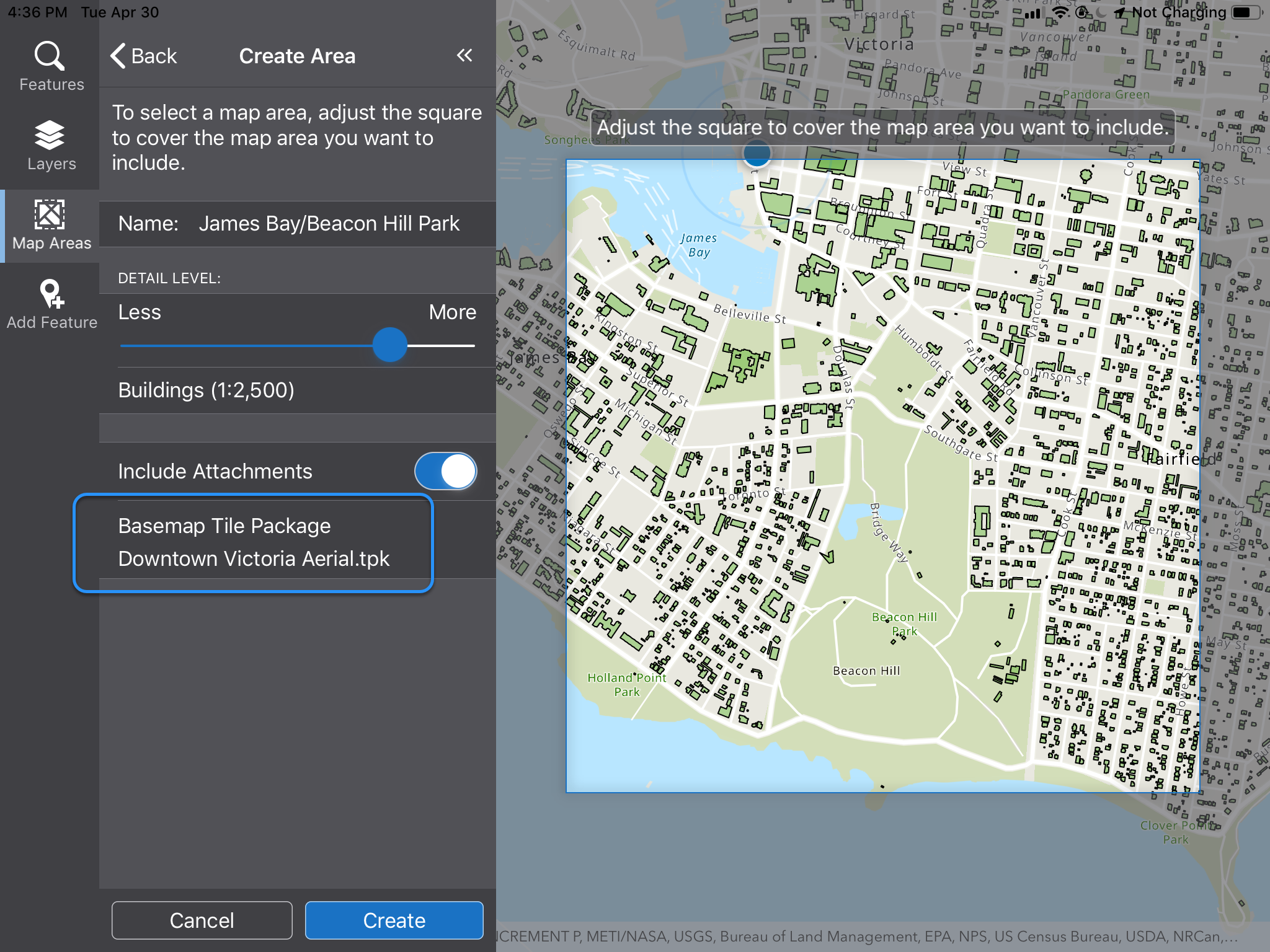
- Map areas enable offline work in Studio Mobile. Users can use administrator-created map areas or create custom ones. Downloaded maps support offline viewing, edits, and data collection, with changes synced back to the web map when connectivity is restored.
-
Use Sideloaded Tile Packages with Map Areas
- Sideload TPK , TPKX or VTPK files to mobile devices for high-resolution offline maps. These files can be used with pre-generated or custom map areas and replace the base-map when offline. Files must be stored in the correct device folder to be recognized.
-
Create a Custom Map with a TPK
- After you have sideloaded one or more TPKs to your device, you can use them to define Custom map areas that you can activate and use offline. Your device must also have either VertiGIS Studio Go or a Custom Mobile app on it.
- Mobile Product Showcase (50-minute view)
- What's New with Studio Mobile (5-minute review)
- Community: Mobile (ongoing reference)
- Mobile FAQ document (download/print)
- Usage of Esri Licenses in VertiGIS Studio Mobile (2-minute read)
- 2027 Release schedule.
I want to...
|
|
|||
|---|---|---|---|
Share |
Explore |
Explore |
Build |
Build |
Build |
Build |
Build |
Build |
Build |
Build |
Build |
Build |
Build |
Build |
Build |
- Pending
- Building an Mobile App (5-minute review)
- Deploying a Mobile App (5-minute read)
- Mobile Release Notes ( 5-minute review)
Comments
0 comments
Article is closed for comments.