Historically, Studio Printing was comprised of two (2) separate engines; Chromium and the new Print Engine. The Chromium engine has been replaced by the new Printing Engine which is the recommendation for all new apps/sites. The new Printing Engine is a substantial upgrade that allows for additional functionality such as grid and line printing, support for vector-based print outputs and the newest Esri base-map and layer formats as well as increased performance.
-
Key Concepts (5-minute read)
- VertiGIS Studio Printing lets admins create and share print layouts for on-demand PDF maps. Templates are built in Print Designer or Desktop Printing, support maps, legends, branding, user inputs, and multiple print types, and run from supported web applications.
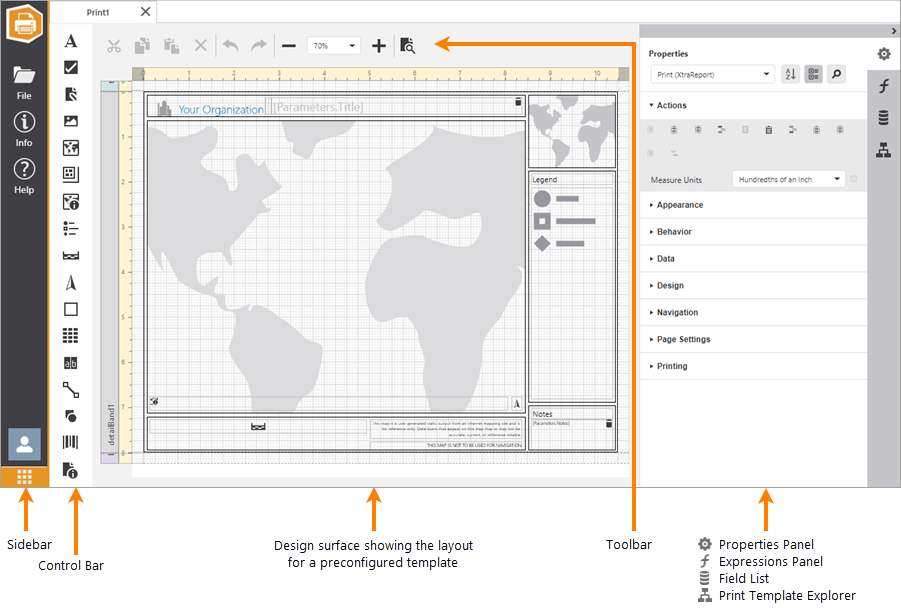
Studio Printing Designer
-
Documentation: Printing Requirements
- This section lists the requirements for using VertiGIS Studio Printing, including SaaS and on-premises deployments, authoring tools, ArcGIS identity setup, supported host applications and browsers, plus cookie and CORS configurations needed for proper operation.
-
Documentation: Create a Print Layout
- Studio Print Designer lets users create print layouts from preconfigured templates or a blank page. Layouts can be customized with branding, maps, legends, and controls, then previewed, saved, shared, and hosted in supported applications for PDF map printing.
-
Community: Legacy Printing (based on Chromium) vs. Printing (based on ArcGIS Pro)
- Studio Printing has evolved from Chromium-based Legacy Printing to ArcGIS Pro-based Printing. The newer solution uses ArcGIS Enterprise and ArcPy for better performance, scalability, standards compliance, and support for advanced print types such as grids, line prints, and map books.
-
Community: Advantages of the new Printing (based on ArcGIS Pro) compared to the Legacy Printing (based on Chromium)
- Printing (based on ArcGIS Pro) replaces Legacy Printing with a faster, more scalable, Esri-aligned solution. It delivers higher-quality vector output, supports advanced print types, integrates across VertiGIS products, enables layout conversion, and avoids legacy memory and rendering issues.
-
Community: VertiGIS Studio Printing Engine - Analysis Steps
- This guide covers troubleshooting VertiGIS Studio Printing Engine installation and printing issues. Key steps include reviewing installer and job logs, validating SD file creation, checking ArcGIS services, testing print requests, verifying tokens, and addressing VMware-related ArcGIS crashes.
-
Product Showcase: Printing (50-minute view)
- Learn how Studio Workflow helps organizations modernize and automate GIS business processes without extensive custom coding. Explore how to build dynamic forms, integrate with business systems and databases, streamline workflows, and create intuitive web mapping applications. See practical examples, migration benefits from Geocortex Workflow, real-world use cases, and how Workflow can reduce development time, lower costs, improve user experiences, and accelerate digital transformation initiatives.
- Printing Release Notes
I want to...
|
|
|||
|---|---|---|---|
Share |
Explore |
Explore |
Build |
Build |
Build |
Build |
Build |
Build |
Build |
Build |
Build |
Build |
Build |
Build |
Build |
- Pending:
- Configure Host Applications
- Configure Controls
- Tutorial: Create, Host and Run a Print Template
- Printing FAQ document
- Webinar/Other
Comments
0 comments
Article is closed for comments.