ArcGIS Pro Layout Mode not available to add in as templates

Hi all,
I am running into a confusing issue after installing the Print Engine (VertiGIS-Studio-Printing-Engine-v3-5.26.1.msi), after installing VertiGIS Printing (VertiGIS-Studio-Printing-5.26.1.msi). I created two custom templates that show as content in VertiGIS Studio Printing, and they show up in the Portal Content as shown in screenshots below. However, they do not show as available in the print settings for a VertiGIS application printing tool, it only shows ArcGIS Pro Layouts to be added. So when I go to settings and enable the ArcGIS Pro Layout Mode, then the print templates disappear from the VertiGIS Studio Printing Designer, and they are not available to add in the ArcGIS Pro Layout in the studio designer. I have tried rebooting servers and workstations, clearing browser caches, uninstalling and reinstalling both the VertiGIS Studio Printing and Print Engine. No matter what I have tried so far, I cannot seem to get any working print templates. Does anyone have any ideas on how to troubleshoot this issue? Maybe I am just missing something basic, does the VertiGIS Studio Printing Engine require extra licensing?
I have been over these pages numerous times, but I am unsure how to move this forward.
Thanks,
Andy

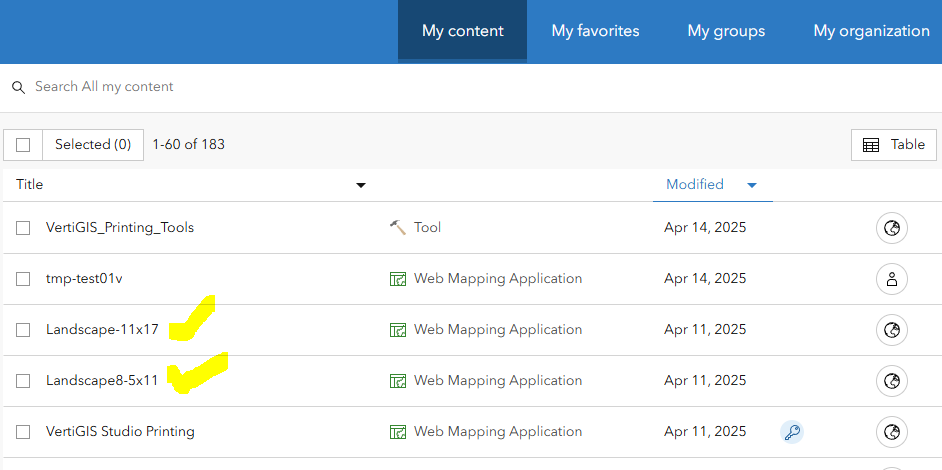
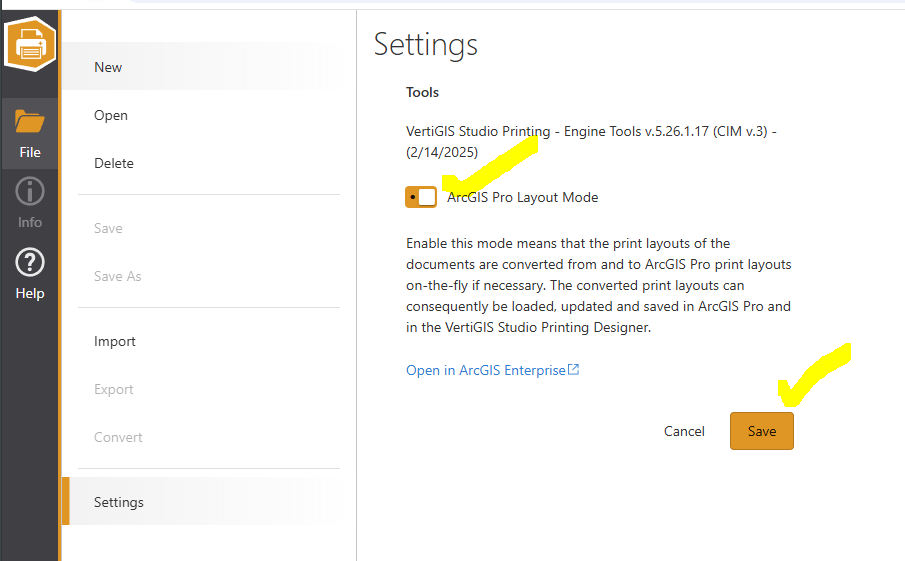
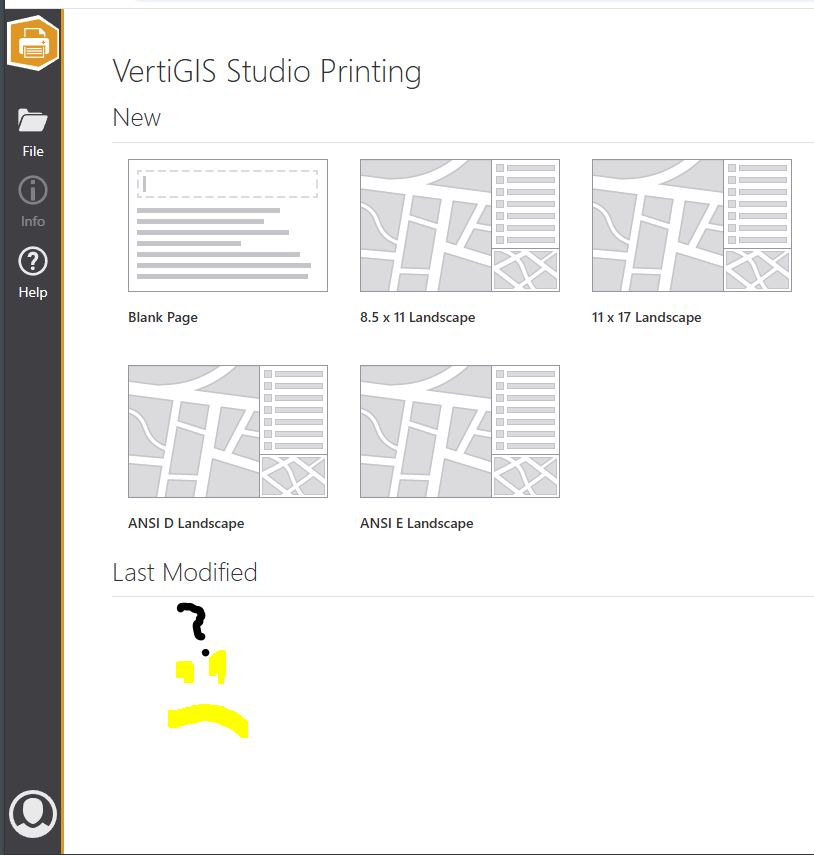
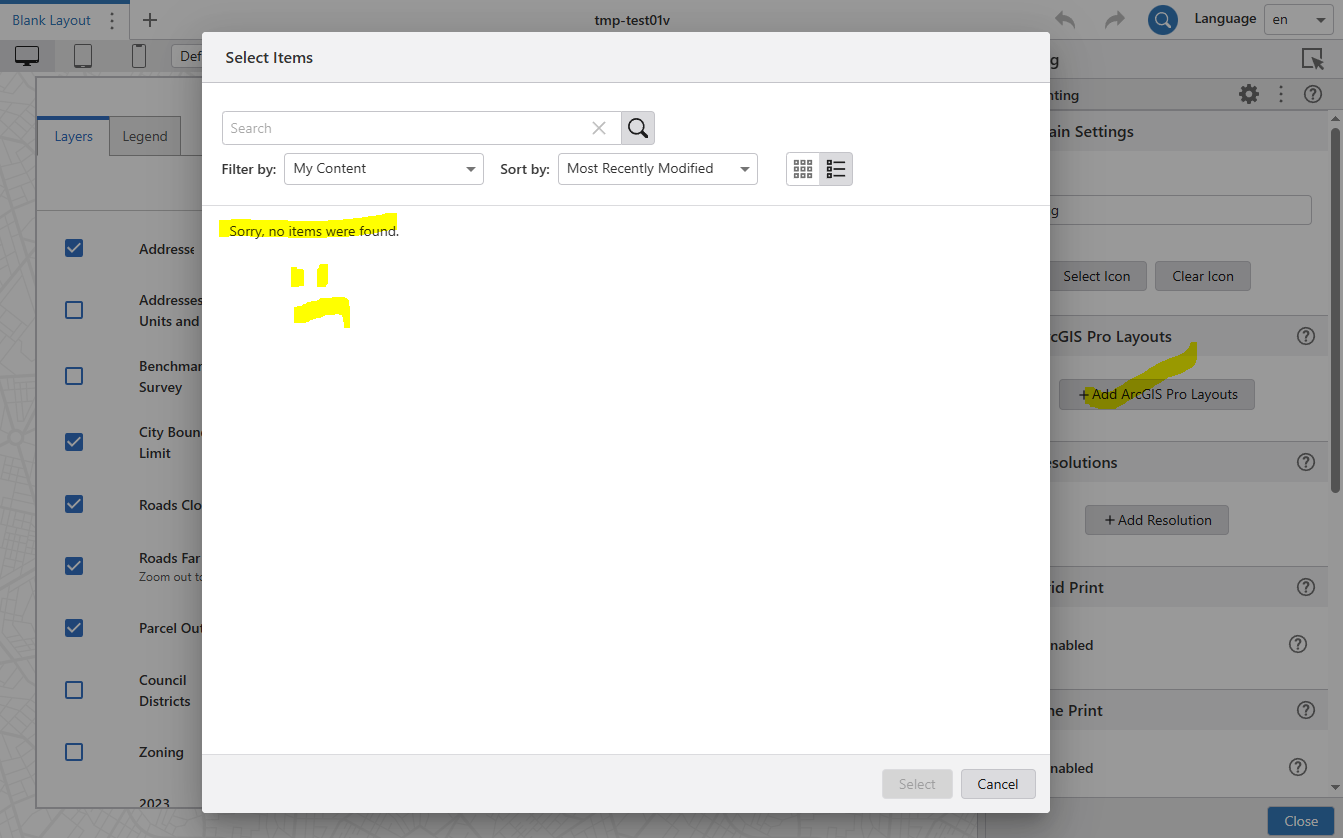
-
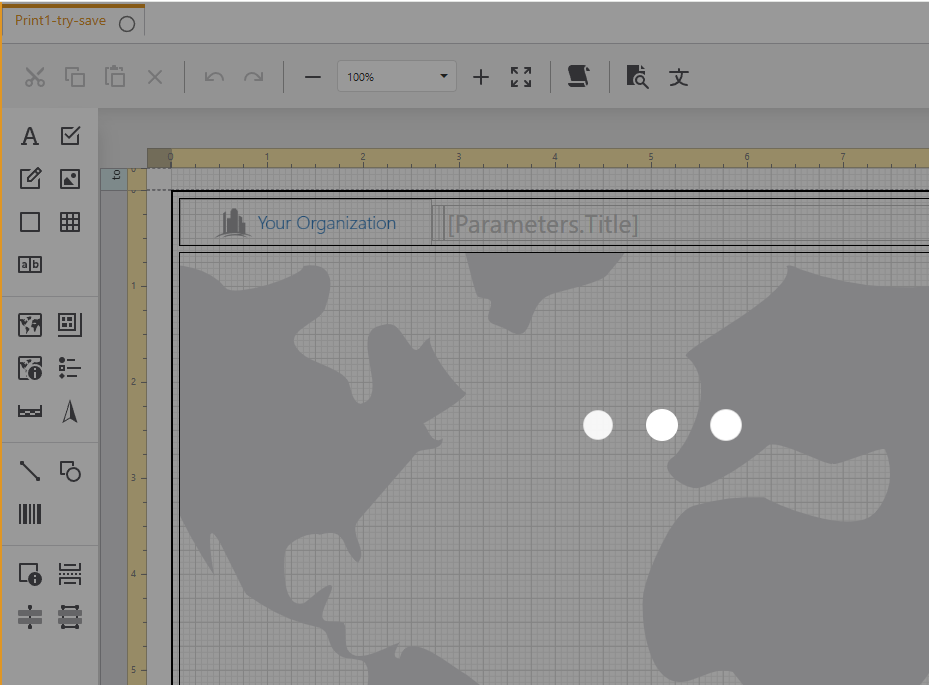
I forgot to mention one point, whenever I try this template conversion process, it seems to hang and never finish properly, it shows the white dots blinking but no error messages. Thanks for any ideas. :)
 0
0 -

Hi Andy,
I moved your thread out of the Ideas section over to the main VertiGIS Studio Printing one.
I think you are on the right track, the behavior you are describing is what we expect. A print template is a VertiGIS document that only works with our original Printing engine, and a print layout is an Esri document that our new engine uses.
We'll need to sort out what is happening on your conversion to get things to work. If you create a new template/layout when the ArcGIS Pro Layout Mode is enabled, does that show up and work roughly as expected?
0 -
Hi Malcolm,
Thank you for the quick reply. When I toggle the ArcGIS Pro Layout Mode on and then try to save a blank template with any new name, the interface never exits or shows an error after I hit save or save as. It just hangs, and the three dots on the gray background keep spinning. I have let it run like that for an hour or more, and the save never finishes.
When I first encountered this issue, I tried rerunning the post-installers for Visual Studio Printing and Visual Studio Printing Engine. I also attempted to uninstall and reinstall the software. I thought there might be some orphaned items in Portal or AGS, so I deleted the Visual Studio Printing items from Portal and then reinstalled, but I am still stuck.
 0
0 -
Following up on this, I upgraded the ESRI portal, AGS, datastore, webadapter from 11.3 to 11.4. Then retested, but the VertiGIS print templates still were not saving with the Print Engine. So I uninstalled all the VertiGIS components, deleted all the related VertiGIS items from portal, and will try it again from scratch in the near future when time allows.
0 -
I believe the core of this problem was on the ArcGIS Server actually. Here is more info in case anyone else sees this issue.
The cause of this issue is a known VMWare defect involving the vm3dgl64.dll file used by the OpenGL driver packaged with VMware Tools 12.5.0. Process Monitor logs report that vm3dgl64.dll receives many read requests from the ArcSOC.exe process that manages the PrintingTools service just before it crashes. vm3dgl64.dll is a commonly distributed library with VMWare tools that interfaces with many applications, including ArcGIS Server.
Implement one of the workarounds developed by the owners of VMWare, Broadcom. The workarounds, as described in their knowledge base, include:
Disable the use of llvmpipe by adding this virtual machine config option to the VM's VMX file: guestinfo.svga.disableLLVMPipe=TRUE
Set a system environment variable SVGA_ALLOW_LLVMPIPE=0
Note, Broadcom has released a knowledge article describing the cause of the failure as well as the solution.https://knowledge.broadcom.com/external/article/331541/opengl-dll-is-not-unloaded-on-applicatio.html
0
Vous devez vous connecter pour laisser un commentaire.
Commentaires
5 commentaires