Export Map Image

VertiGIS Studio Web, looking to have functionality that was available in essentials. The user was able to export the map as an image, with the option to choose a number of file extensions such as png, jpg, tiff, etc. Support has pointed me toward the "Get Map Screenshot Activity". This solution only produces a PDF as it is sent to reporting, and all reporting outputs are PDF. It looks like the only current solution is to create a custom component in SDK. Can anyone offer an alternative option?
-

Kevin submitted a Support ticket for this, but for future readers or anyone who is curious, the Get Map Screenshot activity does indeed work for exporting the map as an image. The example in the documentation mentions how this activity can be used to add a map screenshot to a report, however this is only one use case. The activity can be used in other scenarios as well.
To take a screenshot of the map in VertiGIS Studio Web and save it as a JPEG:
- Create a new workflow in Workflow Designer.
- Add a Get Map Screenshot activity.
- Add a Run Command activity and set the command to system.download-file.
- In Command Parameters, add the following, substituting the extension, file name, and map screenshot variable as needed:
={
"fileNameExtension": ".jpeg",
"name": "testImage",
"result": $screenshot1.dataUrl
}- Save the workflow and add it to your Web app.
4 -

@AlisaLindley Is creating a PDF supported? I can't seem to get it to work by simply specifying “pdf” as the file extension.
0 -
Alisa Lindley Just to clarify, I would like the option to download a map image as a PDF and am using SaaS. Is this possible?
0 -
Heather Widlund the system.download-file command simply downloads the file that it is given - it does not perform any conversions. Therefore, the blob that you feed it needs to be in the correct format so that it can be read by the program that will be opening the file. In the case of images and PDFs, the file structure is very different, so you cannot simply download an image blob and call it a PDF.
If you would like to convert an image to a PDF, you might be able to use something like the Send Web Request activity to get a third party API to do the conversion for you and send back the PDF file. However, I'm not sure of the specifics of how you would do this and cannot guarantee that it would work.
0 -
Okay, thanks.
0 -
Heather Widlund I should also mention that the “Add Image to PDF” activity in the PDF activity pack might be useful here. It won't convert your image to a PDF, but if you already have a blank PDF, you can add your image to it and download the modified PDF, which would more-or-less accomplish the same thing.
0 -
Alisa Lindley I've added the activity pack and set up Create PDF→Add Image to PDF, but the screenshot object is not an image. Is there a way to convert it from a dataURL?
0 -
Heather Widlund apologies for that, it slipped my mind that the output of the Get Map Screenshot activity is base64 encoded. Since you are looking to export a PDF, is VertiGIS Studio Reporting an option for you? As Kevin mentioned in the original post, the Get Map Screenshot activity is particularly useful when paired with reporting to output map images in PDFs.
0 -
Alisa Lindley I can do that, it just seems to be a convoluted way to get what was out-of-the-box in GVH. I would need to set up a report with just a map picture box, use the workflow to populate it, etc. etc.
1 -

Thanks for the workflow code, I've been using it and it works great! Wondering if you know if there's also a way to set the image resolution? Trying to find a workaround to not being able to export a printed map to TIFF in the newer VS Studio Web/Print, so wondering if export map image can export a high resolution image?
0 -

Is this in the product plan for feature parity with Geocortex? I agree that it seems convoluted to have to build a workflow just to reach feature parity.
0 -
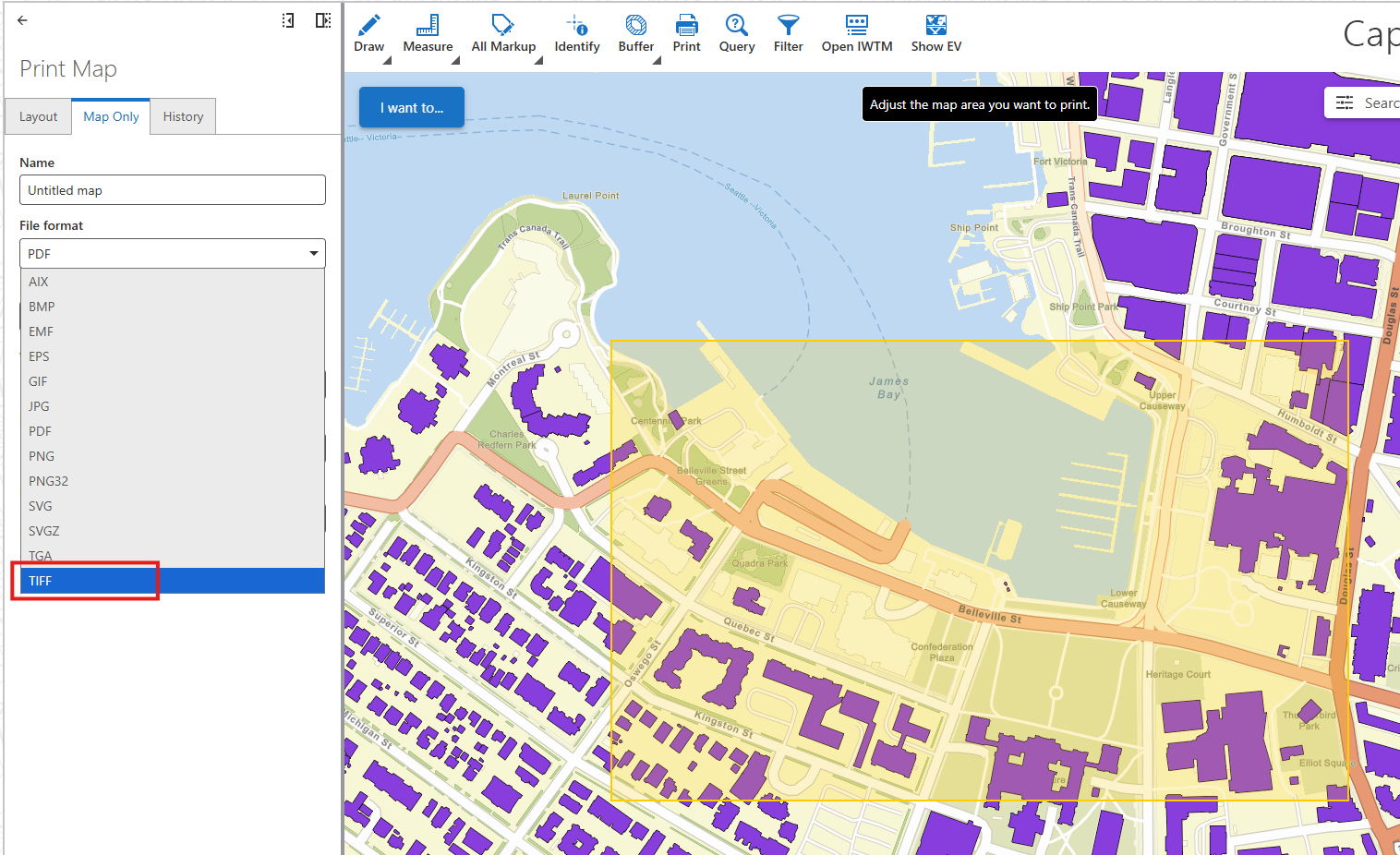
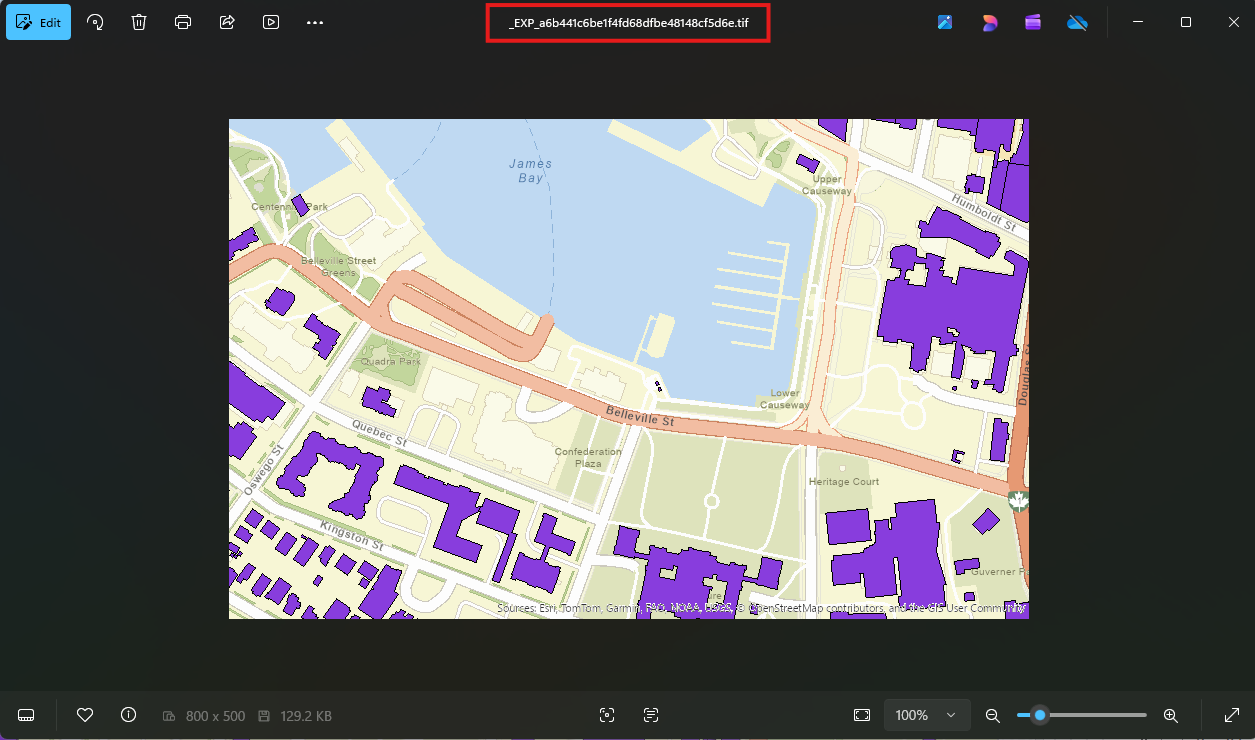
Melanie Ross the ability to export to different image formats is now available out-of-the-box in VertiGIS Studio Web via the VertiGIS Studio Printing Engine. Therefore, you don't necessarily need to create a workflow, template, etc. anymore to generate these types of prints. The option described above is still available if that's the method you want to use or if you haven't upgraded to the VertiGIS Studio Printing Engine yet, but it is not required.
We are always making adjustments to the software and trying to improve it, so if you feel there is anything missing, please make sure to post or upvote an existing post in the Ideas sections of our community:
- Ideas - VertiGIS Studio Web
- Ideas - VertiGIS Studio Workflow
- Ideas - VertiGIS Studio Mobile
- Ideas - VertiGIS Studio Access Control
- Ideas - VertiGIS Studio Reporting
- Ideas - VertiGIS Studio Printing
- Ideas - VertiGIS Studio Search
- Ideas - VertiGIS Studio Analytics
- Ideas - VertiGIS Studio Item Manager
- Ideas - VertiGIS Inline
- Ideas - VertiGIS Studio Desktop
0 -
How do you configure this?
0 -
Melanie Ross Apologies for the delay in getting back to you. Information on how to install and configure the VertiGIS Studio Printing Engine is available in our documentation, though I personally find the information in the gen2 Printing FAQ section of our Support Centre to be a bit more comprehensive. This article is a good place to start: An Introduction to the VertiGIS Studio Printing Engine
If you're still having trouble getting things set up, please don't hesitate to open a support ticket.
0
Bitte melden Sie sich an, um einen Kommentar zu hinterlassen.
Kommentare
14 Kommentare