Keep Drawing Tools On

Is there a way to leave the drawing tools on so you can draw multiple shapes in quick succession like in the HTML5 viewer?
-

Hey Chelsea Rozek good question. I'm inferring you want
Looking at the command that the Draw tool uses (from this button)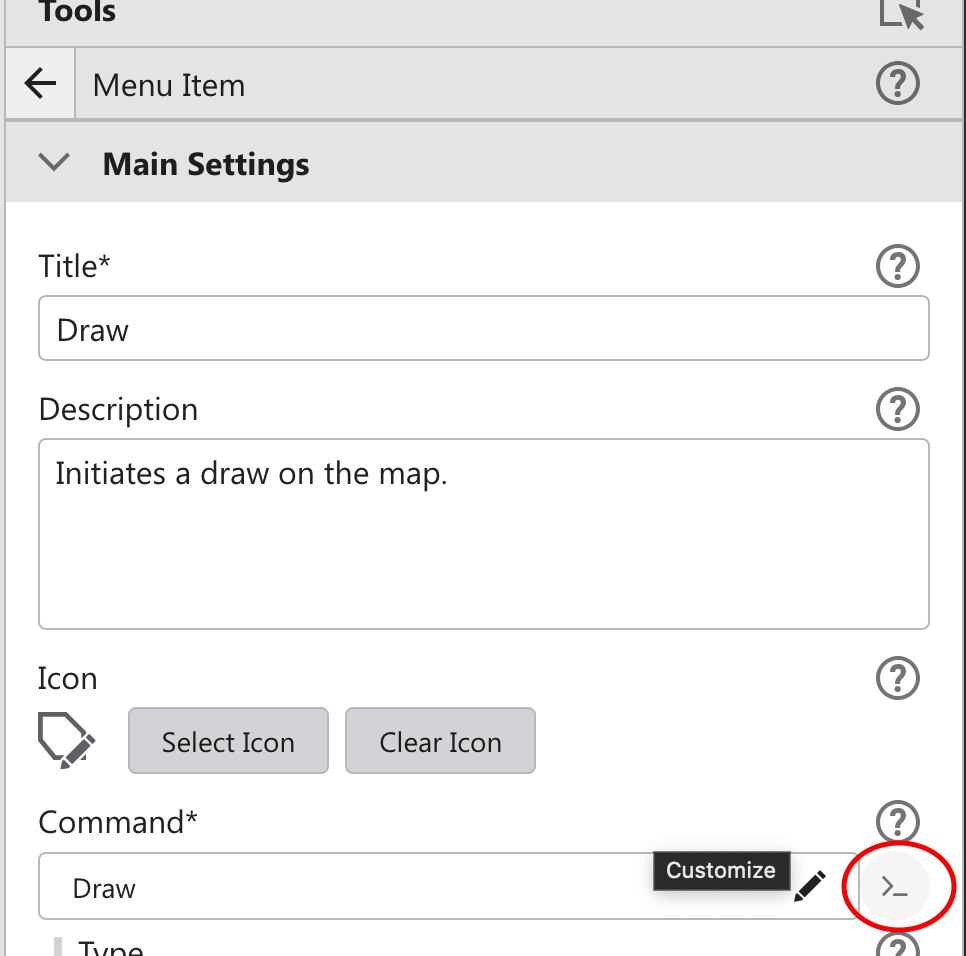
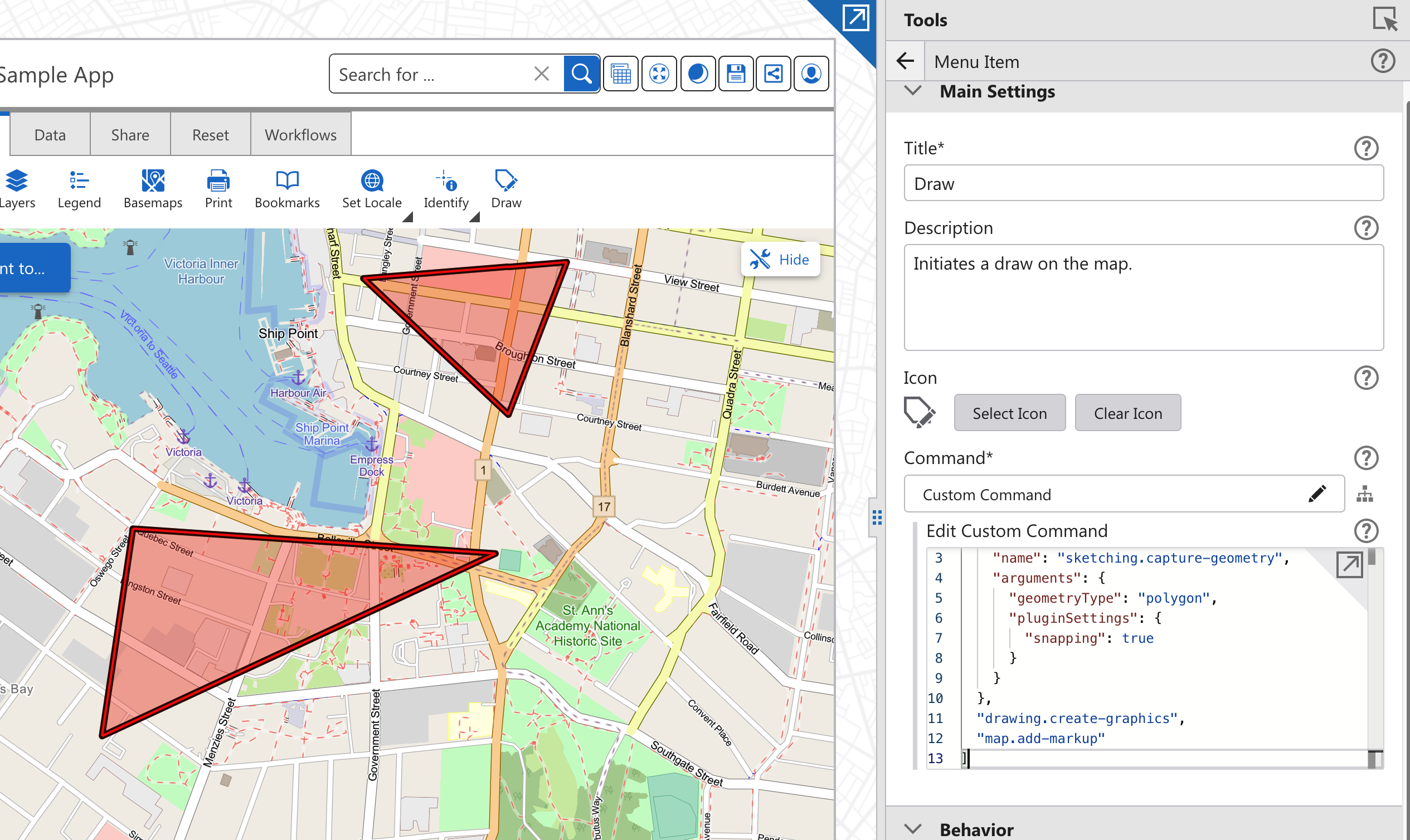 We can see it's just these commands and operations:
[
{
"name": "sketching.capture-geometry",
"arguments": {
"geometryType": "polygon",
"pluginSettings": {
"snapping": true
}
}
},
"drawing.create-graphics",
"map.add-markup"
]The sketching.capture-geometry operation provides the drawing interface, while the drawing.create-graphics and map.add-markup commands handle the creation of geometry. Currently, this sequence is only set up to manage a single geometry.
I don't see an easily accessible method to configure it to prompt for multiple point geometries or to loop the entire sequence. However, I believe this is a valid and broadly applicable use case that we should investigate.
To clarify, you want the drawing (Sketching) user interface to appear, allowing the user to create a geometry that is then drawn on the map. Instead of closing as it currently does, you want the sketching interface to remain open, enabling the user to continuously add markup to the map. Is that correct?
3 -

@..., I would want that. Or a shift/ctrl hotkey with that effect.
0 -

Yes, this would be a great option for users who want to draw several features consecutively - I'd like to see it too. Making a 'sticky' option as in HTML5 viewer would be nice.
1 -
Hi @..., thanks for the response! Sorry for the delay, I don't receive any emails when I follow threads. Are you aware of any issues with that mechanism? I've tried changing my email address too. But yes, that's what I am hoping for. I'd like the tool to stay enabled so they can keep drawing shapes. Like, if all those commands can loop. So you draw, it commits it to the map, you can draw again... With the HTML5 viewer, you get this banner that says it's enabled until you double click to finish.
 2
2 -

Interesting feature, would be useful to turn it on and off manually.
0 -

This could be very useful for us too
0 -
I realize my last comment may not have been very clear. That yellow bar shows that the tool is enabled and functioning. Double-clicking will finish a polygon (not disable the tool) and then you can continue to draw a new polygon until you close that yellow bar with the X or click on the drawing tool in the toolbar to disable it.
0 -
Is this on the roadmap?
0 -
Olivia Bang Brinck Yes! Here is it mentioned in the June Road Ahead webinar. I believe it was also mentioned in the more recent one too. https://youtu.be/dfHpumnEQWg?si=B7qG17Ajll6KerxW&t=1984
0 -

Hi, has this (sticky drawing) been implemented in any of the version upgrade? Thanks.
0 -

Yes, with the Repeat Action command In Web 5.33.
See examples here https://docs.vertigisstudio.com/webviewer/latest/admin-help/standard-commands.html#repeat-action-command
Added a powerful new pattern that allows tools to run either until canceled or for a specific number of repetitions. This functionality is enabled through the new system.repeat-action command, offering enhanced flexibility for tasks requiring iterative actions. For instance, you can configure a tool to capture geometry for a set number of points, performing subsequent actions. Alternatively, you can set up a tool to repeatedly capture geometry from clicks on the map, identify features, and add them incrementally to a results list. To help users get started, we included detailed examples in the documentation.
0 -
Hi Nico
I will disagree, that the repeat action is a solution for this.
When I first saw it in the release note, I thought it was. However, when I then tried it out, it turned out to be very not UI friendly and not creating a useable workflow - even though it technically does the trick.
I think this is the case for several reasons:
1) You are getting the orange notification bar with an exclamation mark in the top when running this. This is very distracting and sends a message that there is something wrong you are warned about. However, you are just running the tool.2) This bar flickers whenever you create a geometry. Leading to even more disturbtion
3) You have to click escape to not draw anymore (or the x on the notification bar, which you are not prompted to do). This is not a very intuitive workflow.
4) There is the small tick mark on the tool when activating it. And you can reclick the tool for the tick mark to go away. However, nothing happens and the tool is still active. This makes no sense and creates a very confusing experience for the user. In my opinion this is the most intuitive way to turn on a tool and then close it up again when you are finished, and the way the keep drawing tool on should be working - just like all other map applications. In addition to this, when then having tried to turn it off this way (still active) and then trying to activate again, the app completely freezes (as I am trying to activate a tool which is already active). Thus, the user has to reload the entire application if making this mistake, which if I may say so would be made by most of our not so experienced GIS-users, as this is what they are used to. In other cases around the application the tick is used for showing that a tool is active and you can reclick to deactive (eg. when running a workflow from a tool bar)
I think it is important to remember that not all the users drawing in a VertiGIS Studio Web application are great GIS-users and that their core specialty is something different (urban planners, environmentalists etc.) and we need to make the workflow as easy for them as possible. The repeat action is great for repeating very specified workflows and operations for qualified end user. But in my opinion, this is not the solution for keeping the drawing tool on in reality.
0 -
Olivia Bang Brinck
I would suggest posting this as an Idea https://support.vertigis.com/hc/en-us/community/topics/11497311339794-Ideas-VertiGIS-Studio-Web
This Idea is related
https://support.vertigis.com/hc/en-us/community/posts/20916929757970-Idea-Measure-tool-multiple-measurements-without-reactivating-tool-and-cursor-thickness0 -

Hi all,
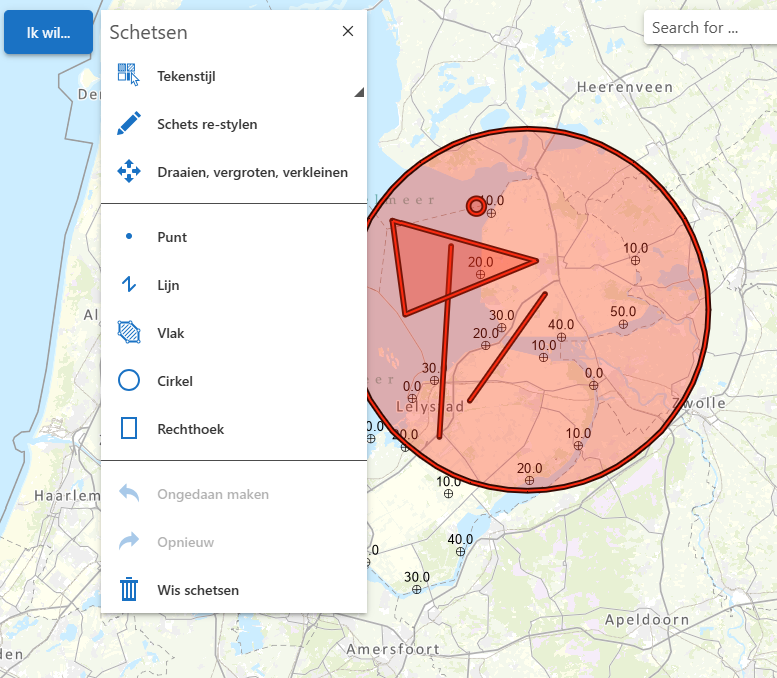
I'm not sure if this is exactly what you mean, but I have configured a viewer that leaves the sketching tools open, until you click on ‘close’.
See image.
All red sketches are made while the sketching tools remained as shown in the image.
Is this what you mean?
 0
0 -

Rinske van Dijk-Spaa your example is what I am looking for, Would you be able to share the tool or code you used to keep the sketching tools open?
0 -
Vanessa Pocock, I'll describe how I configured this:
1. An ‘I want…’-menu with inside it a menu item ‘Schetsen’. This is a standard command ‘show’, refearring to a buttonbar ‘Schetsen’.
2. The buttonbar ‘Schetsen' (see screenshot in previous post) is displayed within a panel, with the option to close the panel (X).
That's pretty much it!
The buttobar remains open until you click [X].
Let me know if you were able to make it work.
0
Bitte melden Sie sich an, um einen Kommentar zu hinterlassen.
Kommentare
16 Kommentare