Map Notes Interface

Hi. Is there a way to configure the map notes command to not show this popup?
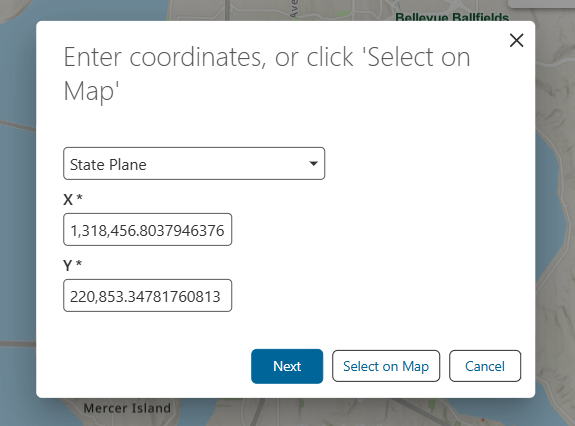
We would like to just have the cursor change to the blue cross and allow users to click the map to choose their location. Below is how the tool is configured. I have tried removing the ‘map.get-user-coordinates-input’ command but it still appears. Note, we have it configured as a sticky tool (system.repeat-action).
[
{
"name": "system.repeat-action",
"arguments": {
"action": [
{
"name": "map.get-user-coordinates-input",
"arguments": {
"completeLabel": "language-common-next",
"attributes": {
"slot": "top-start"
}
}
},
"tasks.identify",
{
"name": "map.create-note",
"arguments": {
"attributes": {
"slot": "top-start"
}
}
}
]
}
}
]
Thanks
-

The out of the box “Add Location Note” command has 2 dialog windows. As far as I know it's possible to skip the first one, but not the second. If that's all you need, try replacing the “map.get-user-coordinates-input” operation in your example with a "sketching.capture-geometry" operation.
Eg.
[
   {
       "name": "system.repeat-action",
       "arguments": {
           "action": [
               {
                   "name": "sketching.capture-geometry",
                   "arguments": {
                       "geometryType": [
                           "point"
                       ]
                   }
               },
               "tasks.identify",
               {
                   "name": "map.create-note",
                   "arguments": {
                       "attributes": {
                           "slot": "top-start"
                       }
                   }
               }
           ]
       }
   }
]
0 -
Great. That works. Thanks Amanda.
0 -

This is a helpful customization, thank you. I've set up mine to bypass the first dialog, but not as a sticky tool. One thing I've noticed - if you select the tool, then select another tool (e.g. Draw a Point) without having clicked on the map (or re-clicking the Location Note tool to disable it), it gives an error sating “Identify failed. No valid geometry was provided.”. Is there any way to avoid this?
0
Du måste logga in om du vill lämna en kommentar.
Kommentarer
3 kommentarer