Sending text field values to a report from Workflow

Does Silverlight 1.5.1 or 1.5.2 allow you to send text field values to a report in Workflow? A note in the Essentials 3.9 release notes says that this function won't be fully supported until subsequent releases of the viewers, and I'm wondering if this is now fully implemented.
Chris
-

Hi Chris,
Yes, the 1.5.1 Silverlight Viewer added support for this.
--Ryan
0 -
OK, I'm completely stumped on this one. I'm trying to take text that the user has entered into a workflow form, and send it to a report. Based on Ryan's post, it should work with my setup of 3.9/1.5.1. I set up a simple report with some textboxes (giving them Datafield values, and deleting the text values). I then add the report to a map layer in Manager. Here's where the weirdness starts.
With some reports, when I click on the layer, click the Reports tab, and then click Edit, I get a detail screen with 4 tabs (Details, Map Scales, Resolutions and Text Fields). However, with other reports, I don't get any tabs. Why do some reports have tabs, and others don't?
For the lucky few reports that do have tabs, I click on the Text Fields tab and then click Add Text Field. It reports that there are no configurable text controls in the report template, even though there are (if I set up the report as a Print Template, I can add the text fields no problem). Is there a bug here?
Has anyone managed to send text info from a workflow to a report???
Thanks
Chris
0 -

Hi Chris,
There are still some known issues with Text Fields in layer reports. In order for the text box to be accessible to Rest Manager, it needs to be inside of a subreport. Additionally, for the Map Scales/Resolutions/Textfields tabs to show up in Manager, the subreport containing the editable text box also needs to contain a map.
I've added your name to the bug report.
-Victoria
0 -
Thanks for the update Victoria. I guess I'll wait for the next version. We'd definitely like to be able to send values (check boxes, text fields etc) to a report, which may or may not contain a map.
Chris
0 -
I've just encountered this and wanted to verify that it works at 1.6/3.10, and share the syntax.
In the Report activity there is a Text Fields in argument. It is not shown on the workflow surface, but it will be listed in the Properties window when you select the Report activity. The syntax of this parameter is listed as TextFields (IDictionary<String,String>) . In my case I wanted to send a user-entered title to the report, which is captured in a prompt and stored in a variable titleText. In my Report activity I was able to get it working by using the syntax New Dictionary(Of String,String) From {{"_label1text",titleText}} . If I understand the collection initialization properly you could add other report text fields by appending ",{textField2,textVar2},{textField3,textVar3}..." before the closing brace.
I hope this helps!
Nate
0 -
Hi Nathan,
Did you succeed even without using a subreport and/ or map. Or did you have to use both as Victoria describes?
- Sune
0 -
Hi Nathan,
Could you please tell us how you access the dictionary variale in your report? I'm OK with pass a dictionary<string, string> from workflow to report, but don't know what code I should use to fetch the dictionary. Do you need to set up anything on Geocrotex Manager? Thanks.
regards,
Jack
0 -

Is sending text fields to reports only possible for print templates or also for layer reports?
Is there documentation on this subject?
0 -
Sending text fields to reports is possible for both print templates
and layer reports; however it does require more effort with the layer
reports.The "Text Fields" property is only present in MapTemplate reports; REST Manager
only creates LayerTemplateReport reports when adding a report to a layer. Too
have access to the "Text Fields" in a report added through REST Manager requires
a two step process:1) Add the report through REST Manager as normal, save and close the site.
2a) Open the Site.xml in an editor and you will see a new <Reports> section in
layer to which you added the report; it will be similar to
<Reports>
<LayerTemplateReport DisplayName="MyNewReport" ID="0" IncludeFeatureMaps="false" PerformDataLinking="true" TemplateUri="{RootUri}/Resources/foo.rpx" Visible="true">
<SupportedOutputFormats>
<Pdf />
</SupportedOutputFormats>
</LayerTemplateReport>
</Reports>
2b) Directly under the opening <LayerTemplateReport> tag paste the definition of a
MapTemplateReport so you wnd up with something similar to
<Reports>
<LayerTemplateReport DisplayName="MyNewReport" ID="0" IncludeFeatureMaps="false" PerformDataLinking="true" TemplateUri="{RootUri}/Resources/foo.rpx" Visible="true">
<MapTemplateReport ID="MapSubReport" MaximumResolution="300" ScaleBarUnit="Miles">
<TextFields>
<TextField DataFieldName="field1" DisplayName="field1" Editable="true" MultiLine="true" />
<TextField DataFieldName="field2" DisplayName="field2" Editable="true" MultiLine="true" />
</TextFields>
</MapTemplateReport>
<SupportedOutputFormats>
<Pdf />
</SupportedOutputFormats>
</LayerTemplateReport>
</Reports>
It is important to note that REST Manager will not pick up fields from
the subreport so they have to be added by hand in the Site.xml
2c) Save the Site.xml, reload the site in REST Manager and then when you look
at the report in REST Manager you will have a tab for "Text Fields", and
you can see what text fields are configured.0 -
Following with what Nicholas wrote, here are few more tips
(1) Make sure make the DataFieldName and DisplayName are the same
(2) The TextField values passed to 'Text Fields' property with Dictionary data type of the Report Activity is only mapped to the TextBox controls on the SubReport (not the main report).
(3) re: SubReport, its name on the main report should match with the ID of the MapTemplateReport on Site.xml, and Tag should be the subreport filename.
0 -
Hi, I just ran into this and figured some more images/examples might help. These were created working off of Nicholas and Munhwans' posts:
1) Modify Site.xml (as per Nicholas' post):<LayerTemplateReport DisplayName="QuickReport - TEST" ID="2" IncludeFeatureMaps="false" PerformDataLinking="true" TemplateUri="{SiteUri}/VirtualDirectory/Reports/QuickWellReport - TEST.rpx" Visible="true"> <MapTemplateReport ID="MapSubReport" MaximumResolution="300" ScaleBarUnit="Miles"> <TextFields> <TextField DataFieldName="_reportTitle" DisplayName="_reportTitle" Editable="true" MultiLine="true" /> </TextFields> </MapTemplateReport> <SupportedOutputFormats> <Pdf /> </SupportedOutputFormats> </LayerTemplateReport>2) Add a "Text Fields" argument of New Dictionary(Of String,String) From {{"_reportTitle","MY REPORT TITLE"}}
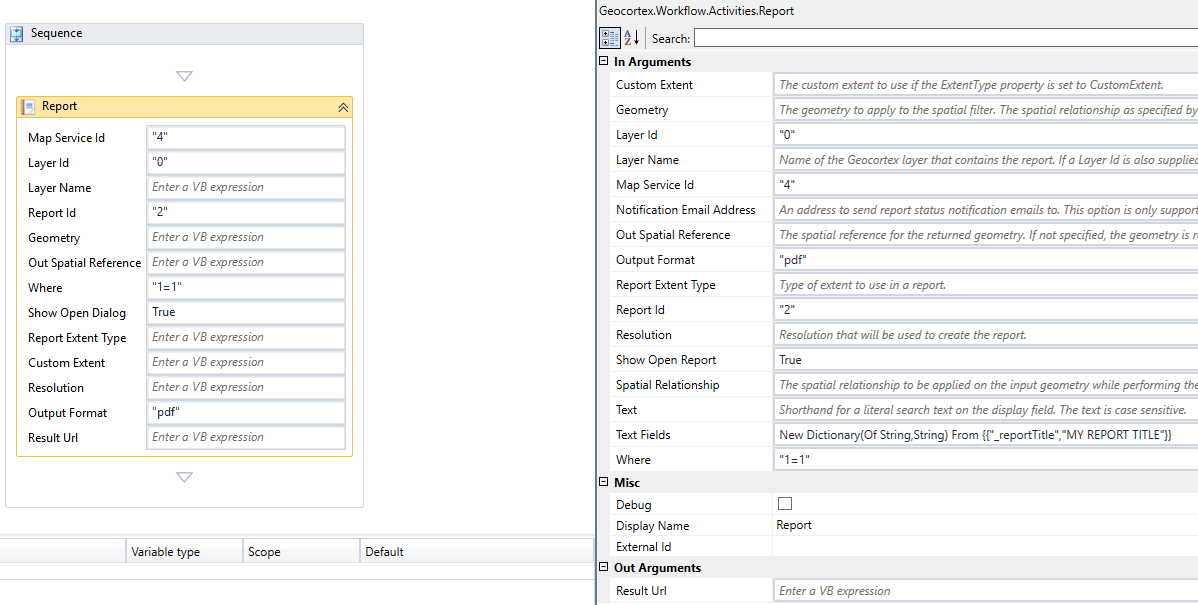
3) Create a Main Report (report file named: QuickReport - TEST.rpx), with a SubReport inside PageHeaders or Details: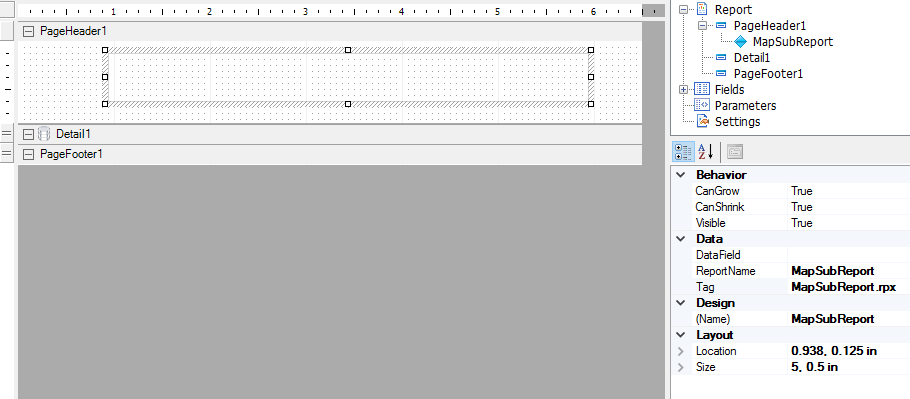
4) Create a sub-report (report file named MapSubReport.rpx) which contains a text box in the Detail area (PageHeader/Footer didn't work, label didn't work):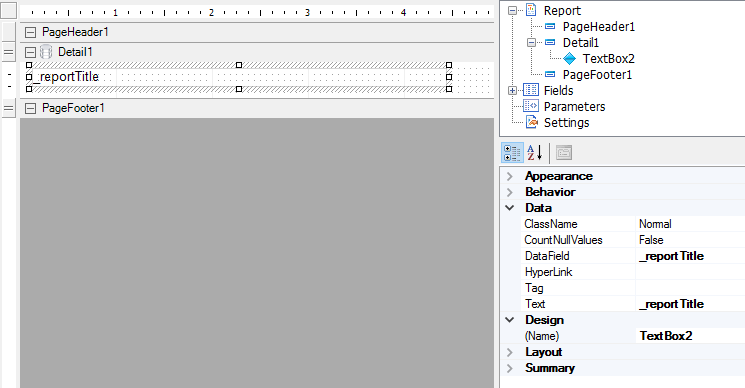
5) Use Essentials Manager to add the main report to the layer (sub report is not required).
6) Run the report by running the workflow. My test report outputs this: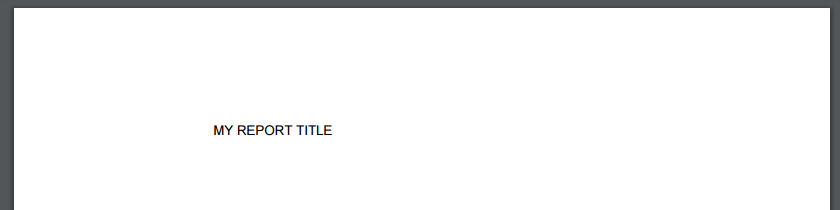 0
0 -
My example worked in Essentials 4.6.1, GVH 2.7, by the way. 0 -

Hi Peter, I tried your instructions but when I run the report I get the followind error:
There was a workflow error running activity: Error running report 'Eccezione generata dalla destinazione di una chiamata. Specified datatable 'REPORTMAPPALI_titolo' does not exist in the dataset.'
Please note that I'm not using an empty report, but it contains datafields coming from the layer report.
Regards,
Guido Sitta0
Du måste logga in om du vill lämna en kommentar.
Kommentarer
13 kommentarer