Issues new print-technology

Hello there!
I've been trying to implement the new print-technology. Firstly I converted my old print-templates (legacy) to the new versions, which made them visible in my print-designer environment, but not in my app designer studio as suggested template-options. Therefore I then created a new template from scratch to see if that would come through, which it did. Recreating my templates by hand wouldn't be much of an issue.
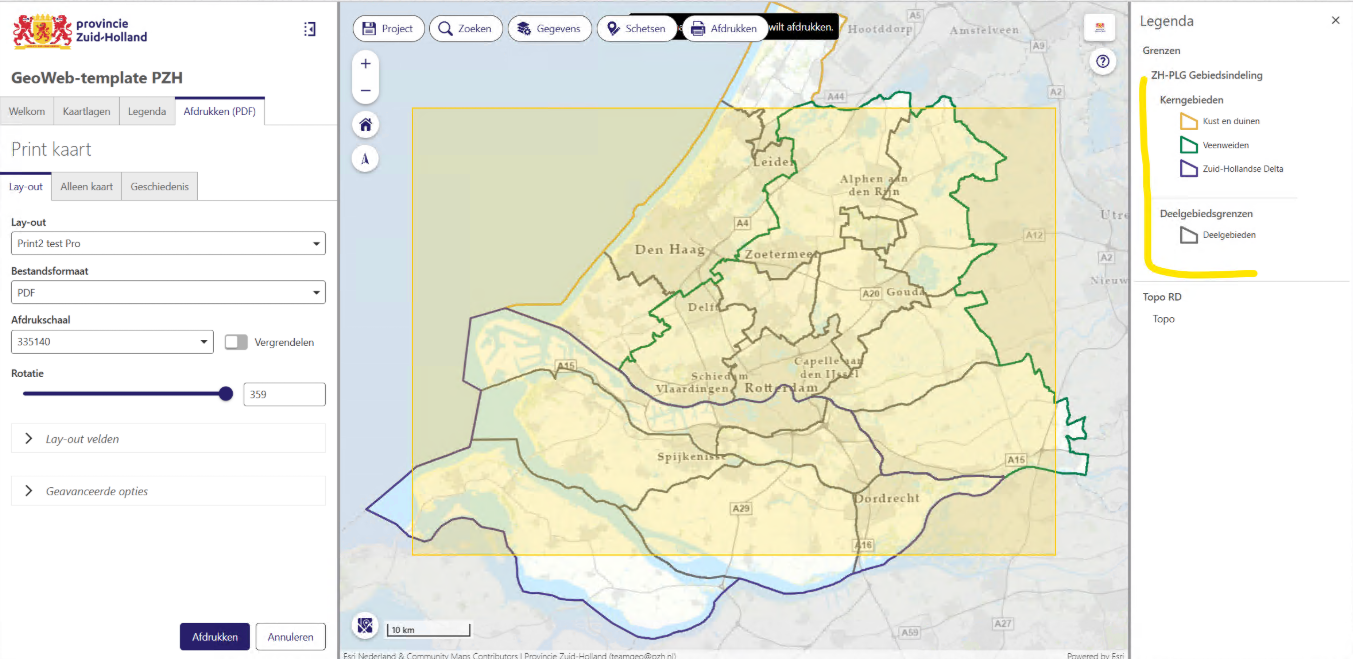
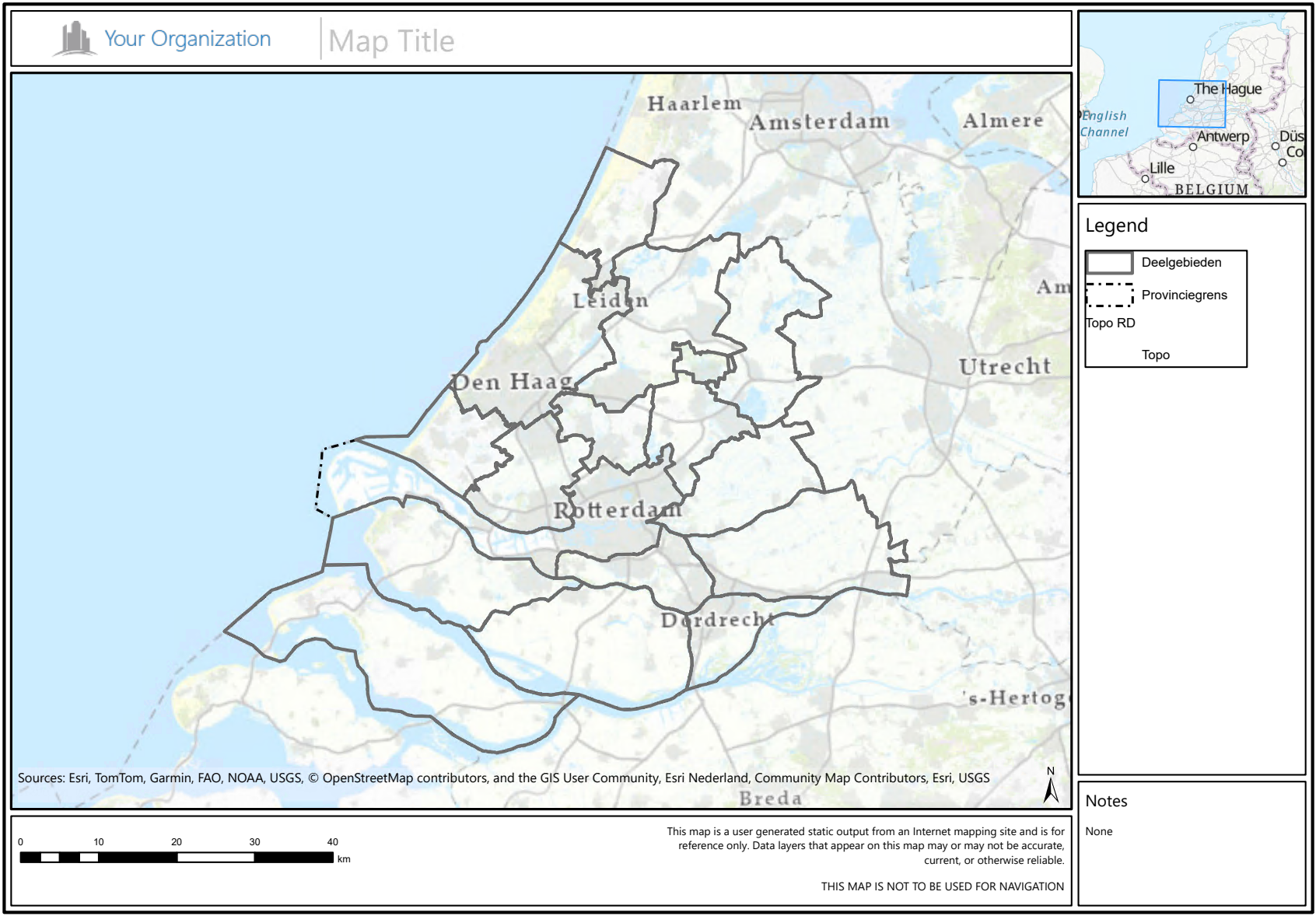
However, the prints my newly created template creates have a weird bug where not all layers visible in the map are shown on the printed map, nor visible in the legend. See below my configuration I used to then click print, and then also shown the result where you can see the legend is different: the colored "Kerngebieden" aren't shown entirely. Both layers "Deelgebieden" and "Kerngebieden" are public ArcGIS Server services, so there shouldn't be a difference in that regard. I have also tried adding new layers to my map on run-time, and found that ArcGIS Server layers aren't show, but ArcGIS Online hosted feature layers are shown. In any case, I would expect a 1:1 representation of both the map and legend, compared to the current active map in my VertiGIS application.
Layers shown in map below:
- Deelgebieden: https://zuid-holland.maps.arcgis.com/home/item.html?id=6f2d2d7046ce49798875fb9f60424284
- Kerngebieden: https://zuid-holland.maps.arcgis.com/home/item.html?id=74b3486f6d684e14ae1d3af15c5c0aef
-
Commentaire officiel

Hello Kees,
thank you for your detailed feedback regarding the new SaaS Printing based on ArcGIS Pro.We were able to reproduce and analyze both issues you reported.
Both problems are planned to be fixed in the upcoming 5.29.1 hotfix, which will be released in the next few days.In the meantime, here are additional details and recommended workarounds:
(1) Bug 362471 VGS Printing Designer: Legacy designer does not add mandatory layout page type to typekeywords after layout conversion + thumbnail not correct
Layouts based on ArcGIS Pro must have one of the following layout types:- Default
- Cover
- Overview
- Legend
The page type can be set when a ArcGIS Pro-based layout is created manually from scratch.
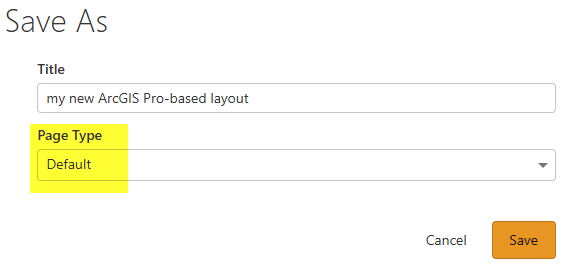
A future release of the Printing Designer will allow editing the page type of an existing layout directly. At the moment, the type can only be inspected (not changed) via the Info button.
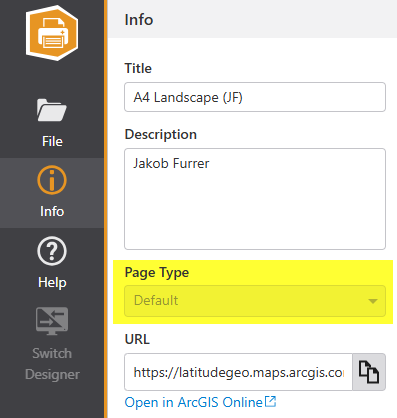
For converted legacy templates, the correct page type should be:
DefaultThis is because all other types are exclusively used as part of a layout package and those were only introduced with the layouts based on ArcGIS Pro.
Workaround:
Using the VertiGIS Studio Item Manager, in the Item JSON section, you can manually add the type keyword"VertiGIS Page Default"
to any ArcGIS Pro–based layout item that originated from a legacy template and is therefore missing the required keyword and not appearing correctly in the Printing Designer.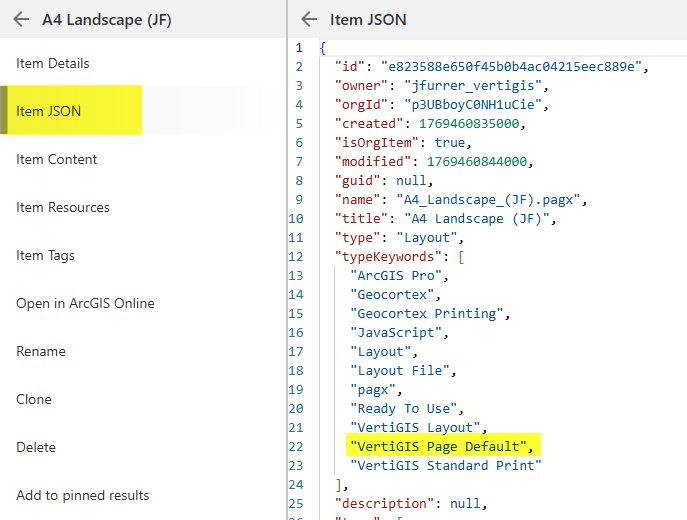
(2) Bug 362458: VGS Printing Engine (SaaS): Certain layers are invisible when printed via the apps engine endpoint
This issue is particularly tricky because it occurs only with the SaaS Printing Engine—not with an on‑premises Printing Engine, even when both run the same ArcGIS Enterprise 11.4 runtime.Our analysis suggests that the problem is related to the Default Visibility = false setting on the map service.
The print request contains two export web maps (main map + overview map). These are generated differently, and in the case of the main map, layer visibility is currently not explicitly set. For reasons we are still investigating, the SaaS environment applies the default visibility differently than on‑premises, causing layers to appear invisible.
Temporary workaround until the hotfix is available:
Set Default Visibility = true on the affected map service.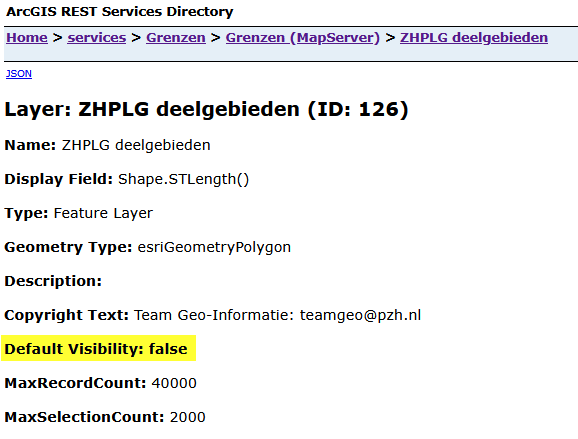
Regards,
Jakob -
Dear Jakob,
Thanks for your reply and explanation. The first issue I was indeed able to solve by adding that keyword to the item-JSON. I succesfully added my converted template to my Web-viewer.
It's not exactly desired to switch all default visibility to True, so i can't implement that workaround. I'll wait for the hotfix. Would like to adress and ask one extra thing:
The new prints include a basemap legend section, even though legend was turned invisible within Map Viewer. This takes up valuable space which is limited in any given template area. Can this also be fixed?
- Is there a workaround for making sure the legend always fits within the space you've given it within the template? By adjusting the font size for example, based on whether it fits.
Regards,
Kees
0 -
Hi Kees,
Please note that the fix related to layer visibility will be released with VertiGIS Studio Web 5.40 (February) and not with the upcoming VertiGIS Studio Printing 5.29.1 hotfix.
The issue you mentioned regarding the basemap entry appearing in the legend is a known limitation. It is tracked internally as:
Bug 332330 VGS Printing Engine: Basemap Included in Legend Despite Setting Disabled in Web MapThis issue will be addressed in a future Studio Printing release.
When using a Layout Package that contains a Layout of type “Legend”, the styling of the legend on the final page(s) of the print output is fully controlled by the Printing Engine and cannot be manually adjusted.
In contrast, a legend area placed on any other (“regular”) Layout should respect the standard ArcGIS Pro legend settings. Please note that the web-based Printing Designer does not expose all layout configuration options. For advanced legend customization, the
.pagxfile must be edited directly in ArcGIS Pro.
The relevant settings can be found on the Legend element, under the “Arrangement and sizing” section (as described in the ArcGIS Pro reference documentation).To avoid manual import and export of Layout JSON content, we recommend using VertiGIS Studio Desktop, which allows Layouts to be (re-)published directly as portal items.
Best regards,
Jakob0
Vous devez vous connecter pour laisser un commentaire.
Commentaires
3 commentaires