Custom modules and keeping the 'state' of forms

Hi folks,
I'm asking this on behalf of our programmer here - where he's currently making decent progress on transferring some of our custom modules from Essentials to VSWeb.
However, the issue we're finding, is that Custom forms don't seem to ‘stick’ with their details once closed. Eg. We need to provide a search tool for line scans, and while this is all achievable on the first run, the second and subsequent time the tool is chosen, the search detail results are wiped clean, and we have no way of interacting with previous processes - ie. removing the added linescan from the map view. We've tried even a more basic tool to just present a simple list, and then when closed and run, the list disappears.
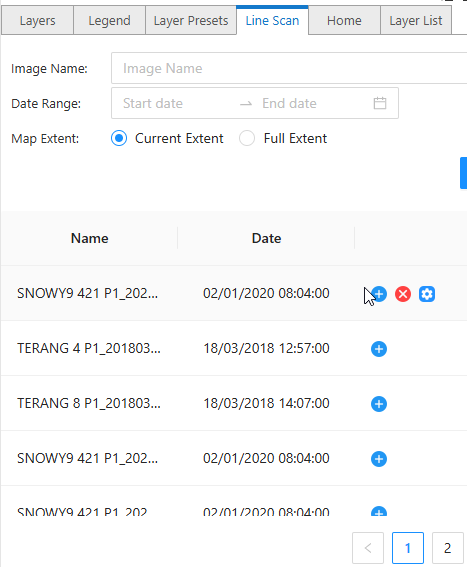
Clicking on a neighboring tab, and coming back to the tool, results in ..
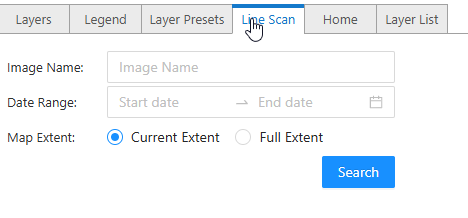
Just wondering if anyone else out there has come across the same thing in developing with forms and keeping the state active?
cheers
Gareth
-

Hi Gareth Finney
That could be based on how the workflow you are building draws stuff on the map. I infer these linescans may be drawn as graphics, which you would need to clear from the graphics layer to remove them.
Though, it also sounds like you are trying to preserve the previous state of the form. Have you tried setting a Persistent Workflow?

I did a quick test here and saw the expected behaviour of the workflow state persisting after clicking back and forth between tabs in the tabs component: https://apps.vertigisstudio.com/web/designer/#app=e8cb9ee9ece44d61b5741f64bc513ff6
https://apps.vertigisstudio.com/web/?app=e8cb9ee9ece44d61b5741f64bc513ff60 -
Hi Gareth.
Thanks for the reply on this, but we're trying to do this outside of workflow using the VS Web SDK. I should have explained that a bit better - apologies.
We will also investigate the potential of customising workflow to do this, but we figured we could get this working with the SDK. It works really nicely - to the point of changing focus. Can we persist the form, and hide it somehow?
I can provide a basic test app if that helps, and or follow up with your support.
cheers
GF
0 -
Hi Gareth (I still enjoy writing that)
Ah, I was wondering if you were referring to the SDK.
Just to note - since you're working directly with the VertiGIS Studio Web SDK (documented at developers.vertigisstudio.com, not our product docs at docs.vertigisstudio.com), this falls outside the scope of our standard product support. Typically, Web SDK implementation questions would be best addressed through Professional Services engagement. However, I can offer some unofficial guidance on this straightforward state management issue.To persist form data between tab switches, you'll need to lift the state up to the parent component. Here's a basic example based on the code in https://github.com/vertigis/vertigis-web-samples/tree/master/samples/ui-library
import { useState } from "react";
import { LayoutElement, LayoutElementProperties } from "@vertigis/web/layout";

export default function ParentComponent(
    props: LayoutElementProperties
): ReactElement {
    // Lift form state up to parent
    const [searchParams, setSearchParams] = useState({
        query: "",
        dateRange: null,
        // ...other search parameters
    });

    const [tabValue, setTabValue] = useState(0);

    return (
        <LayoutElement {...props}>
            <Stack>
                <Tabs value={tabValue} onChange={(e, val) => setTabValue(val)}>
                    <Tab label="Tab 1" />
                    <Tab label="Search" />
                </Tabs>
                <TabPanel value={tabValue} index={1}>
                    <SearchForm
                        searchParams={searchParams}
                        onSearchParamsChange={setSearchParams}
                    />
                </TabPanel>
            </Stack>
        </LayoutElement>
    );
}
Then in your form component, use the props instead of local state:
interface SearchFormProps {
    searchParams: SearchParams;
    onSearchParamsChange: (params: SearchParams) => void;
}

function SearchForm({ searchParams, onSearchParamsChange }: SearchFormProps) {
    return (
        <FormControl>
            <Input
                value={searchParams.query}
                onChange={(e) => onSearchParamsChange({
                    ...searchParams,
                    query: e.target.value
                })}
            />
            {/* Other form controls */}
        </FormControl>
    );
}
For the map graphics, you'll want to store references to the graphics or layers you add in state as well, so you can remove them later:
const [addedGraphics, setAddedGraphics] = useState<Graphic[]>([]);

// When adding graphics
const addGraphicToMap = (graphic: Graphic) => {
    graphicsLayer.add(graphic);
    setAddedGraphics(prev => [...prev, graphic]);
};

// When clearing graphics
const clearGraphics = () => {
    addedGraphics.forEach(graphic => graphicsLayer.remove(graphic));
    setAddedGraphics([]);
};
This approach should maintain your form state and graphics between tab switches.
While this guidance should point you in the right direction, please consider engaging Professional Services if you need detailed implementation support or have more complex requirements.
Hope this helps!
(Other) Gareth1 -

Hi Gareth,
We tried your solution but it still does not work. Maintaining the state in the customised component is not an option, because the component gets destroyed when the user switch to a different tab. The state must be maintained on the tabs level. However, the tabs are not part of the customised module. In this scenario, the module is only placed in a VertiGIS Tab component.
See below for a detailed explanation of this issue:
Issue
VertiGIS Tabs component does not preserve state of the component inside it.
Description
Instead of setting visibility of the individual component under tab component, the tabs will destroy the tab component that is not being viewed and recreate it when user activate it.
Because of this, the state of the component under the tab component cannot be maintained when the user switches between different tabs.
Demo of the issue
- Download and build the official ui-library repository at https://github.com/vertigis/vertigis-web-samples/tree/master/samples/ui-library
- Run npm start and start the demo
-
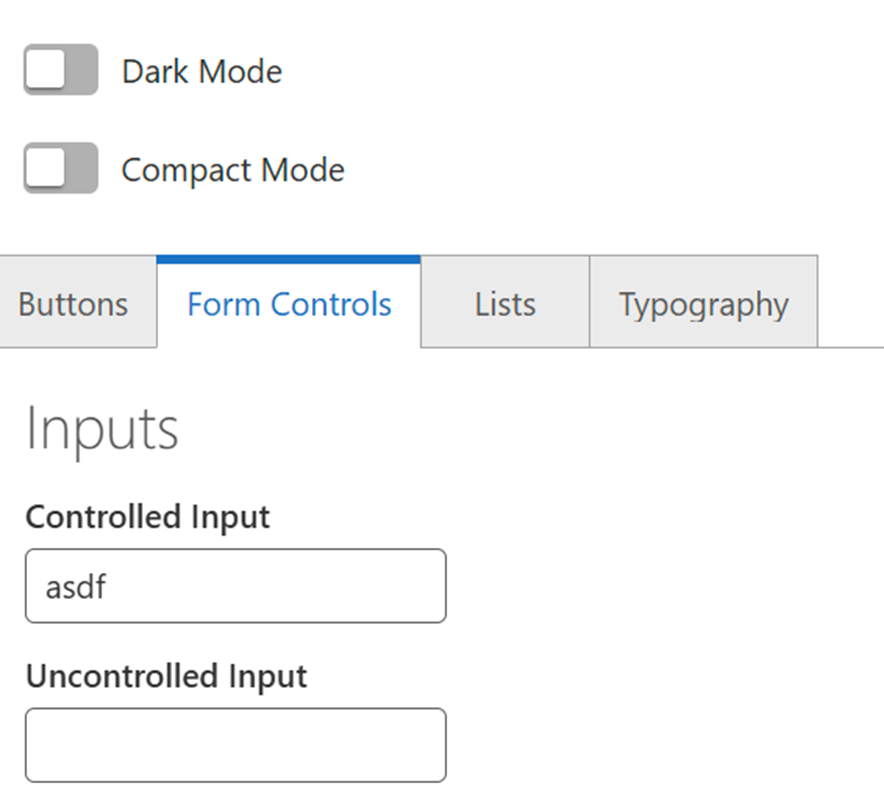
Write something in the controlled input textbox
-
Swap to a different tab and swap back to the Form Controls tab
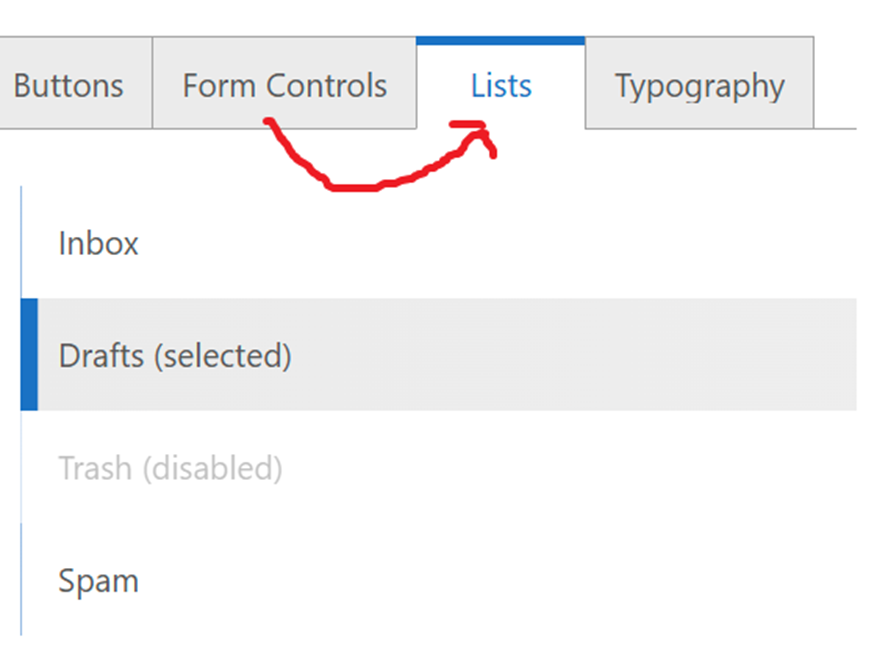
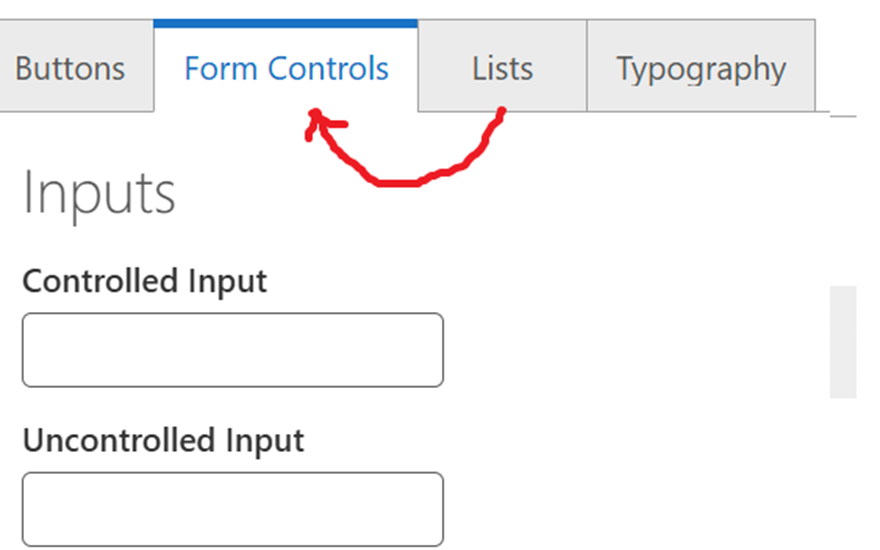
- The textbox will be re-created and mounted again with the initial state. This behavior will make the previously maintained component state useless. The text typed by the user earlier will be gone even if it is saved and maintained in the state of the component.
Workaround
The issue is impacting the module if swapping tabs is required in the process.
One workaround is to save the state to browser’s local storage and read it every time the component is mounted.
Example snippet:
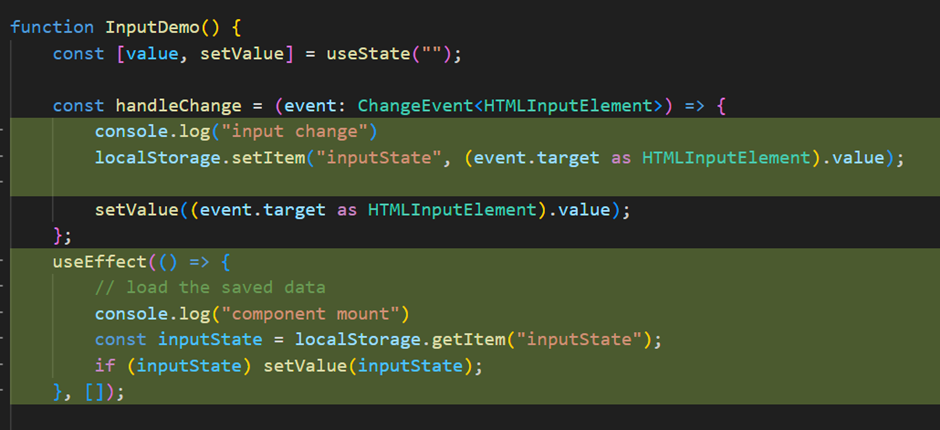
However, this workaround has another drawback. The application cannot tell if it should load the saved data or initialize the data when it’s mounted. So, an initialization process is required when the app/process gets reloaded. For example, when a ‘start process’ button is clicked, the browser’s local storage will need to be cleared to make sure the process starts with a blank initial state, rather than loading the data from previous runs.
Plus, this workaround requires all inputs to be controlled and the states to be tracked and maintained in the components. It will not work with uncontrolled elements, which will add much effort required for development.
Suggestions
We suggest to review the logic of the VertiGIS Tabs component and change the mechanism to be setting visibilities of the tabs, rather than destroying and recreating the component inside the individual tab, so that the states of the components that are included in the tab component can be maintained while switching the tabs.
Thanks,
Johnny
0 -
Can anyone please take a look at this at VertiGIS. If it requires us to look at Professional Services work, then so be it, but to start with, we think this is a serious regression from Geocortex SDK and the more ‘normal’ behaviour of form content state - regardless of being in Tabs or any other panel. This is proving to be a major blocker for us moving forward with VertiGIS Web and custom options. We have a dozen or so SDK options we need to rebuild and this quirk is severely impacting our development and transition thus far.
a simple example - take a look at the VertiGIS SDK example page. The behaviour is on there also :( https://vertigis-web-samples.netlify.app/#ui-library
cheers
Gareth
0
Vous devez vous connecter pour laisser un commentaire.
Commentaires
5 commentaires