Example how to use custom VertiGIS Studio Web Form Elements

Hi all,
I've installed the activity pack VertiGIS Studio Web Form Elements, but I don't understand how to use these elements. Does anybody have a working example Workflow, that uses one of these elements?
Specifically, I'm looking into using the Table. I've found the table.tsx file in the GitHub project, and in here I found the following function:
function TableElement(props: TableElementProps): React.ReactElement | null {
    const {
        cols,
        maxHeight,
        maxWidth,
        onClick,
        onMouseEnter,
        onMouseLeave,
        raiseEvent,
        rows,
        setValue,
        selectable,
        stickyHeader,
        value,
    } = props;
I assume these are the properties that can be supplied to the table form element, but I cannot get it to work, as I don't know how to format these properties. Any help on the format of the input properties would be much appreciated! :)
-

Hi Yannick,
I assume the relevant properties you want to set are rows and cols. You can set these properties in the load event of the form element, using Set Form Element Property:
1. Columns
Property Name: cols
Property Value:
=[{
        "name": "col1"
    },
    {
        "name": "col2"
    }
]
2. Rows
Property Name: rows
Property Value:
=[{
   "col1": 10,
   "col2": "Hello"
}]
Result:
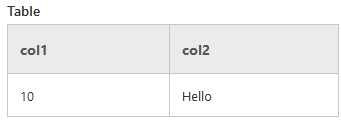 1
1 -
Thanks a lot Berend Veldkamp , that makes sense. Exactly what I was looking for.
0 -
I just realized that in newer versions, a table is also supported in Markdown. Depending on what exactly you need, this may be even easier.
Example markdown:
|col1|col2|
|-|-|
|10|Hello|
The table will be mostly unstyled by default, so you may need some extra CSS for e.g. table borders
0 -

I was looking to use the table. I got as far as your sample above. I was trying to use a <a href> tag or <link> in one of the cells. I tried multiple things but nothing that worked. Could you point me in the right direction. Thanks
0
Vous devez vous connecter pour laisser un commentaire.
Commentaires
4 commentaires