Create Feature

Hi
I would like to ask how Creating a feature is handled now.
I'm working on the idea that we need capture inputs from a display form. In my case I have 6 text boxes that are being populated with information.
I've tried following and adapting the approach of creating a collection then adding items to the collection (from previous Geocortex versions). This has come out as the workflow below:
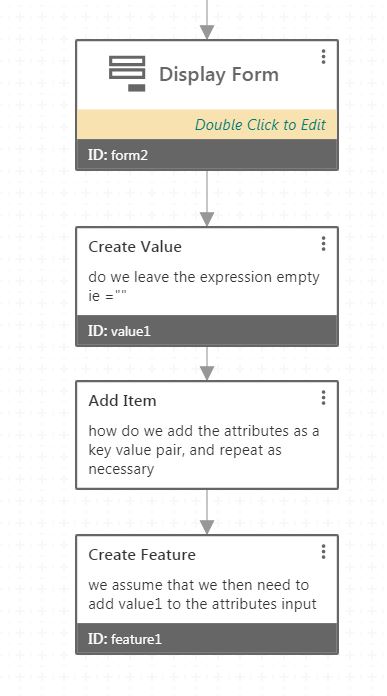
Essentially "Creating a value", using the "Add Item" option and then pushing to the "Create Feature"
Can anyone confirm if I'm on the right path and how we handle the expressions (see the comments in the diagram attached)
Thanks
Greg
-

Hi Greg,
There's a number of ways to accomplish this. Looking at the Create Feature activity, you can supply Attributes, Geometry, and a Symbol in order to create the feature, though none of these are actually required.
If you are using output values from the Display Form as attributes, you can create the object inside of the input using the output of an item in the Display Form, e.g. ={ 'firstAttribute': ' + $displayform1.state.TextBox1.value + ', 'secondAttribute': ' + $displayform1.state.TextBox2.value + '}
You can also directly supply the Geometry in the form (=$displayform1.state["GeometryPicker1"].value.geometry[0]) , or use any number of the other geometry activities, depending on the business case.
For Symbol, I'd recommend using the Get Symbol From JSON activity, using its output as an input for this value.
Regarding the image you posted, Create Value with that input will create an empty string object. If you are intending to add an item, you can create a collection using ={}, though I think adding them directly as I mentioned above might be easier.
Let me know if this works.
Thanks, Stefan
0 -
Hi Stefan,
Thanks for responding and outlining the process it gave us enough to work out how to apply the process to our workflow.
We did find that the code that worked for us in the Create Feature activity needed to be a little different to what you advised as we found it did not work with the + signs for some reason.
Our code worked like this
={ 'FIELD1': $query3.features[0].attributes["FIELD1"], 'FIELD2': $query3.features[0].attributes["FIELD2"], 'FIELD3': $query3.features[0].attributes["FIELD3"], 'FIELD4': $query3.features[0].attributes["FIELD4"], 'FIELD5': $query3.features[0].attributes["FIELD5"], 'FIELD6': $query3.features[0].attributes["FIELD6"], 'FIELD7': $form2.state.textBox1.value, 'FIELD8': $form2.state.textBox2.value, 'FIELD8': $form2.state.textBox3.value }
This may have been due to the arcGIS online rest end point that we sending to but for now items are writing to the feature.
My next question is how to ensure that the workflow can run completely offline.
I've seen mention in your help documents of:
"This activity does not work when the device is offline except when using the Geocortex Mobile App Framework with an offline map that includes the feature layer."
Can you elaborate a little on this or should I ask it in a new community question.
Thanks for your help
Kind regards
Greg
0 -
Hello Greg.
Yes, you are using the correct syntax, I was imagining the input as a string by mistake.
Have a read over this section relating to the offline capabilities: https://docs.geocortex.com/workflow/latest/help/Default.htm#wf5/help/activities.htm#Network%3FTocPath%3DActivities%7C_____1
If your workflow contains all activities which do not require accessing external resources during their execution, or only use resources which have been downloaded to the device prior to execution, then the workflow is offline-capable.
For the documentation on how to install, configure, and use GMAF, see this link in the Documentation Center: https://docs.geocortex.com/essentials/gmaf/
Thanks,
Stefan
0 -
Thank you Stefan,
I probably should have said that we were calling information from a query not a string.
Thank you also for the offline capability documents. Looks like we will need to go the GMAF route.
Again thanks for your help
Greg
0
Vous devez vous connecter pour laisser un commentaire.
Commentaires
4 commentaires