Buttons to "Bring Forward" and "Send Back" objects in the Z order

It's great to see Printing 5 Beta go live!
I've just started investigating Printing 5 capabilities and have noticed there is two critical features that is missing in Printing 4 and are also missing in Printing 5 Beta. Those features are a "Send Back" and "Bring Forward" button for the page objects Z order alignment. You provide "Send to Back" and "Bring to Front" buttons which are helpful, however I often find I need to move an object one or two levels forward or backwards in the Z order rather than all the way to the front or back. In complex print templates it can quickly get frustrating when you send something all the way to the back and then have to shuffle all the other overlapping objects backwards as well to fix the Z order.
Can you please add "Send Back" and "Bring Forward" buttons to allow objects to be moved through the Z order one level at a time (same as is provided in MS Power Point).
Thanks
-

Hi Owen,
Another way to change the Z order is to use the Print Template Explorer tab. This shows you the hierarchy of all the elements. You can drag and drop them in this view to change the Z order. It isn't quite what you asked for, but it should provide the kind of fine control you need.
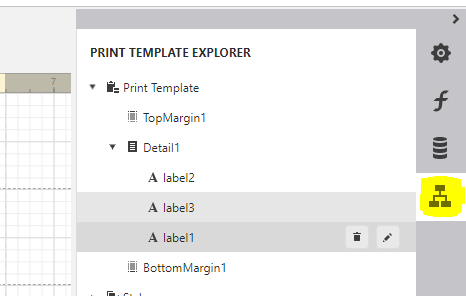
--Ryan
0 -
Thanks for the tip Ryan. I didn't realise you could drag and drop elements in the explorer view like that. Very helpful. That certainly gets me closer to achieving what i am after.
I do notice though that when you drag an item around in the explorer tab its location on the canvas can sometimes get confused and the objects position moves.
0
Vous devez vous connecter pour laisser un commentaire.
Commentaires
2 commentaires