Edit the print dialog in VSWeb?

Is there a way for us to edit the print dialog?
I'd like to add some text regarding map to ground and scale values for my users since we can't have a list of set scales as a dropdown like in the essentials viewer.
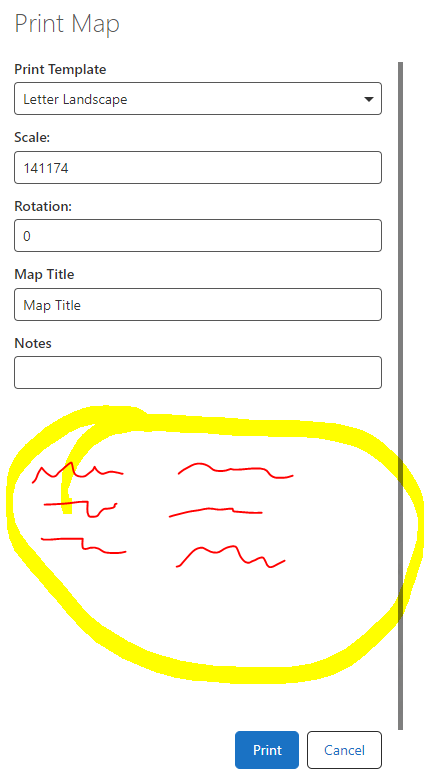
I don't want to have to resort to an obtrusive dialog that results in even more clicking for them…
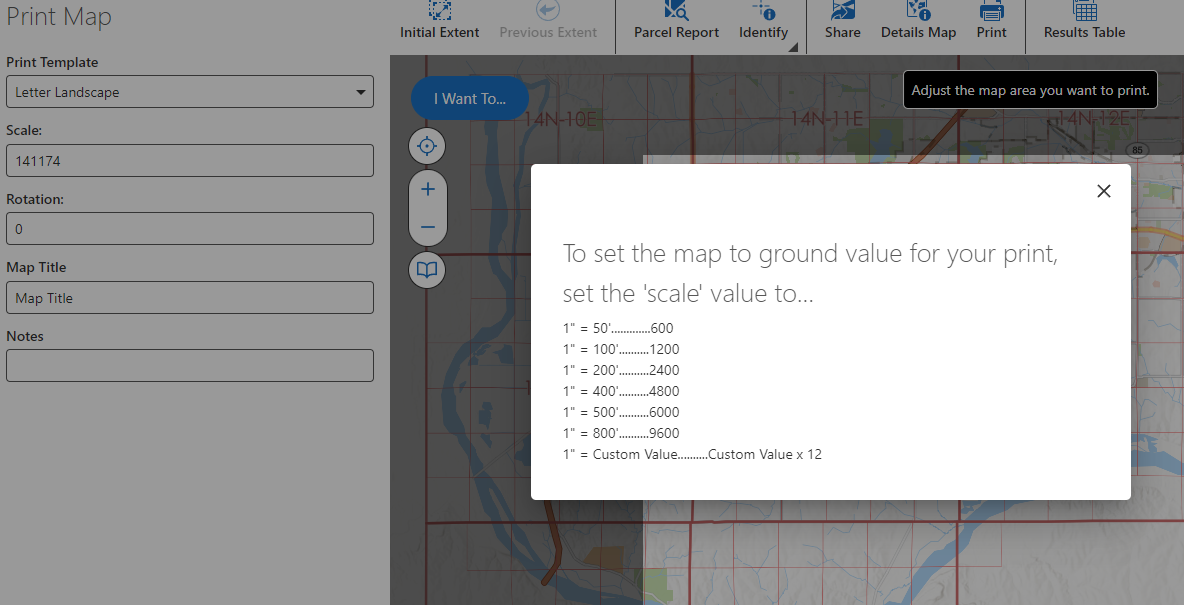
I've poked around in the app and translations downloads, but am not seeing anything.
thanks.
-

Hi Eric Kriener you are correct that there is not a method to modify the stock dialog for printing in Studio Web. This is where I would suggest you turn to Studio Workflow, with some display form and business logic, to provide your users with the interface you need. You could use a Workflow Display Form and the Run Print activity to provide form elements, for example for scale selection, and then a print output.
I put together a quick example Workflow and article to guide this, here: https://support.vertigis.com/hc/en-us/articles/20394545228050-Using-the-Run-Print-Activity-in-VertiGIS-Studio-Workflow-for-Print-Generation. I imagine if you are stuck on this, others are too.
Please let me know this is matching what you are looking for.
0 -
Thanks Gareth,
Yeah, it looks like it's what I want to be able to do with the scales, but I don't love how I lose my ‘preview’ window or how changing the scale doesn't update the map like the ‘real’ print dialog (but I can probably do that on a dropdown change event?).
0 -
Hey Eric Kriener yes, good point that there is that tradeoff where you lose the OOTB print preview with this basic Workflow approach. To your point, yes you absolutely could use further Workflow configuration to change the viewer state based on user selection in the form to help make it a more guided user experience. You could also do this bi-directional, using the change event on the dropdown to fire and update the map and similarly a change event on the map zoom/extent to update the form.
Though, because we are bypassing the OOTB Print Preview, at a certain point we are then reinventing the logic used to provide a print interface. I am wondering if there is a more appropriate way to suggest extending the print interface that allows you to get the configurable scale business logic. It might be lowest effort/maximum results if you just throw the Printing component in a panel with a text component beneath it, like so with a Rows layout component to hold them and adjust layout:
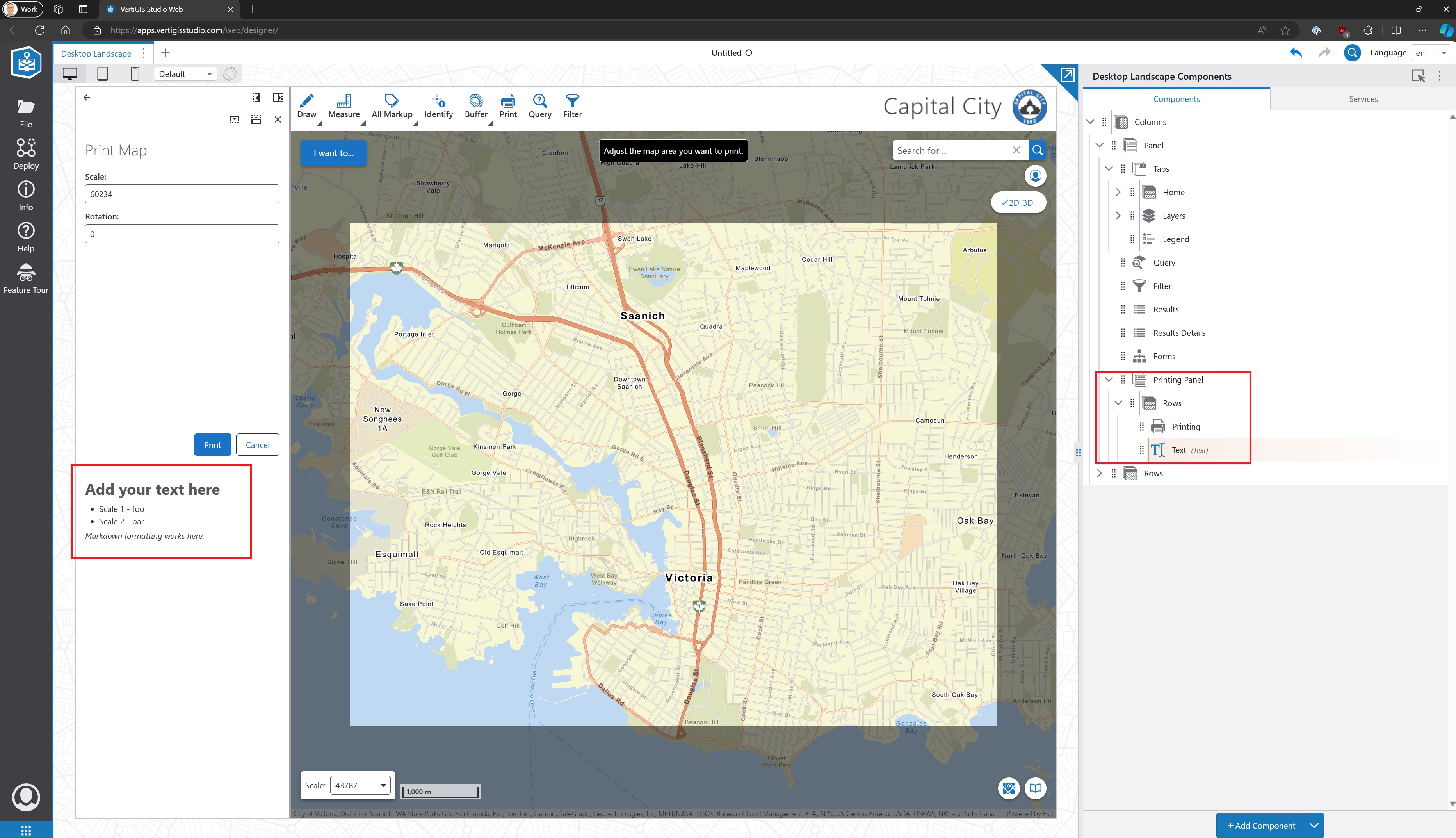
This gets you the OOTB Print experience while also adding the extra info you mentioned. It is a bit of a workaround still, though an easy one!
0 -
I'll try that again…I had tried something similar, but it would just open the panel and not actually fire the print engine.
Is there a specific way to open the panel?
0 -
I figured it out.
thanks Gareth!
0 -
Is there a way for the panel to close when the print button is clicked?
0 -
Doh, for that we may need to go to an event to handle watching when a print job starts and then close the panel.
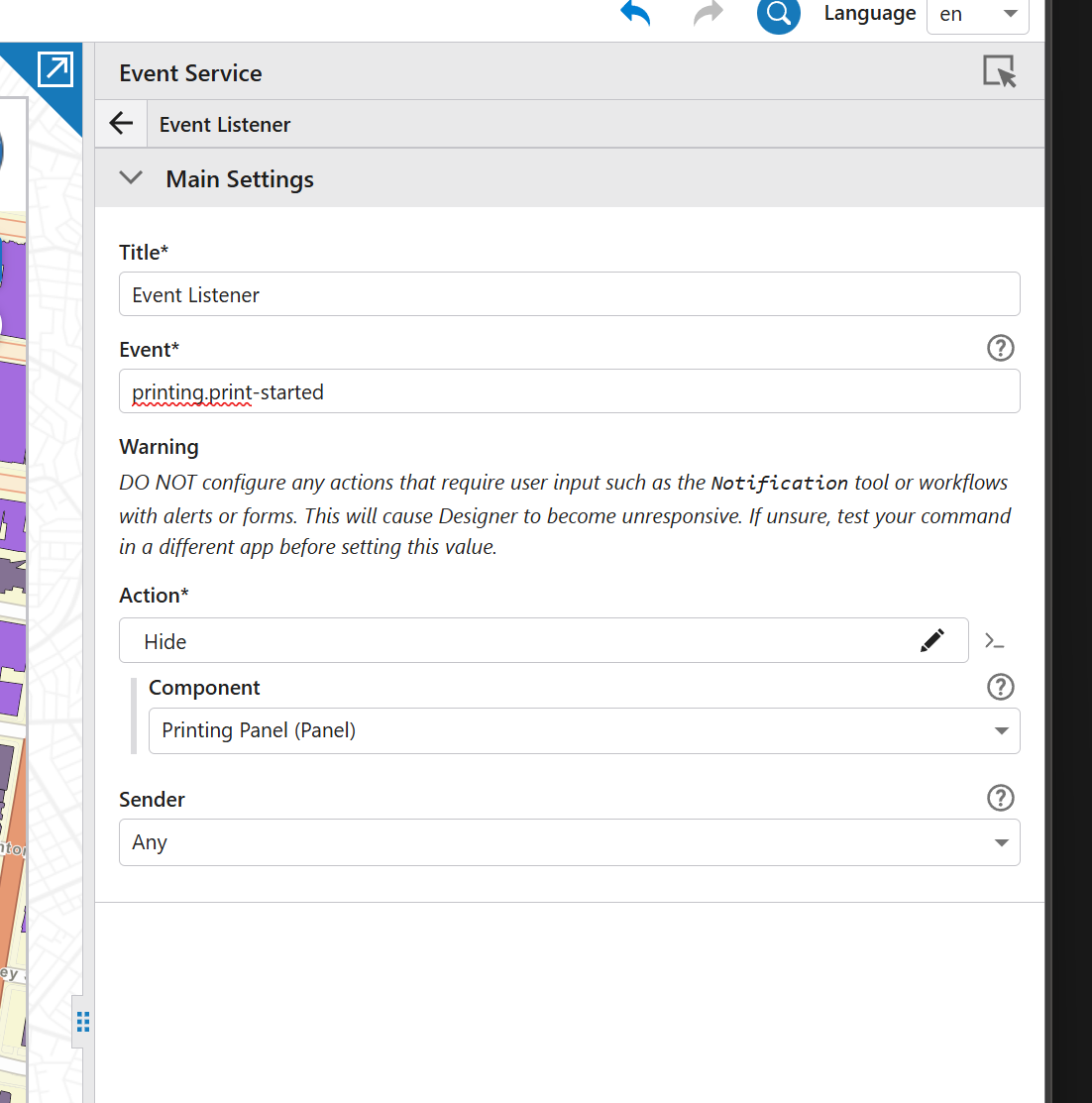
So, there is a printing.print-started which we can listen for using the VSW event service. When that fires, we can use a Hide command to hide the panel, like so:
The other thing that I realized is that you can also turn your Printing button into a toggle - so the user can also toggle the Print tool that way, rather than just a one-way enable. This gives them a couple ways to cancel if they want.Looks like this:
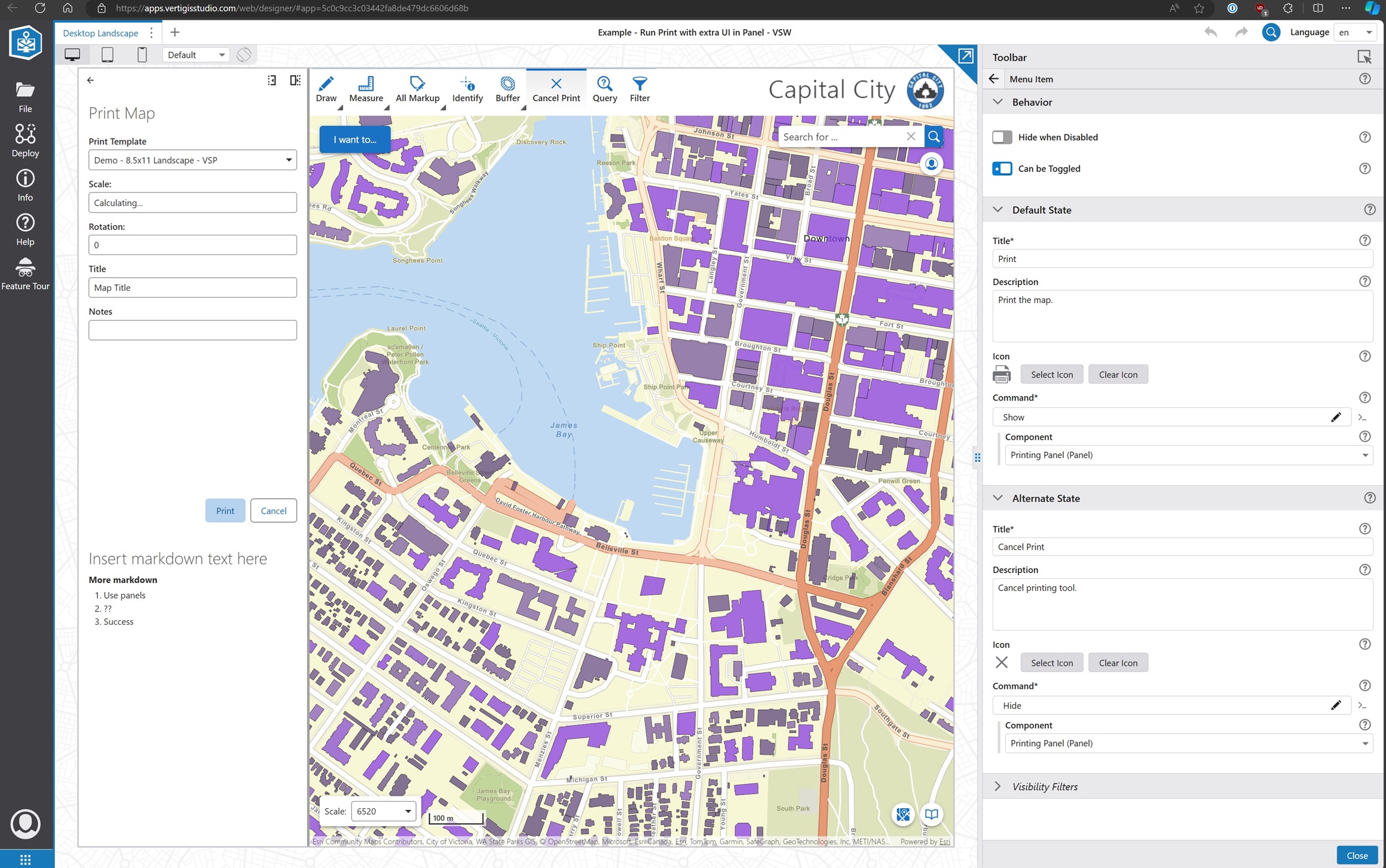
I made my test app public here, you can open this if you have SaaS licensing: https://apps.vertigisstudio.com/web/designer/#app=5c0c9cc3c03442fa8de479dc6606d68bIf not, I have downloaded it and shared via SharePoint here: Example - Run Print with extra UI in Panel - VSW.zip which you can download and upload into your own environment to see the config used.
0 -
Oh yeah, this works like a charm! I'll add one more layer to this as well:
Need to do something if the user hits the cancel button…so I added another listener for on the print tool when it's deactivated to also close the panel.
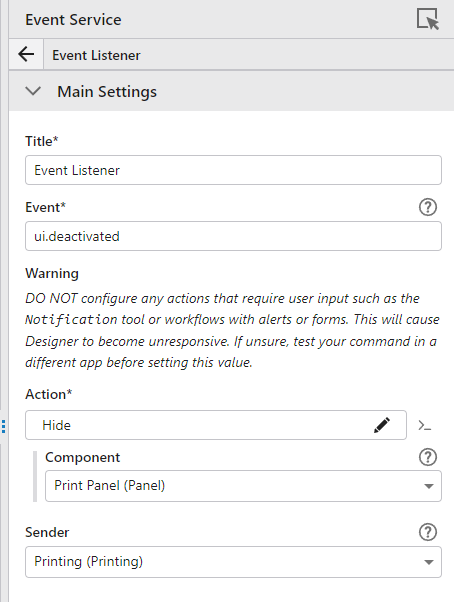
(Nice underpants gnomes reference, by the way)
thanks for the help Gareth!
Addendum: This got me wondering, and yeah, the print tool ‘deactivate’ listener will actually work for BOTH the ‘print’ and ‘cancel’ buttons, so really only need one of these.
0 -

I'll be trying this workaround because the print widget is one of the biggest pain points for my users to move to our new applications, but I'm still throwing my vote out there for having more control over the print panel's appearance. At least a text box, but also being able to customize the existing text or provide subtitles/explanations under the labels.
Update: got it to work. it was great to learn about the event listeners. sending it to my users for review, but I bet they're going to complain about the scroll bars now on the print and text widgets. we also have the written out list of scales, so our text is pretty long
0
Please sign in to leave a comment.
Comments
9 comments