Quick Example: Configuring a VSW App to Run a Report via Workflow

One topic that has come up in discussion a few times recently for me has been how to extend a Studio Web application feature actions to run a report. Typically, you might associate a report directly with a feature action, however, there are some features in Reporting like the Map Picture Box control, or more complex business logic, which necessitate Workflow to do some lifting.
I have noted some challenges in understanding how to work with the selected feature sets from the viewer, so I threw together a quick example both to help myself understand and enable others. This example focuses on the Buildings layer from our Capital City web map and creates a report using the Map area and some attributes from the building. Here is a quick example application.
To explore:
- Click to identify any of the buildings.
- Use the Results List feature actions menu below to run Buildings Report with Map Area
- Workflow & Report runs, delivered in an alert in the application.
- Open the report - note the Map area included from the application.
Items used provided below, so you can use this approach in your applications:
- This app in designer
- Wrapper workflow app item - where the magic happens
- The Report item will need recreating as its designer cannot be shared
At a high level, this process involves configuring a VSW app with a Workflow on a layer feature action that uses a few native VSW commands to facilitate user interaction and gather necessary data. Here's a brief rundown of the workflow:
- Get Map, Get Workflow Inputs, and Run Operation: These commands help us obtain our Esri features. We use 'results.to-graphics' to convert our results into graphic format. We also use 'Get Feature Set Object IDs' to keep track of the features selected by the user.
- Pop-up Alerts: To keep the user informed of the process, we use pop-up alerts. These alerts notify the user when the process is running.
- Run Report: Next, we pipe the output into the 'Run Report' command. It's important to note that 'Include Map' is set to true. This is key for the 'Map Picture Box Control' to function correctly.
- Final Alert: Lastly, when the report is complete, we display another alert to provide the user with the link to the report.
This is just a basic example, but it illustrates the potential of leveraging multiple Studio products to enhance your applications. Feel free to customize this process based on your specific needs.
I hope this is helpful, and I look forward to hearing any thoughts or questions you might have on this topic.
-

Hi @Gareth Evans.
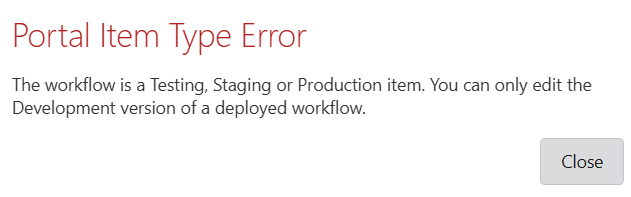
When we try to access the Workflow described in the text (Wrapper workflow app item ), we get the error message shown in the image. Can the access to this resource be restored?
Thanks!
Aarjen Peeters
SIGGIS Helpdesk
 1
1 -

Hi Aarjen Peeters
I've updated the URL so that it points to the Development version of the workflow. Apologies for that!
0
Please sign in to leave a comment.
Comments
2 comments