Changing styles

I have managed to restyle my viewer to match my existing color scheme for everything except 2 regions.
1. The sign in link in the top right. It seems to be hardcoded in html file so it overwrites my stylesheet. Snippet from developer tools: <a href="javascript:void(0)" title="Navigate to the sign-in page." style="color: rgb(27, 125, 191);">Sign in</a>
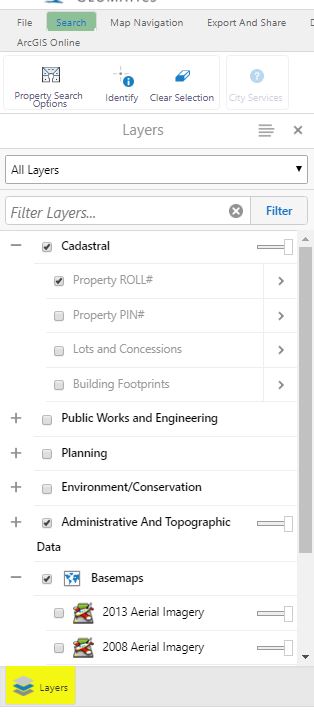
2. The icons at the bottom of the left panel region. Best I can tell their source is hard coded in the HTML: <img class="tab-strip-icon bound-visible" src="Resources/Images/Icons/Toolbar/home-24.png" alt="Home" title="Home">
Can these items be changed? Below is a screen shot with those areas highlighted.
/customer/servlet/servlet.FileDownload?file=00P6000000eltiyEAA
Thanks,
Bryan
-

How did you manage to change the colour between the banner and the top of the toolbar?
0 -

Bryan,
I'm not sure you can change the icon colors without recreating them, but let me know if you figure this out.
Frank
0 -
I didn't actually change the color - it is part of the banner. I have attached the files for you to see:
Here is the banner:
/customer/servlet/servlet.FileDownload?file=00P6000000elzaeEAAHere is the background. In reality it is only 1 pixel wide so I had to stretch the image properties but you get the idea:
/customer/servlet/servlet.FileDownload?file=00P6000000eltlOEAQWe use this style a bunch. It kind helps to break up the two regions.
Hope that helps.
Bryan
0 -
Frank,
I had to recreate the icons in the color I wanted. Not actaully recreate, I figured out how to batch modify the icons in Photoshop and get the new color that I was looking for. I now have dark blue, maroon, and green.
As for changing the icons at the bottom of the Home Panel - I had to modify the individual json files (e.g. desktop.json.js). I found the module and simply changed the iconuri - see below:
"id": "HomePanelContainerView",
"viewModelId": "HomePanelContainerViewModel",
"visible": false,
"isManaged": false,
"title": "@language-common-welcome",
"iconUri": "Resources/Images/Icons/Maroon/home-24.png",
"libraryId": "Framework.UI",
"type": "geocortex.framework.ui.ViewContainer.ViewContainerView",
"markup": "Framework.UI/geocortex/framework/ui/ViewContainer/ViewContainerView.html",
"region": "DataRegion",
"configuration": {}
},0 -
Bryan,
This is a great help! Thanks for sharing.
Frank
0 -
Hello Frank,
Because the sign-in link is currently styled within the html document, as you noticed any changes will be overridden due to specificity. Luckily there is a way to force your css to be used with the !important declaration. In the below example I am overriding the color specified for the sign out link in my Custom Desktop.css file..sign-in a{
color:red !important;
}Note that we had to use 2 selectors in that CSS statement, one for the div holding the sign-in link (.sign-in_ and another for the anchor tag within the div (a). We have to do this because the anchor doesn't have a specific id or class.
One thing to note is that once you sign in, the container div changes its class from "sign-in" to "sign-out", so if you want the sign-out link to change color you will have to add this additional CSS:
.sign-out a{
color:red !important;
}Hopefully this solves your issue, let me know if you run into any further issue and I can help with those as well!
Cory Purnell
Latitude Geographics Quality Assurance Team
0 -
Sorry my above post should be directed at Bryan
0 -
Change ''2. The icons at the bottom of the left panel region" I altered the custom Tabbed Toolbar Modification css for the desktop json to :
/* ------Begin Group Tabbed Toolbar Modifications - 4-4-2016 */
.button-tab-strip .tab-active {
background-color: #F3F712;
border: 1px solid #D9D9D9;
border-top: none;
opacity: 1;
cursor: default;
} 0
0
Please sign in to leave a comment.
Comments
8 comments