HTML5 Editing via Default Proxy using Impersonation

Has anyone managed to get HTML5 Editing via the Default Proxy using Impersonation working?
I have set up a GE Site (4.2.2) with a SLV (2.3.2) and a HTML5V(2.3.3). Essentials is configured with Windows Integrated security and with Windows Impersonation as per the documentation. Permissions for the Site have been configured to allow access to all site Map Layers to the Windows Integrated - All Users role as per the documentation.
ArcGIS Server (10.2.2) has been configured with the web adaptor and all Feature Layers consumed in the GE Site use the ArcGIS secured REST End Point. None of the Feature Layers themselves are secured. Note GE and ArcGIS Server run on separte machines.
The default HTML5 proxy has been configured and has been adapted to access windows-secured services as per the documentation.
Editing a feature via the HTML5 Viewer fails with a 401 error - windows authentication is failing at the ArcGIS Server web adaptor. Disabling Impersonation on the HTML5 default proxy allows the edit to successfully occur but the default user for the GE machine is used for authentication rather than the windows user (as you would expect).
Editing the same feature using the SLV is successful with the windows user used for authentication.
I suspect the issue is to with the 'double hop issue in NTLM' but I am unsure on how to solve this issue.
Can anyone assit with how to get HTML5 Editing working via the Default Proxy using Impersonation?
-

Hi Tim,
When you turn impersonation on and get a 401 during the edit, how does ArcGIS see the user in IIS? The IIS logs should tell you what user (if any) was making the request. I have a hunch that since impersonation is failing, the request is now going out as anonymous. NTLM will work if the editing services hosted on the same machine as the Geocortex Viewer. If they are not, i s setting up Kerberos delegation an option?
-Kevin
0 -
Hi Kevin
Thanks for your reply.
I have finally managed to get this editing to work. The fix was to configure the server running GE (and the HTML5 Viewer) to allow delegation.
This is an Active Directory setting change - the default is 'Dont not trust this computer for delegation' which I changed to 'Trust this computer for delegation to specified services only', specifying relevant services running on the ArcGIS Server.
As the vast majority of GE users/administrators I am aware of have ArcGIS Server and GE running on separate machines, I feel this information really needs to be included in you HTML5 documentation. It would have saved me many hours of frustration.
Happy to provide more details on this if requested.
Tim
0 -
Some more detail as requested on how to configure the server running GE to allow delegation:
In Active Directory Users and Computers on the domain controller, under Computers select the server running GE (gisdevappserver in our case), selct properties and then select the delegation tab.
Configure constrained delegation for this server by selecting- ‘Trust this computer for delegation to specified services only’
- ‘Use any authentication protocol’
- Click on Add
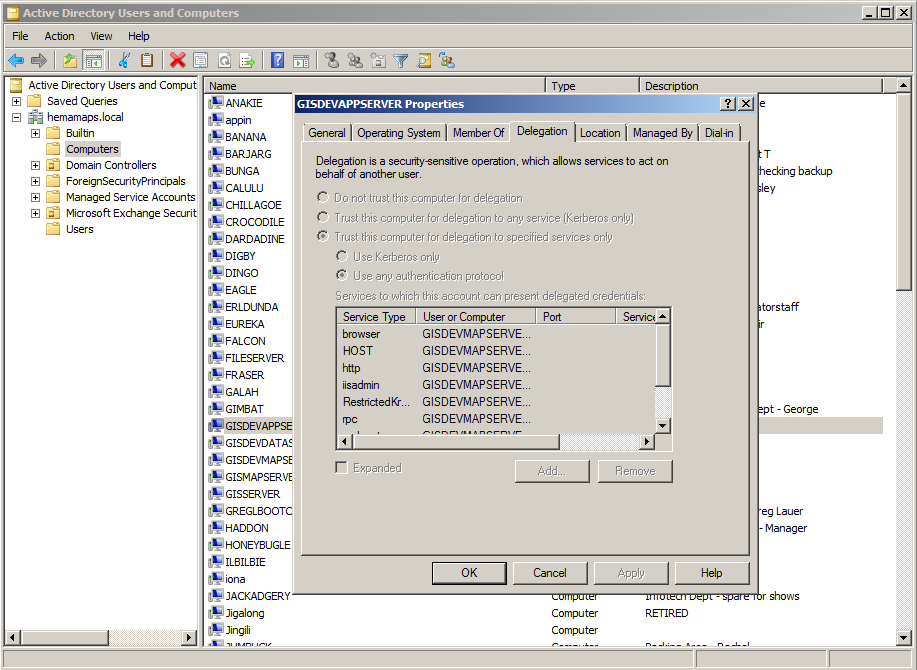
Again, it would be great if Latitude could include this information or similar in their HTML5 Viewer doco.0
Please sign in to leave a comment.
Comments
3 comments