Is it possible to disable the layer list/hide the layer list icon?

I'm on GCE 4.4.1 and HTML5 2.5. We want to build a very light-weight client for use on handheld devices. Even if I choose to show no layers in the layer list, the user can still click on the layer list icon. Is it possible to hide the icon completely/disable the component?
-
Hello,
If you want to completely remove the layer list in your handheld shell you can remove the entire layer list module from the handheld.json for your site.
The handheld.json file for your site is generally located here:
C:\Program Files (x86)\Latitude Geographics\Geocortex Essentials\Default\REST Elements\Sites\<site_name>\Viewers\<viewer_name>\VirtualDirectory\Resources\Config\Default\Handheld.json
If you perform a search in that file for "moduleName": "LayerList", you will find the layer list module. Removing that entire module from the Handheld.json file will remove the option for the layer list while on the handheld shell.
For completions sake here is what the layer list module looks like. If any part of this module is left in or your json is not properly formatted after the change, your site will fail to load. You can validate your json file with json validation sites such as http://www.jsonlint.com
{
        "moduleName": "LayerList",
        "moduleType": "geocortex.essentialsHtmlViewer.mapping.modules.layerList.LayerListModule",
        "configuration": {
          "enableLegendIntegration": true,
          "onlyShowSwatchesOnVisibleLayers": false,
          "autoActivateAncestorVisibilities": false,
          "enableLayerIcons": false
        },
        "views": [
          {
            "id": "LayerListView",
            "viewModelId": "LayerListViewModel",
            "title": "@language-layerlist-title",
            "type": "geocortex.essentialsHtmlViewer.mapping.modules.layerList.LayerListView",
            "markup": "Mapping/modules/LayerList/LayerListView.html",
            "region": "LayerDataContainerRegion",
            "isManaged": false,
            "visible": true,
            "configuration": {}
          },
          {
            "id": "LayerActionsView",
            "viewModelId": "LayerActionsViewModel",
            "visible": false,
            "iconUri": "Resources/Images/Icons/Toolbar/layers-menu-24.png",
            "markup": "Mapping/modules/LayerList/LayerActions/LayerActionsView.html",
            "title": "@language-layer-actions-title",
            "type": "geocortex.essentialsHtmlViewer.mapping.modules.layerList.LayerActionsView",
            "region": "LayerDataContainerRegion",
            "configuration": {
              "menuId": "LayerActions"
            }
          }
        ],
        "viewModels": [
          {
            "id": "LayerListViewModel",
            "type": "geocortex.essentialsHtmlViewer.mapping.modules.layerList.LayerListViewModel",
            "configuration": {
              "showTransparencySlider": true,
              "autoExpandLegendSwatches": false
            }
          },
          {
            "id": "LayerActionsViewModel",
            "type": "geocortex.essentialsHtmlViewer.mapping.modules.layerList.LayerActionsViewModel",
            "configuration": {}
          }
        ]
      },
Hopefully this was helpful, let me know if you have any further questions
Cory Purnell
Latitude Geographics Quality Assurance Team0 -
Thanks!
We solved it by adding this code in the custom css file for the viewer:.button-tab-strip button[title=Layers] { visibility: hidden; }
Turid0 -
Hi Cory, I also want to remove the Layer button at the bottom of the home panel, I removed the LayerList from the module as you suggest but I still see the Layer button at the bottom of the viewer: 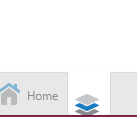 Just the "Layers" text has been removed. Am I missing something? Thanks!0
 -
Hi Lisa,
I believe things might have changed since that last comment regarding how the data-frame works in hosting views, but I found an easier solution.
In the desktop.json.js if you perform a search for
"id": "LayerDataContainerView",You should come to a section of json similar to the following:
{
            "id": "LayerDataContainerView",
            "viewModelId": "LayerDataContainerViewModel",
            "visible": true,
            "isManaged": true,
            "title": "@language-common-layer-data",
            "iconUri": "Resources/Images/Icons/Toolbar/layers-24.png",
            "libraryId": "Mapping.Infrastructure",
            "type": "geocortex.essentialsHtmlViewer.mapping.infrastructure.ui.components.SmartPanel.SmartPanelView",
            "markup": "Mapping/infrastructure/ui/components/SmartPanel/SmartPanelView.html",
            "region": "DataRegion",
            "configuration": {
              "resizableParentRegion": "LeftPanelRegion",
              "resizeX": true
            }
          }
If you set the visible: property to false, then the LayerDataContainerView won't be visible by default when you load the viewer. I believe this also means you won't have to get rid of all that extra json, as the view just won't be visible.
Hopefully this helps, let me know if you have any questions.
Cory Purnell
Latitude Geographics Quality Assurance Team0 -
Hi Cory, Thank you so much. This worked exactly as I need in the Desktop.json. However, I'd also like to remove the "Layers" option from the Handheld as well. I've found the LayerDataContainerView in the Handheld.json file but the 'visible' setting was already set to false, however, it's still appearing in the handheld...Any ideas?
{
"id": "LayerDataContainerView",
"viewModelId": "LayerDataContainerViewModel",
"visible": false,
"isManaged": true,
"title": "@language-common-layer-data",
"iconUri": "Resources/Images/Icons/Toolbar/layers-24.png",
"libraryId": "Mapping.Infrastructure",
"type": "geocortex.essentialsHtmlViewer.mapping.infrastructure.ui.components.SmartPanel.SmartPanelView",
"markup": "Mapping/infrastructure/ui/components/SmartPanel/SmartPanelView.html",
"region": "BottomPanelViewContainerRegion",
"configuration": {}
},0 -
Just to answer my own question for completeness, I ended up just deleting the above portion of .json from the Handheld.json and that removed the layers button... 0 -
Hi Lisa,
Were you able to remove the arrow that allow users to expand/collapse the layer list? I can't seem to get that to disappear. Otherwise the tips above worked great for me!0 -

You can remove the expand/collapse arrow by deleting the DataFrameButtonView from the Navigation module in your viewer config.
{
"moduleName": "Navigation",
"moduleType": "geocortex.essentialsHtmlViewer.mapping.modules.navigation.NavigationModule",
"configuration": {},
"views": [
{
"id": "DataFrameButtonView",
"viewModelId": "DataFrameViewContainerViewModel",
"visible": false,
"type": "geocortex.essentialsHtmlViewer.mapping.modules.shells.components.DataFrameButtonView",
"markup": "Mapping/modules/Shells/Components/DataFrameButtonView.html",
"region": "TopLeftMapRegion",
"configuration": {}
},
{
"id": "GeolocateButtonView",
"viewModelId": "GeolocateViewModel",
"visible": true,
"type": "geocortex.essentialsHtmlViewer.mapping.modules.geolocate.GeolocateView",
"markup": "Mapping/modules/Geolocate/GeolocateButtonView.html",
"region": "TopLeftMapRegion",
"configuration": {}
},0 -
Thanks John! I just changed the visible property to false and that did the trick! 0
Please sign in to leave a comment.
Comments
9 comments