Remove Toolbar Button from Handheld

I am working in Essentials 4.5 and HTML5 2.6 and was wondering if there is anyway to completely remove the toolbar button for a handheld device. In Manager, I've removed both the tabbed and compact toolbar, but the button still appears in the top right corner next to the Search box. Is there something I need to edit in the Handheld.json file?
0
-
Hi Lisa,
To remove the Toolbar button from the handheld view, look in the viewer's handheld.json.js file for the "viewModelId": "CompactToolbarViewModel", This will give a couple results but look for the json object like the following:, { "id": "CompactToolbarButtonView", "viewModelId": "CompactToolbarViewModel", "visible": true, "region": "HeaderRegion", "type": "geocortex.essentialsHtmlViewer.mapping.modules.toolbar.ToolbarButtonView", "markup": "Mapping/modules/Toolbar/ToolbarButtonView.html" }
If you remove this from the handheld.json.js file the toolbar button at the top-right of the viewer will now be gone. Unfortunately now there is some white space where the toolbar used to be. I am not entirely sure how to get rid of that whitespace at the moment, but I will check with out graphics team and they may have a solution.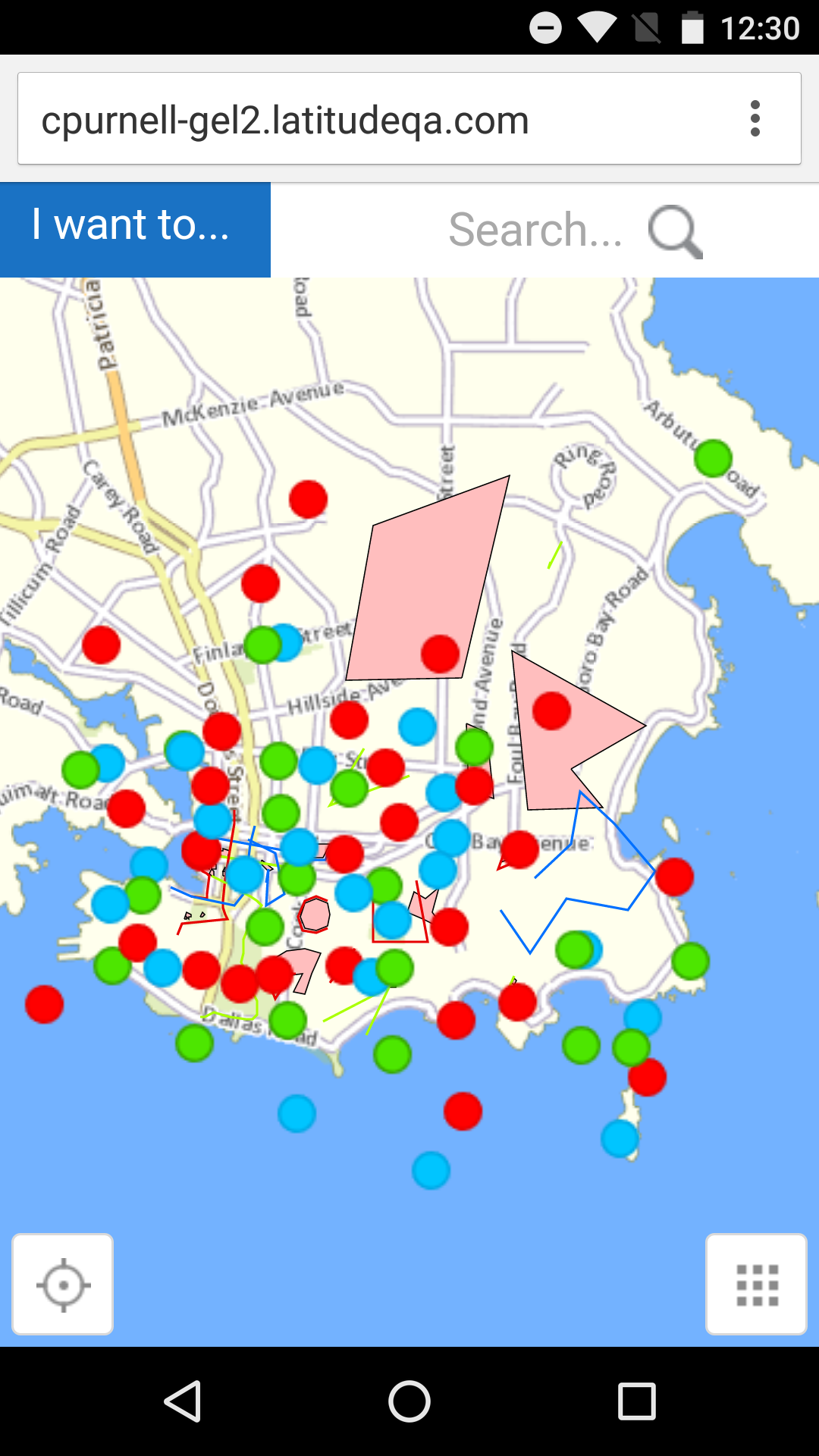
I will reply back if/when I find a solution for the white space.
Cory Purnell
Latitude Geographics Quality Assurance Team0 -
Hi Lisa,
I found that if you place the following in the viewer's custom handheld.css file (located here: C:\Program Files (x86)\Latitude Geographics\Geocortex Essentials\Default\REST Elements\Sites\<site_name>\Viewers\<viewer_name>\VirtualDirectory\Resources\Styles\Custom\Handheld.css) the search icon should be pushed all the way over to cover that blank space:
.shell-small .region.header-region .view.SearchView {
    right: 0;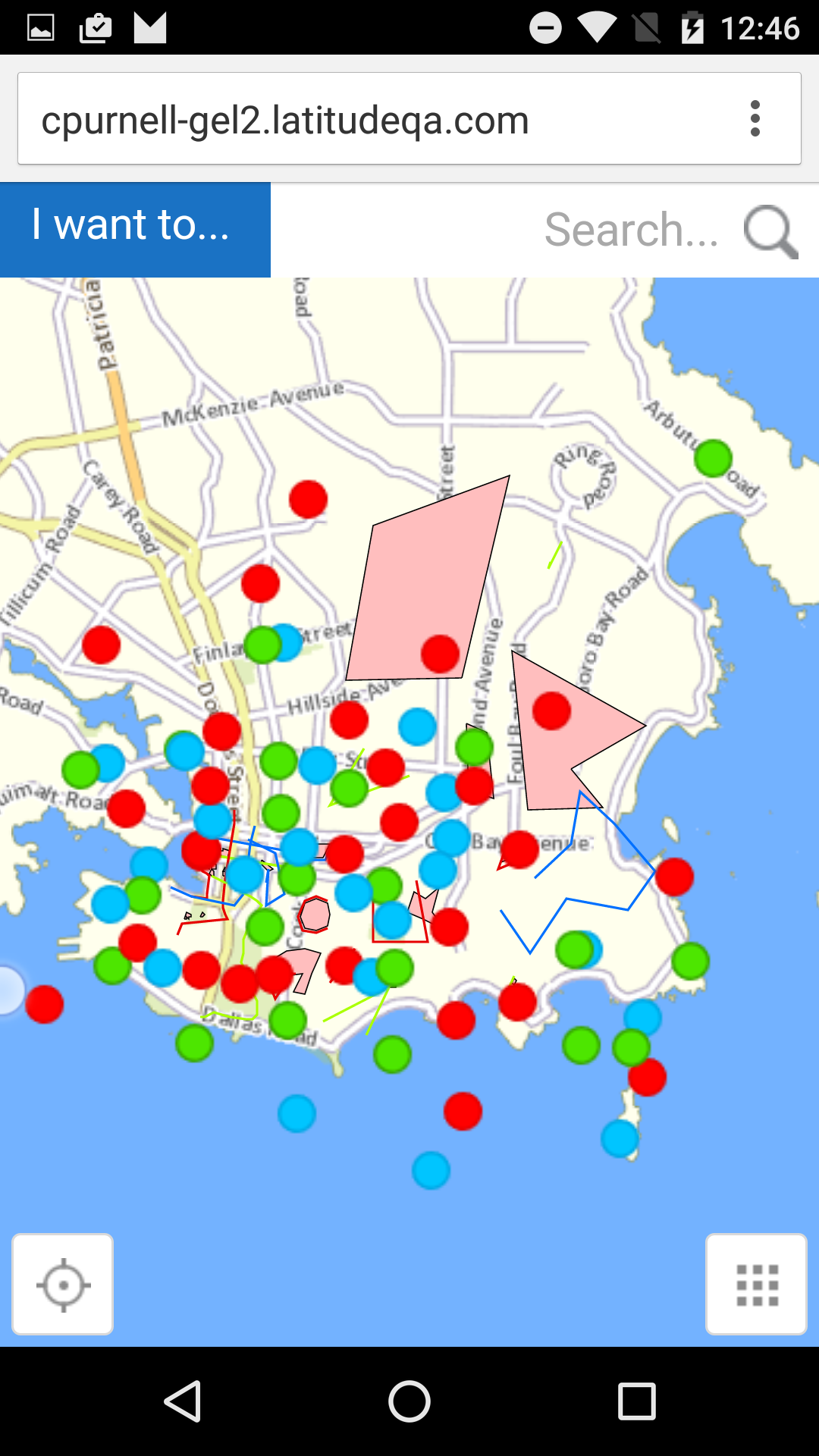
Let me know how this works out, and if you have any questions!
Cory Purnell
Latitude Geographics Quality Assurance Team0 -
Thank you so much Cory, that did the trick! 0
Please sign in to leave a comment.
Comments
3 comments