Remove white space in map tip

Hello,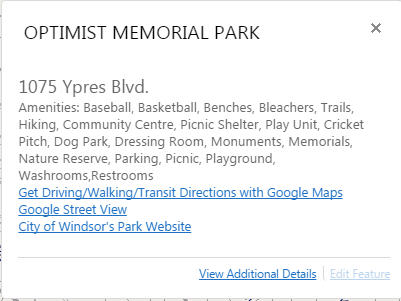
Does anyone know how to remove or decrease the white space in my map tips?
I know it is int he css file somewhere and it is associated with the map tip header, but I cannot find the right variable to change? I have attached an image for reference. I want to decrease the size of the map tip title and the info below.
thanks! :) Larisa
0
-

In your browser, right-click on the area and select 'Inspect'. This will bring up the browser's console/editor/inspector that will show you the underlying CSS.
You can then add changes to the CSS files for your site (in \Sites\<your site's name>\Viewers\<your viewer's name>\VirtualDirectory\Resources\Styles\Custom) and they will overwrite the defaults when the site is loaded.
There is probably a lot of borders/padding adding the whitespace for the maptip elements.0 -
Hi Dan,
I have tried this. I used the Inspect element and found where I think it should be and what it is, changed it and removed it..but nothing. Could the common css be overriding the desktop css? I tried altering that too, but I am not sure what value I should be adjusting.0 -
Can you show us what your map tip looks like (both code and result)? I found that Manager likes using <p> for new line, and works fine in Silverlight, but in HTML5, looks like double spacing. In HTML5, you don't need <div> or <p> to create a new line - it seems to respect the actual positioning in Manager. 0 -
I always try making changes directly in the browser's console/inspector to try and find what elements need to be changed.
There could be various nested divs that all need to be changed or just one.
Anything you add to your custom CSS files for your site will replace the common.css when you load the site, I think.
Also, check the inspector to see if your added custom CSS is showing up for the elements you are trying to change. It could be your CSS formatting is off and the browser is not recognizing it or loading it. Try changing the background color or something so it stands out.0 -
I have changed the size of the font and the some colopurs of the "I want to menu.." that are in the same file and those changes worked. I think I am just not hitting the right parametre... short of adjusting every single number in the whole module...lol! Here is what my map tip looks like in the app right now (see belwo) I want to decrease the space from where it says OPTIMIST PARK and the rest of the info.
This is the code from my CSS File:
/* Begin Script: Mapping/modules/MapTips/CSS/common.css ------------------------- */
/* MAP TIPS -------------------------*/
.region.map-top-left .view.MapTipHeaderView {
margin-bottom: 0;
}
.MapTipView {
margin: 0.4em 0 0 0.4em;
}
.map-callout-wrapper {
margin-bottom: 2em;
overflow: visible;
z-index: 10;
}
.map-callout {
background: #FFFFFF;
border-radius: 0.25rem;
box-shadow: 2px 2px 2px #444444;
}
.map-tip-view {
pointer-events: all !important;
min-height: 6.8em;
position: relative;
z-index: 220;
}
.map-tip-view .feature-description {
overflow: auto;
}
.map-callout .panel-header-button,
.map-tip-view .panel-header-button {
top: 0;
position: absolute;
}
.map-callout-header, .map-tip-view-header {
position: right;
padding: 0.5em 0.75em 0.0em 0.75em;
padding-right: 3.05em;
font-size: 1.5em;
color: #000000;
}
.map-tip-view-header {
padding-bottom: 0;
}
.map-callout-header h2 {
font-size: 1.1em;
}
.map-callout-title {
white-space: normal;
font-weight: 600;
text-overflow: ellipsis;
}
.map-callout-pointer {
margin-left: 50%;
width: 1px;
height: 1px;
overflow: visible;
}
.map-callout-pointer-image {
background-repeat: no-repeat;
margin-left: -19px;
width: 38px;
height: 32px;
position: relative;
}
.map-callout-contents, .map-tip-view-contents {
padding: 0 .75em .75em .75em;
overflow: auto;
color: #666666;
clear: both;
}
.map-callout-contents .feature-description, .map-tip-view-contents .feature-description {
white-space: pre-wrap;
}
.map-tip-view .map-tip-contents {
position: relative;
margin: 0.15em;
}
.map-tip-view .list-menu {
width: 100%;
display: inline-block;
text-align: right;
padding-bottom: 0;
}
.map-callout-pointer-image {
background: url("../Images/map-callout-pointer.png");
}
.map-callout-wrapper.active {
opacity: 100;
transition: margin 250ms, opacity 250ms ease-in 10ms;
-webkit-transition: margin 250ms, opacity 250ms ease-in 10ms;
-moz-transition: margin 250ms, opacity 250ms ease-in 10ms;
-o-transition: margin 250ms, opacity 250ms ease-in 10ms;
}
.map-callout-wrapper.activating {
display: block;
margin-top: -16px;
opacity: 0;
width: 0;
overflow: hidden;
}
.map-callout-wrapper.inactive {
display: none;
}
.map-tip-header {
min-height: 2em;
}
.map-tip-title {
overflow: hidden;
text-overflow: ellipsis;
clear: both;
}
.map-tip-nav.bound-visible + .map-tip-title {
padding-top: 1em;
line-height: 1.0em;
}
.map-tip-title span {
overflow: hidden;
display: inline-block;
margin: 0.15em;
}
.map-tip-nav {
position: relative;
}
.map-tip-nav .paging-control {
float: right;
position: relative;
bottom: auto;
border: 0;
width: auto;
vertical-align: top;
}
.map-tip-nav .paging-buttons {
padding: 0;
margin-right: 0.5em;
}
.map-tip-nav .widget {
float: left;
max-width: 70%;
min-width: 50%;
vertical-align: top;
overflow: visible;
}
.map-tip-nav .feature-select-wrapper {
float: left;
width: 55%;
vertical-align: top;
}
.map-callout .map-tip-nav .feature-select-wrapper {
width: 44%;
}
.map-tip-nav select {
width: 100%;
padding: 0.19em;
}
.map-tip-null-geometry {
font-style: italic;
font-size: 0.em;
padding-top: 1.0em;
}
.map-tip-null-geometry span {
margin-left: 0.0em;
}
/* End Script: Mapping/modules/MapTips/CSS/common.css ------------------------- */
This is the code from the feature descriotion in Manager:
<p><span style="font-size: large;">{ADDRESS}</span><br/><span style="font-size: 10pt; font-weight: normal;">Amenities: {Amenities}<br/></span><a href="http://maps.google.ca/maps/dir//{Location},+windsor,+ontario" target="_blank" style="font-size: 10pt; font-weight: normal;">Get Driving/Walking/Transit Directions with Google Maps</a><span style="font-size: 10pt; font-weight: normal;"> <br/></span><a href="http://maps.google.ca/maps?q={Location},+windsor,+ontario" target="_blank" style="font-size: 10pt; font-weight: normal;">Google Street View</a><span style="font-size: 10pt; font-weight: normal;"> <br/></span><a href="{PARKURL}" target="_blank" style="font-size: 10pt; font-weight: normal;">City of Windsor's Park Website</a></p><div style="font-size: 10pt; font-weight: normal;"><div><p></p></div></div> 0
0 -
In your Feature Description, remove all the <p></p> and <div></div> and then try it. That is what worked for me... 0 -
Just start going through those and any value for a height or padding set to zero and see what it does. This is where it's helpful to make the changes in the browser console so you can see what the change is imwithout reloading the site. It should also highlight the areas and padding of each element.
Unfortunately, there looks like a lot of padding and height values and you may have to adjust both the header and content regions to mimimize that gap.
There could also be some CSS from the map region or active/inactive at play here.0 -

This thread was helpful. All my users complain of the extra white space. For me, adding the following to the ..\custom\desktop.css removed all of the extra white space, allowing both the map tip and the left hand info panel to show more data in less space. .results-list .list-menu-details .list-menu-desc .feature-description { white-space: normal; } .map-callout-contents .feature-description, .map-tip-view-contents .feature-description { white-space: normal; } .map-tip-view { width: auto; }Messing with line-height worked for some panels but then screwed other panels up. Setting the white-space to "normal" seemed to work everywhere. Padding and Margin settings were all already 0 or close to it.0 -
thank you! I am going to give it a try and see how it works. 0 -
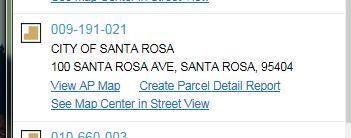
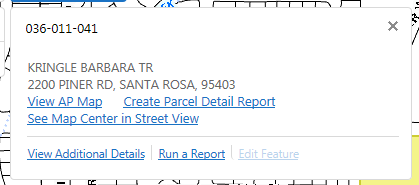
For those of you who do not want to mess with the CSS files, using the Feature Description below, gives me the following Rusult and Map Tip. Note that HTML5 seems to respect positioning in the Feature Description. When I started the 2nd Link on the same line as the prior link, it showed up on the same line. When I started the 3rd link on its own line, it showed up on its own line. Look ma, No <p> or <div>! 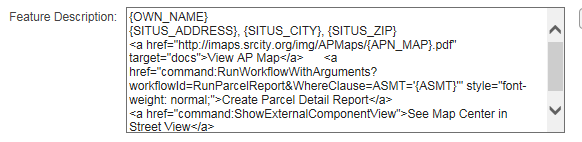
 0
0
Please sign in to leave a comment.
Comments
10 comments