Turn off the “Tool Labels Toggle” by default (hide the label),

Hi All,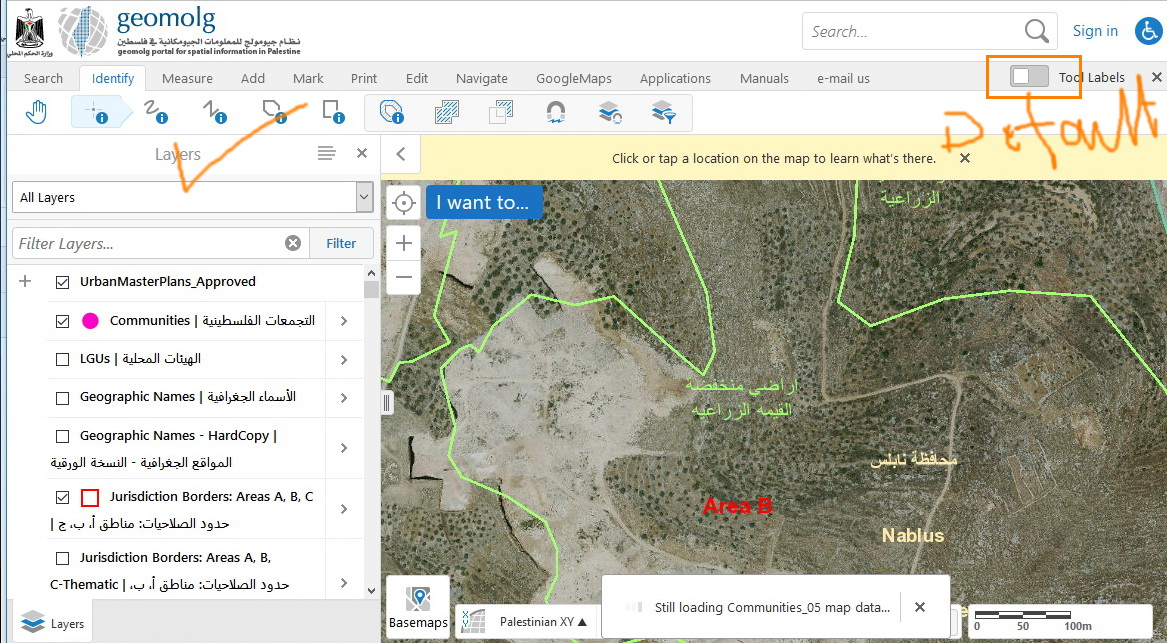
I am trying to turn off the “Tool Labels Toggle” by default (hide the label), Is that available?
A am using GVH 2.9.1\ Ge 2.8.1
Best,
Majdoleen
0
-

Majdoleen,
There is currenntly not a way to do this. But you can vote on this idea to try and make that happen.
https://support.geocortex.com/essentialsGSCIdeasDetail?c=09a6000000008RsAAI&id=08760000000H02mAAC&categ=all&sub-nav=ideas&main-nav=essentials
Best regards, Rick0 -
Thanks Richard.
Best,
Majdoleen0 -

This looks like a good application for the custom css files included with your viewer. Try slapping some "visibility:hidden;" under the "toolbar-actions" class, looks like it worked for me. 0 -
Thank you Zack, May you please share the path of the file, the steps to edit this file.
Ehank you in advance.
Best,
Majdoleen0 -
The css files are located in the direcory [gce sites]\[site]\Viewers\[viewer]\VirtualDirectory\Resources\Styles\Custom\. They can be edited with your preferred text editor.
You can use the developer tools in your favorite browser to identify the element that you need to modify, I use the chrome dev tools myself but the other major browsers have toolkits that are plenty handy enough for the task, usually the tool is called something like "inspect".
Once you have the element that you think you want to change you can test styles for it on the side panel, for me it was enough in this case to set the visibility to hidden for that element. Confirm that the styling works as desired, then write your change in the custom file. I would bind my css to the most specific element possible, in this case the toolbar-actions class on <ul> elements.0 -
Hi All,
Here My finding to solve this issue :
1- go to " Local Disk(C) > intepub > wwwroot > Html5Viewer > Resources > Compiled "
2- open Toolbar.js file
3- Find t.showToolLabels=new o.Observable(!0)
4- Replace it with t.showToolLabels=new o.Observable(!1)
5- Save the file
Here is a screenShot that shows the Result :
_img_ alt="User-added image" src="https://latitudegeo--c.na53.content.force.com/servlet/rtaImage?eid=907f2000000fy6B&feoid=Body&refid=0EMf2000000kACd" _/_img_
Best,
Arwa0 -
After upgrading to GE 4.10 and GVH 2.11 the config above no longer works. How ever, the possibility to manage this from the rest manager have been added. Took me some time to figure out, so a heads up :)
Best regards,
Sindre
0 -
Thanks Sindre, thats great, we always prefer to have these functions at the level of manager instead of playing with codes.
_img_ alt="User-added image" src="https://latitudegeo--c.na53.content.force.com/servlet/rtaImage?eid=907f2000000kAdK&feoid=Body&refid=0EMf2000000fzX3" _/_img_
Best
Majdoleen0
Please sign in to leave a comment.
Comments
8 comments