Configure the profile Tool work flow to have a dropdown list to choose which layer in the map service I need to apply the tool on it

Hi Folks,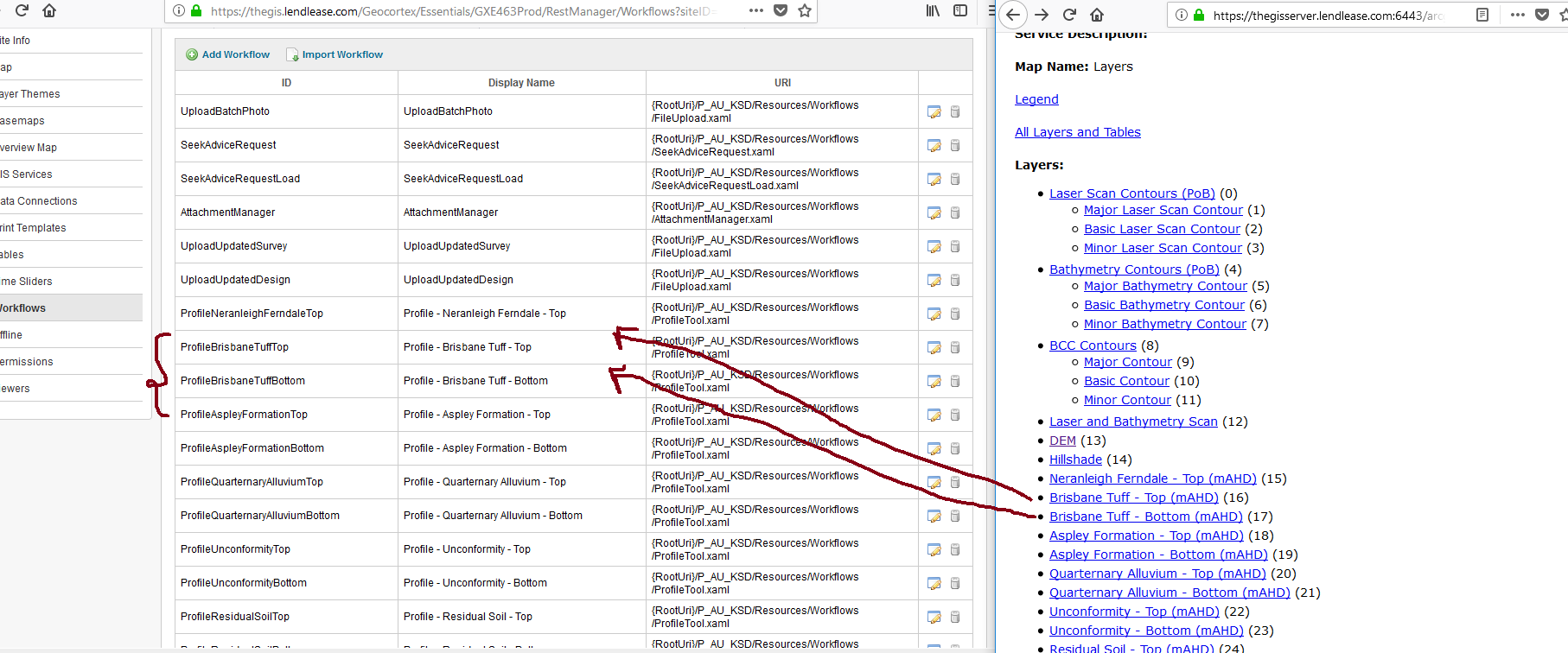
Is there a way to enhance the Profile work flow to allow my users to select which map layer in the map service they need to apply the tool on it?
In my case I need to apply the work flow in a different map layers, so I added the tool multiple times and each time I changed the URL for the new layer I want to include, but I don’t think this is the best way to do it, I’m not so good in the workflow so I wold be glad if anyone could help me in this it.
I don't need to have this huge number of tools which doing the same, I need to have the ability to choose which map layer i need to apply the profile tool on it.
Cheers,
Rawan
0
-
Hi Rawan,
This is definitely possible. Since you say you only need a couple layers added, and it looks like they're part of the same map service, here's the simplest way:- Open the profile tool workflow in Workflow Designer
- Add a Display Form activity near the top
- Add an Assign activity below that
- Delete the connection that goes from: IniltializeWorkflow -> DisplayCaptureGeometry. Then Re-make your connections so they go from: IniltializeWorkflow -> DisplayForm -> Assign -> DisplayCaptureGeometry.
- Double click DisplayForm to open it
- Click the Design Form button on the activity
- Click the green + on Group1 and add a ComboBox
- On the ComboBox, provide a value for "Argument Name", eg argLayerId
- On the ComboBox, click the Add/Remove Items button. Use this interface to add items for your layers, using "Display" for a friendly name describing the layer, and "Value" for the layer id number from ArcGIS Server.
- Once you confirm all your changes and close the form designer window by clicking OK, find your argument "argLayerId" just above "RuntimeModifications" on the DisplayForm activity. Click on its text input field
- Press F3, use the name userSelectedLayer, and click OK
- Return back to your main flowchart and double click the Assign activity to open it
- Set it up so that it looks like this: DEMLayerID = userSelectedLayer.ToString()
Hope that helps!
-Amanda0
Please sign in to leave a comment.
Comments
1 comment