Clear Drawing Button Inactive after adding Drawing via WF5

Hi,
I have added a markup to the "Drawings" layer via WF5 and it shows on the map as expected?. However I want the users to be able to use the standard drawing tools (edit, erase and clear) on these markups. The erase button works but the clear button is inactive and refuses to recognise there are items to clear in the drawings layer. It only becomes active when I draw something manually using the drawing tools. It then deletes that drawing and the one I added via the workflow.
Am I missing something I need to do in the workflow? I tried a refresh layer but it makes no difference.
My workflow is https://sutherlandshire.maps.arcgis.com/home/item.html?id=cd9e9ce567784ad2a2cd7d278b618526
We are using Essentials 4.10.1 with HTML5 viewer 2.11.2.
Any tips appreciated!
Belinda
-

Hi Belinda,
I did some quick research and I think I have a reason if not an answer to your problem. WF5 Graphics are created as esri.Graphics items so that they will work in Web AppBuilder, GVH or Web Viewer, where as the Drawings in Geocortex Essentials are part of the Geocortex site. If I am understanding you problem you have run a workflow that creates markup by using the Workflow 5 Add Graphics activity, then the native essentials Drawing tools do not know about the graphics specifically the clear tool
To solve this instead of using the Add Graphic tool to add the graphics in the WF5 use the RunCommand activity to run the viewer command "AddMarkupFeature" to add the same graphic and this should solve your problem
Hope this helps,
Christopher Brown
AAM Group
0 -
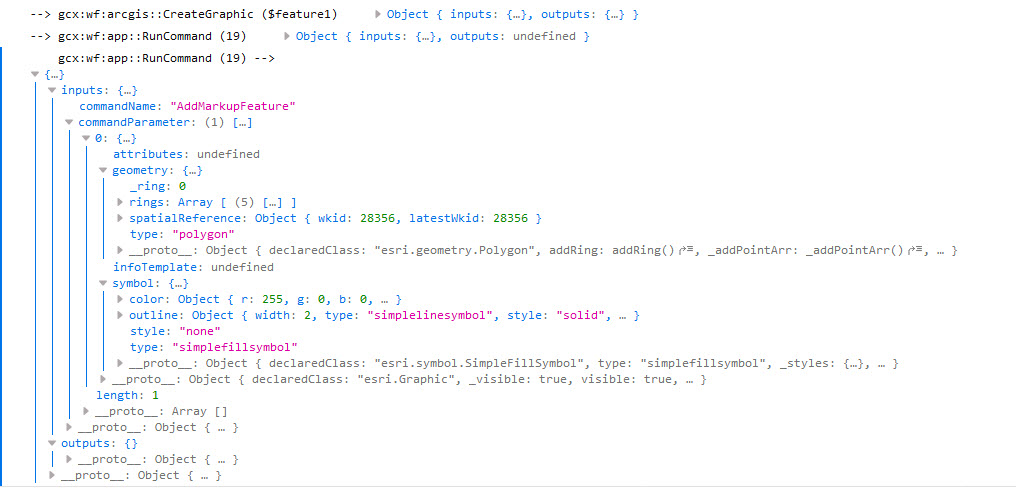
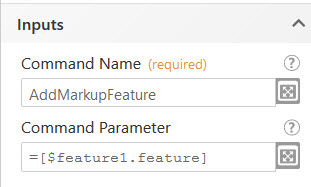
Hi Christopher, I’ve swapped it to the Run Command and used the syntax as per the screen capture but the markup doesn’t show on the map. I’ve also tried it without the [] around the feature and it still has the same issue. [cid:image001.png@01D5B023.6D5A8350] In the web developer console it passes through the feature, shape data and symbol. [cid:image002.png@01D5B023.6D5A8350] The markup doesn’t show at all on the map. What am I missing? It’s not erroring and I can’t find an example of the syntax to use. Thank you! Belinda 0 -
 0
0 -

Hi Belinda,
I came across the same issue that you describe here. It seems to me like there is an event that is not raised with the "Add Graphics" activity. I came up with a simple workaround that enables the drawing tools (edit/erase/clear) to work with the custom graphic by running the AddMarkup command with a dummy point before using the AddGraphics activity.
1) Create a "dummy" point geometry with "Create Point" activity (0,0 with spatial reference from map)
2) Invoke "Run Command" activity with "Command Name" = AddMarkup, "Command Parameter" =$point1.point (the dummy point geometry)
3) Add your graphic/feature using the "Add Graphics" activity
4) Invoke "Run Command" activity with "Command Name" = DeleteMarkup, "Command Parameter" =$point1.point
This seems to work for me.
Cam
0


Please sign in to leave a comment.
Comments
4 comments