Add Layer From File Tools

Has anyone been able to successfully utilize the Add Layer From File tools? I am receiving console errors when I try and add files from csv, xlsx and shapefile.
The console errors that I am seeing are all along the lines of the ones below:
react_devtools_backend.js:2430 [menu-item-model]: Error executing 'system.read-file,results.from-xlsx,results.convert-to-layer,map.add-layers,[object Object]' action from menu item with ID 'import-from-xlsx'.
InvalidOperationError: No default symbol available for geometry: undefined
at https://url.com/Geocortex/WebViewer/static/js/common/services/Results.c14065d3.chunk.js:1:6906
at async Promise.all (index 0)
react_devtools_backend.js:2430 Error: Can't find end of central directory : is this a zip file ? If it is, see http://stuk.github.io/jszip/documentation/howto/read_zip.html
at f.readEndOfCentral (jszip.js:1)
at f.load (jszip.js:1)
at new f (jszip.js:1)
at i.t.exports [as load] (jszip.js:1)
at new i (jszip.js:1)
at t.shapefileToFeatureSet (convert.js:1)
at /Geocortex/WebViewer/async https://url.com/Geocortex/WebViewer/static/js/common/services/Results.c14065d3.chunk.js:1
at async Promise.all (/Geocortex/WebViewer/index 0)
at async R._runConversionFromBlob (Results.c14065d3.chunk.js:1)
at async o (main.de0aa8f8.chunk.js:1)
react_devtools_backend.js:2430 [menu-item-model]: Error executing 'system.read-file,results.from-csv,results.convert-to-layer,map.add-layers,[object Object]' action from menu item with ID 'import-from-csv'.
overrideMethod @ react_devtools_backend.js:2430
_log @ arcgis-extensions-core.min.js:1
log @ arcgis-extensions-core.min.js:1
error @ arcgis-extensions-core.min.js:1
execute @ main.de0aa8f8.chunk.js:1
async function (async)
execute @ main.de0aa8f8.chunk.js:1
onClick @ User.bb9a5ee3.chunk.js:1
ki @ react-dom.production.min.js:176
ji @ react-dom.production.min.js:13
mi @ react-dom.production.min.js:13
lf @ react-dom.production.min.js:13
wi @ react-dom.production.min.js:187
Kd @ react-dom.production.min.js:32
pc @ react-dom.production.min.js:32
Wf @ react-dom.production.min.js:34
(anonymous) @ react-dom.production.min.js:236
uf @ react-dom.production.min.js:15
Qd @ react-dom.production.min.js:42
sc @ react-dom.production.min.js:41
unstable_runWithPriority @ react.production.min.js:25
Da @ react-dom.production.min.js:60
mk.Events.current @ react-dom.production.min.js:236
Ei @ react-dom.production.min.js:41
react_devtools_backend.js:2430 InvalidOperationError: No default symbol available for geometry: undefined
at https://url.com/Geocortex/WebViewer/static/js/common/services/Results.c14065d3.chunk.js:1:6906
at async Promise.all (index 0)
Thanks,
Brian
-

I have the same issue. Did you ever get this resolved?
0 -
We have this failing in SaaS and on prem environments. And all out of the box in both Designer mode and Launched mode.
 -1
-1 -
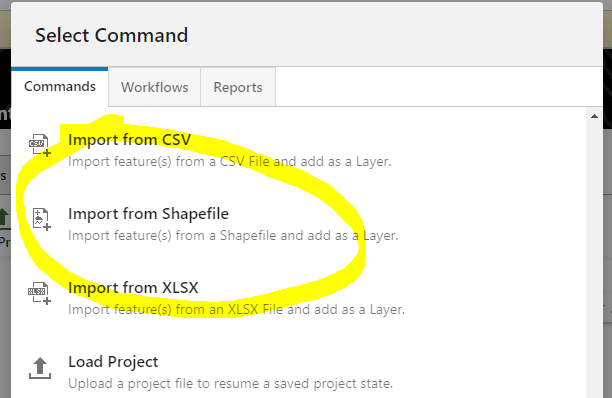
last comment here... why does the Import from Shapefile option only ask for the .shp? What about the .prj and .dbf? How would it know where to place the geometries and list tabular info.
0 -
Howdy Ryan,
I haven't tested in a while if the uploading of csv and xlsx is working, but we do have the uploading of .shp working. I recall that this happened after an upgrade - I do not recall what version we were on when I posted this last year, but if you're on their SaaS, then you should be good to go.
The way to make the .shp upload work is to zip all of the associated .shp files up together and then upload that zip file. Not terribly intuitive, but that does the trick.
Let me know if you have any trouble.
Brian
0 -
Thanks Brian. Appreciate the response. Uploading a .zip of proper shapefile files did work in both SaaS and on prem. Unfortunately, I don't see any way to customize that dialog box to give the end user some more direction... there is probably a few custom commands to add to the Edit Custom Command section to indicate the need.
0 -
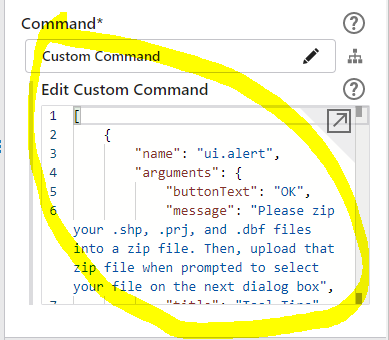
In case anyone wants the syntax to explain to users they need to .zip the shp, prj, and dbf in a pop up prior to the shapefile dialog... see below. Thanks to colleague @James Siebert? for providing.
[
{
"name": "ui.alert",
"arguments": {
"buttonText": "OK",
"message": "Please zip your .shp, .prj, and .dbf files into a zip file. Then, upload that zip file when prompted to select your file on the next dialog box",
"title": "Tool Tips"
}
},
"system.read-file",
"results.from-shapefile",
"results.convert-to-layer",
"map.add-layers"
]
Place in:
 1
1
Please sign in to leave a comment.
Comments
6 comments