Setting display field in the result window VertiGIS Studio Web

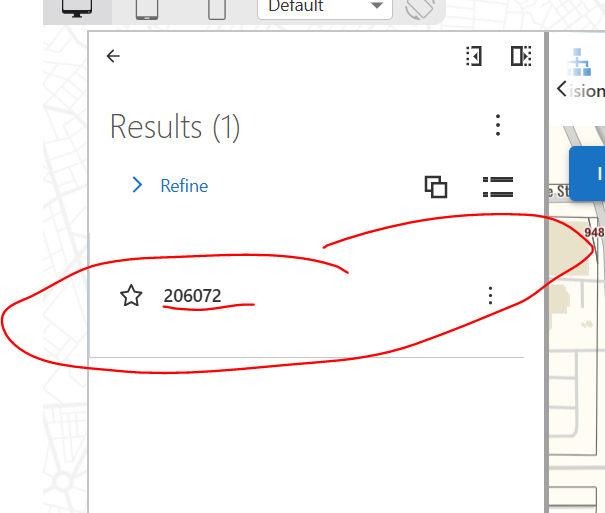
I am trying to set a different field to show up in the initial result list. Currently it defaults to show the ObjectID. Theres an outdated workflow (we are switching to hosted FL) that shows the correct field in the result list, but I cant seem to figure out where the result display was configured. Not sure if this is part of the workflow set up or in the studio web app. Thanks!
Mary
-

Did you ever figure this out? I am trying to do the same.
0 -
Hi Kenneth,
I did! So, you have to find the layer-id in the web map that you're using in the Vert app. To do that, right click on the web map layer in the ArcGIS Online web map-→ Inspect -→ on the element page of the inspect either use the point tool to hover over the layer of interest and get the information or try and find the “calcite list” (mine are grouped ) or calcite list item the layer ID number can be used in the workflow (get map-→ get layer -→ layer id # in the layer id field.) Using the layer id from the web map keeps all the settings made in the web map. Using the layer directly from the source or rest end uses the default that is set on the layer itself.
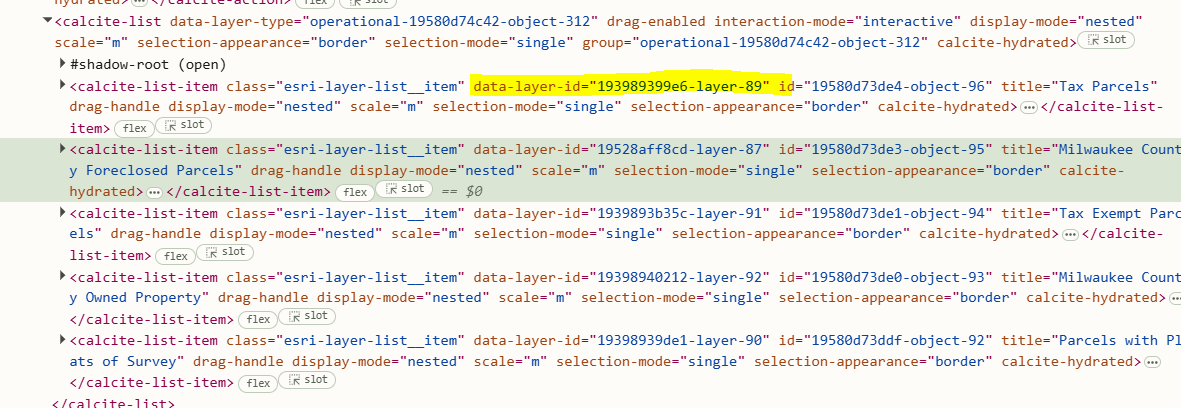
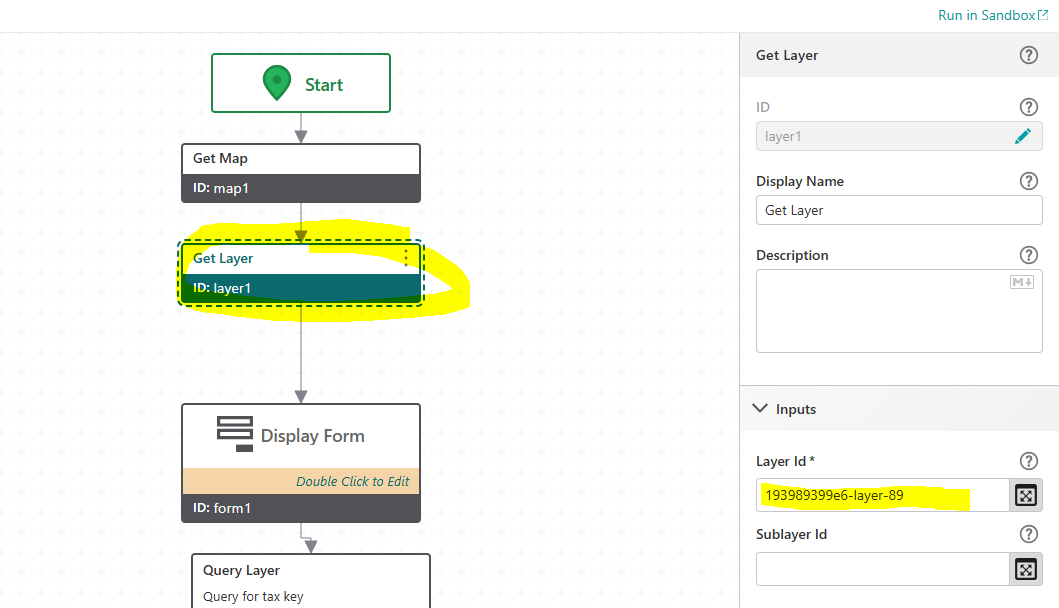
Good luck!
Mary
0 -
Thank you so much I will try it out.
0 -

Mary Wagner and Kenneth Darling, I'm not sure if I'm misunderstanding but we just set this in either the Pro Projects we use to publish to our portal or in the webmap we use.
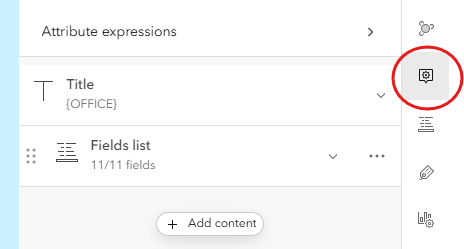
In Pro you select properties on a layer and then change the display field. In the webmap you change the title field of the popup settings for a layer.
 2
2 -
We don't configure our layers before publishing to ArcGIS Online so that is why we use the get Map and Get Layer actions in the workflow. Using that layer ID number from the web map captures the settings that were created and saved in the web map.
If you use the rest end to grab the layer in the workflow instead of the layer ID it honors the settings of the published layer rather than what is in the web map. If you're just using the identify tool in the vert app youll see the pop up you have set up in the web map.
0
Bitte melden Sie sich an, um einen Kommentar zu hinterlassen.
Kommentare
5 Kommentare