Buffer results is selecting features outside of buffer

I'm trying to set up my app to let users buffer their selected polygons and then automatically select all the point features inside of the buffer. ONLY inside of the buffer. But the default behavior is that point features nearby, but outside of, the buffer are also selected. This is not okay for my workflow. (As a side note - I set the default buffer distance to zero, because I need to basically select the polygons themselves only; I don't want to use any area outside of them at all.)
I've looked through everything I can find in the settings for Results, Buffer, Identify, Services (geometry), and also Vertigis documentation, and I can't find anything about this issue (points outside of the buffer being selected).
Can anyone help?
-
I solved my problem and thought I'd post it here in case it helps anyone else.
I set the buffer to NOT be geodesic, and that fixed it. Points outside the buffer are no longer being selected.
0 -
Whoops, the problem is actually not solved. I did further testing and found that the selection behavior appears to be erratic. Sometimes it selects a point outside the buffer, and sometimes not. Even with literally the same point and same polygon buffer, it has different behavior. Baffling.
1 -

That is a weird one, Allen Dailey! I would suggest we bring in the fine folks in VertiGIS Studio Support to help troubleshoot this. I think I have created a ticket by @'ing them.
0 -
Thank you, Gareth! I was just about to write up a ticket!
0 -

Hey Allen. Did you get any answers from the VertiGIS Support?
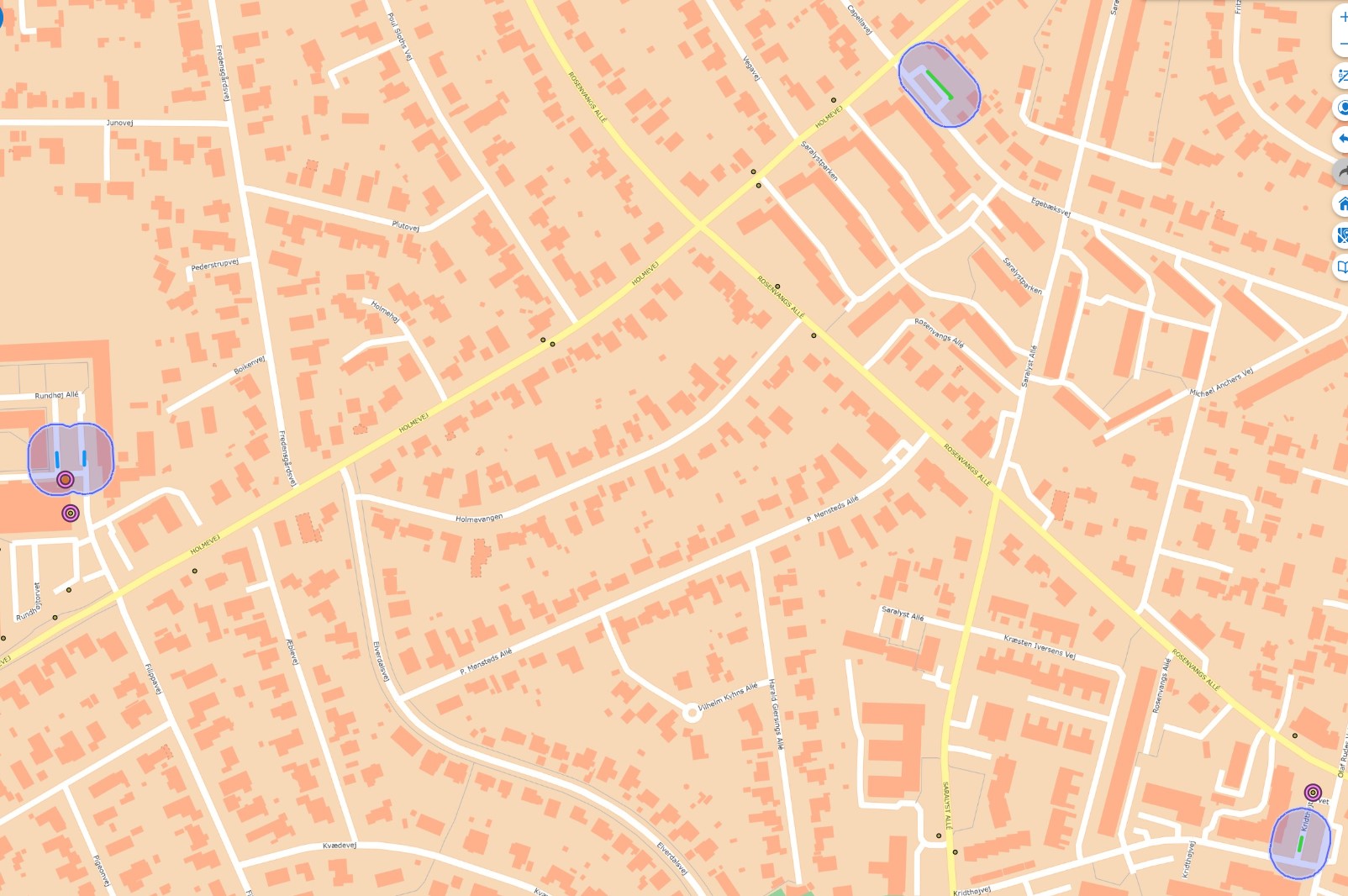
I am now experiencing the same issue where points outside of my buffer are also selected when using my buffer to identify. Sometimes only the points inside my buffer are selected but other times points outside are also selected and how many differ as well. I have attached a photo where you can see that it also identifies points outside of my buffer and one within.
I wondered if it could relate to the coordinate systems being different (because they come from different sources). The points outside are up to 15 meters outside of the buffer
 0
0 -
Hi Olivia,
Yes, I did get answers! The default is: selection is dependent on the user's zoom level. If you are zoomed way out, then more nearby features that are outside of the buffer will be selected. (In my opinion, I would never want this to be the default!!) To stop this happening, you need to add some “code” to the configuration of Buffer Results.
Here's how to do it:
- In VS Web Designer, when configuring your app, go to wherever the "Buffer Results" tool is. Likely the "Results Table" component.
- Under "Feature Actions," click on "Buffer Results" to go into the settings.
- In the "Command" section, click the flowchart icon on the right to open the command code.
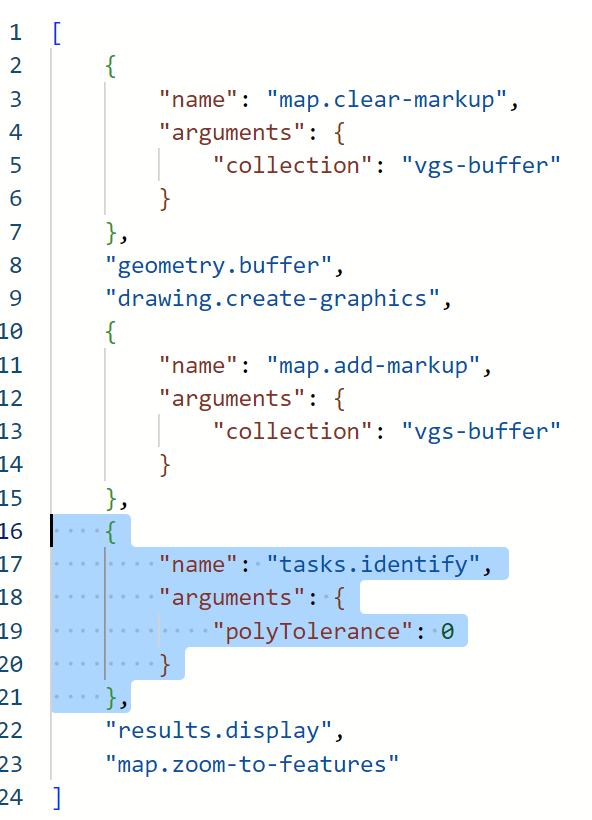
- Replace the existing line "tasks.identify", with the following multi-line code:
    {
        "name": "tasks.identify",
        "arguments": {
            "polyTolerance": 0
        }
    },
Make sure that the first bracket has the same indentation as the bracket/line above it, and that the final bracket has same alignment as the line below it:
Note: This has to be present in ALL of your Results components (table, list, etc.). These should automatically have a Shared Configuration, so that you only have to add it to one component and it will spread to the others. However, if you added an additional, separate, Results Table component like I did (it's used for a Workflow), you will have to add the code to that one separately! I learned that the hard way.
I hope this helps!
0 -
Hi Allen. Thank you, that solved my issue!
0
Bitte melden Sie sich an, um einen Kommentar zu hinterlassen.
Kommentare
7 Kommentare