Change Font Style for entire VSW site

In the Essentials HTML5 viewer, we could change the font style for the entire viewer using custom css.
How can we do that in VSW?
-

Hi Ali,
I've been mucking around with running a workflow on start up. I've created a workflow, that calls the Inject CSS activity. In the content section, you add the CSS you want to override. In our case, I'm making some components a little more compact, but I'm sure you could change the font styles for each of the areas on the application. I've just been using the Dev tools in chrome, and 'inspecting' the components as they are constructed.
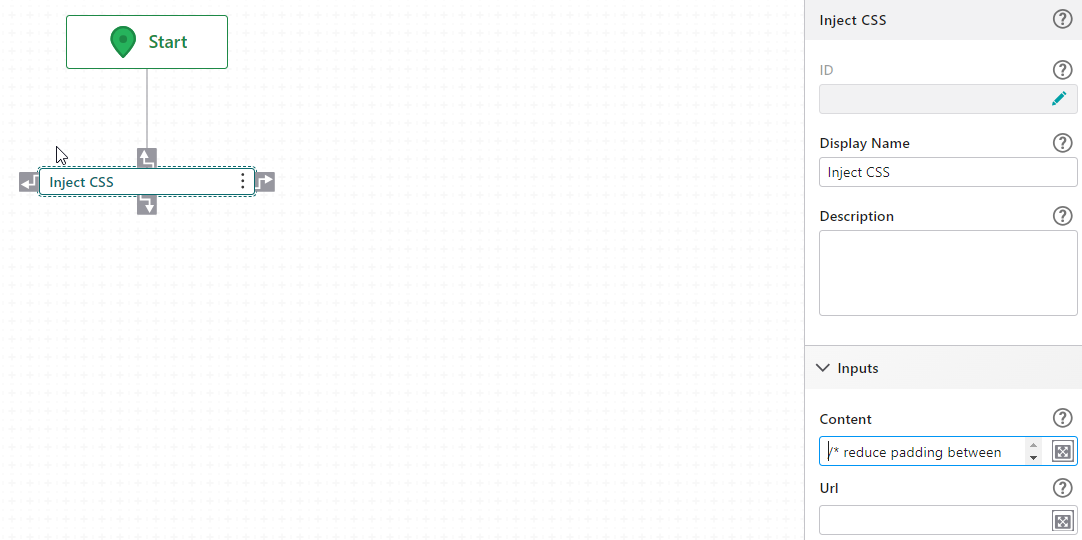
content section eg.
/* reduce padding between layers in layerlist */
.gxw-ltr-xw5lpl {
padding: -5px -5px;
}
/* reduce padding between layers in the legend items */
.gxw-ltr-xz6qp0 .esri-legend__service {
padding: 3px;
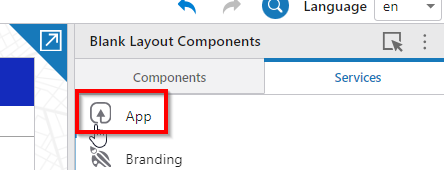
}Once you have the workflow created, back in Web Designer, go to the Services tab, then open the App settings
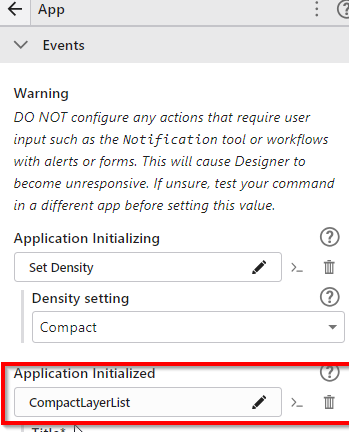
and reference the workflow you created in the Application Initialized options
that's about it I think! It's been a while since I did this, and I'm certainly no expert in it. I'm just testing the whole VSW world, and working out if we actually go down this path.
hope that helps.
GF
1 -
Gareth Finney Thanks for your idea!
We had tried this as well. I was using the CSS code from Essentials (which was working there), but this code was not working in VSW to overwrite everything. After some playing around with the CSS code I was able to get it. I wanted to avoid having to specify each and every component to update (this would be a lengthy process).
In my Inject CSS tool I used: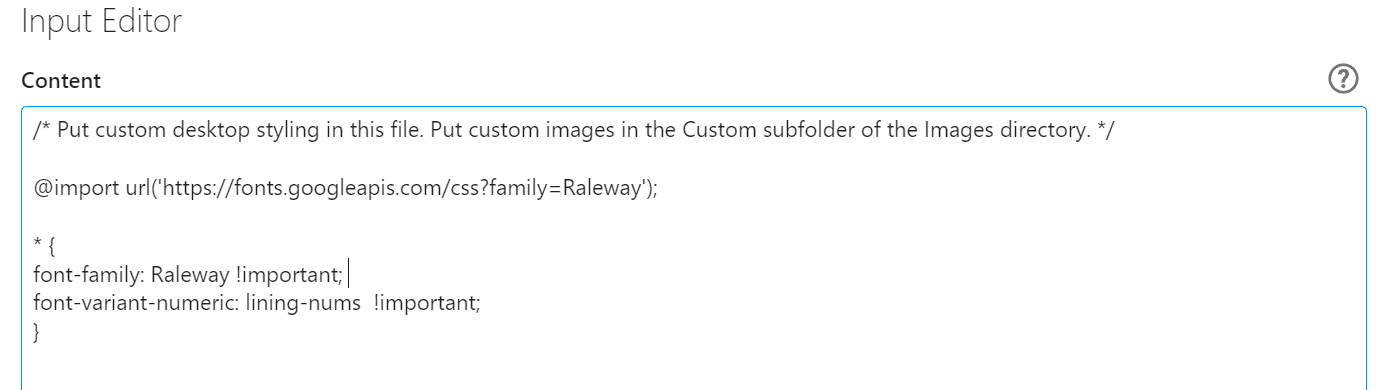
The key was the "!important;" part.
This code now changes all the font for the entire site.2 -
Nice one... glad you got it working.
0
Bitte melden Sie sich an, um einen Kommentar zu hinterlassen.
Kommentare
3 Kommentare