Prevent Identify Operation from Labelling Features

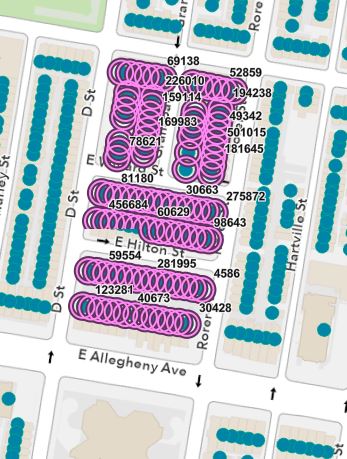
is it possible to prevent features from being labeled with their display field after an identify operation highlights them on the map?
-

In your Identify component in VertiGIS Studio Web, you can change the behavior of the results when the Identify operation is used (as well as other components and actions). If you go to the Command configuration like what you see below, I believe what is underlined is the default. If you change to results.display-details, for example, you will get different behavior. Here is the reference to the commands: https://developers.vertigisstudio.com/docs/web/api-commands-operations-events/. You might need to play around until you get what you desire.
 1
1 -
Thanks Ryan,
I poked around on that site and tried some things to no avail. I reached out to the Support Team. They provided this response which worked for my purposes
The labels that are appearing in the screenshot you sent are set as the titles of the features, so unfortunately the visibility can't be edited through Web.
The title can, however, be edited in the ArcGIS webmap. NOTE: doing so will also remove the title from the Results List, Results Table, and Results Details. If you are alright with that, you can try the following:- Open the webmap in Map Viewer.
- Select the layer from which you want to remove the title.
- In the toolbar on the right, click Pop-ups.
- Erase the title field and replace it with a space. Adding the space in the title is important, otherwise it will default to the Object ID.
0 -

If you don't want to do this in the Web Map itself then you can use Web or Workflow to accomplish it. That said, based on your image Jessica I probably wouldn't label the layer like that in the ArcGIS Web Map anyway.
Using Web Designer you'll need to edit the raw configuration, so be sure to export a backup before toying around. Find the "highlight" item and set its highlightLabelTextSymbol or focusLabelTextSymbol size property to 0.
I'm not going to include the Workflow instructions because they're a bit arcane, but for the curious the highlight item is available in the application.appState.items.
It's interesting that the UI in the Web Designer forces a minimum font size of 5 for both feature focus and highlighting, I wonder if there's a technical reason that a label toggle wasn't included. Anyway, I opened an idea for it here.
2 -

Thanks Zack! This workaround works fine for me!
0
Bitte melden Sie sich an, um einen Kommentar zu hinterlassen.
Kommentare
4 Kommentare