Uploading Files to a Server File System

Has anyone ever created a workflow to upload a file to a server? I know you can add attachments to a feature class, but I want to be able to upload a file to a folder on a server, and then take that file name and store it in a table using a sql query. If anyone has any tips/examples that would be great.
I did download the openfiledialog from the code gallery, and I am thinking this upload file part would be similar to addattachment, but instead of a featureurl, you would have a string variable which would represent the filepath to which you would upload a file to.
Help?
-

Has anyone got a successful way of uploading a file to a server location from a workflow?
0 -

The on-prem version of studio workflow can write files to the server where workflow is installed.
You make a client workflow like this
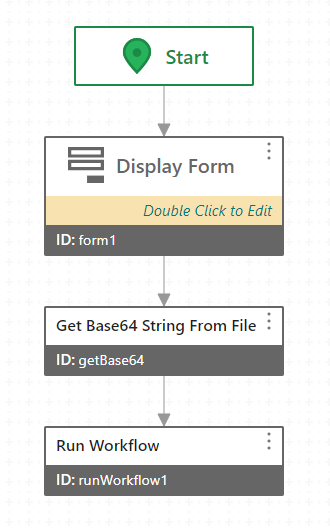
-Display Form has the file picker to select the file
-Get Base64 activity input is: =$form1.state.filePicker1.value.files[0]
-Run Workflow activity Arguments input is: ={base64FromClientWorkflow: $getBase64.result,
fileName:$form1.state.filePicker1.value.files[0].name}Then the Server workflow that it runs looks like this:
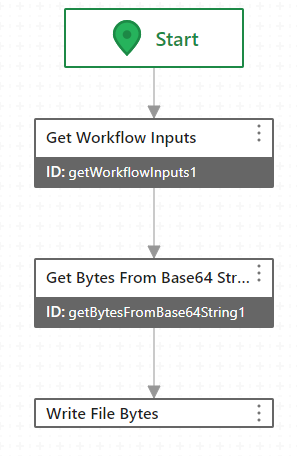
-Get Bytes activity's input is: =$getWorkflowInputs1.inputs.base64FromClientWorkflow
-Write File Bytes "Path" input is: ="C:/ProgramData/Geocortex/Workflow/" + $getWorkflowInputs1.inputs.fileName
-Write File Bytes "Bytes" input is: =$getBytesFromBase64String1.result
I always test with the already-existing workflow data directory folder as the path to start, which is usually something like "C:/ProgramData/Geocortex/Workflow/". Then when that's confirmed working, you can try other locations. You sometimes need to add read/write permissions for the "IIS AppPool\GeocortexWorkflow" or "IIS AppPool\VertiGISStudioWorkflow" identity to the folder you're writing to.
0
Bitte melden Sie sich an, um einen Kommentar zu hinterlassen.
Kommentare
2 Kommentare