Offline Mode in GVH

I've worked before with the offline mode in GVH, and now I returned to it with GE 4.4.2 + GVH 2.5.2 template, and seems that a new way of configuration should be applied: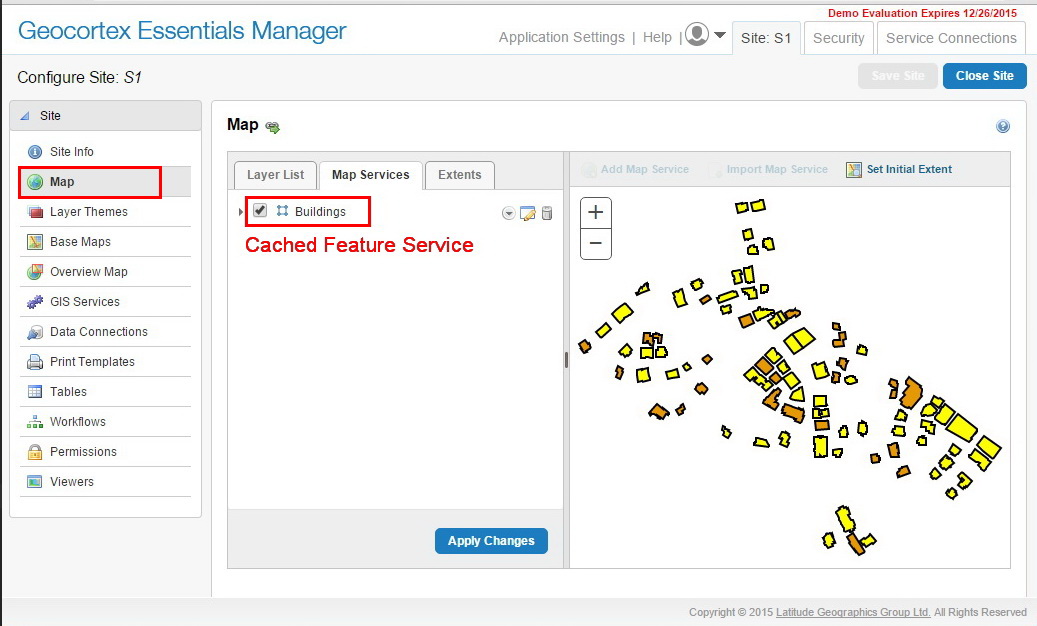
1- I've added a cached feature service to the site
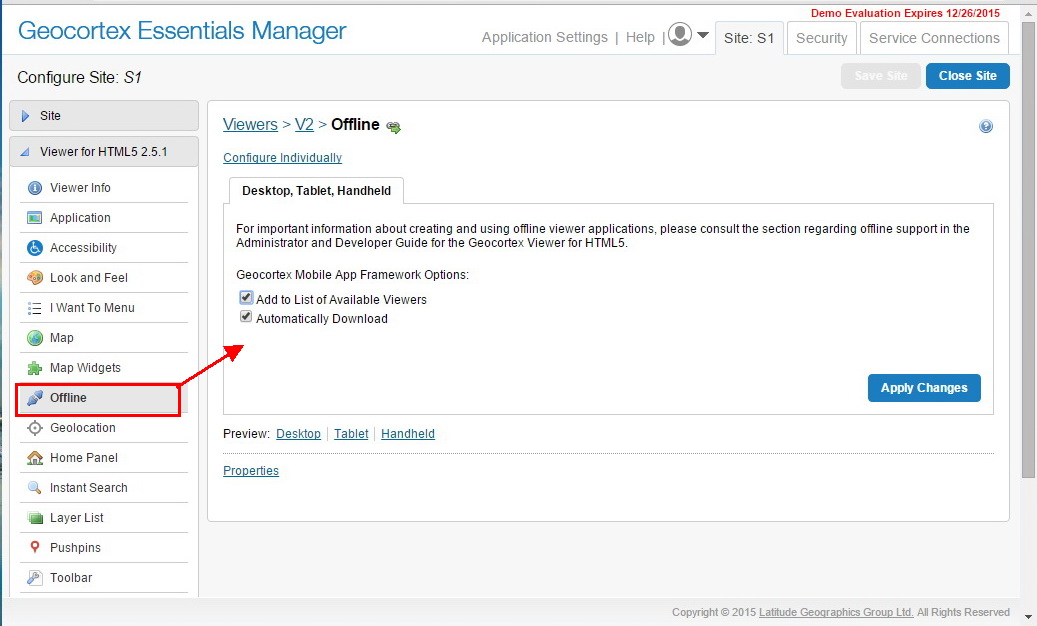
2- Through the "offline" configuration page, I can only see two options. Whereas, there is no "generate offline bundle" as I used to see in the previous versions.
Furthermore, when trying to enable the offline mode (when accessing the app using an internet browser) after syncing the data at a certain extent, I was not able to switch to offline mode (the online/offline mode trigger button is not available)
What might be the issue here?
Best Regards,
Hani
0
-
Hello Hani,
As of Geocortex HTML5 viewer 2.0, offline functionality has been only fully supported in the Geocortex Mobile App Framework. You can obtain the Geocortex Mobile App Framework for Windows and Android from the downloads section of the support center (If you need the app for iOS you will have to go directly through our geocortex support team support@geocortex.com).
In regards to the missing "Generate Offline Bundle" button, this is no longer needed for going offline as we are making strides to streamline the offline process (and it should get even easier as time goes on). Offline should just work when you download the viewer to your Geocortex Mobile App Framework and all updates to the viewer should be apparent in the Geocortex Mobile App Framework the next time you load the viewer within it.
If you would like the offline button to still appear within the viewer portion rather than in the Geocortex Mobile App Framework actions bar you can manually change your config file to allow it. Set the following property in your confifuration json file(Desktop.json, Tablet.json, etc.):
{
"id": "ConnectionStatusIndicatorViewModel",
"type": "geocortex.essentialsHtmlViewer.mapping.modules.offline.indicator.ConnectionStatusIndicatorViewModel",
"configuration": {
"enabled": true
}
}
Once you have set enabled" from false to true, the online/offline toggle will appear within Geocortex Viewer for HTML5 once you have synced data.
There is more information regarding this in the Geocortex Viewer for HTML5 Admin guide on page 252
Let me know if you have any other questions,
Cory Purnell
Latitude Geographics Quality Assurance Team0 -
Dear Cory,
Thanks a lot for the helpful input,
May you please elaborate more where I should plug this code within the desktop.json/tablet.json file? Actually, I'm not good enough in coding.
Once again, Thank a lot!0 -
Hi Hani,
Sure thing, just perform a search in the file for "id": "ConnectionStatusIndicatorViewModel"
Once you find that section right below it will be the:
"configuration": {
        "enabled": false
    }
section. If you change the false to true the button will appear in your viewer.
0
Bitte melden Sie sich an, um einen Kommentar zu hinterlassen.
Kommentare
3 Kommentare