“Back” does make sense better than “Close Panel” in Geocortex,

“Back” does make sense better than “Close Panel” in Geocortex, 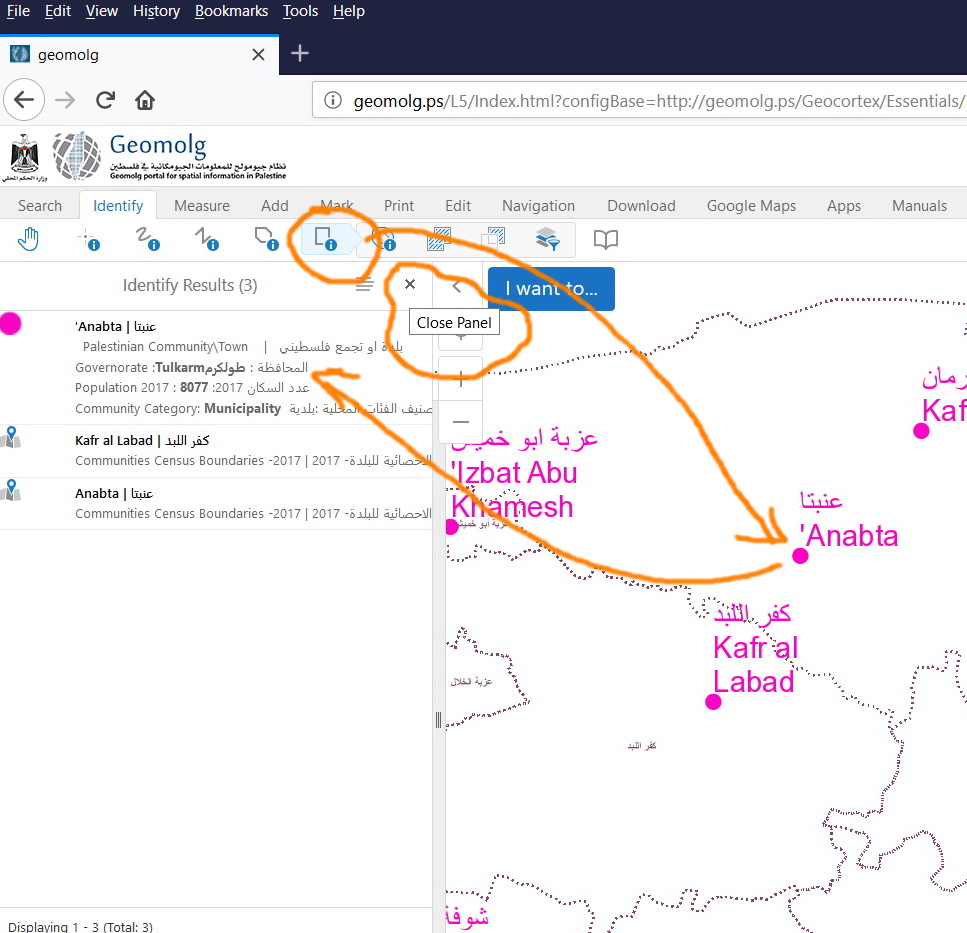
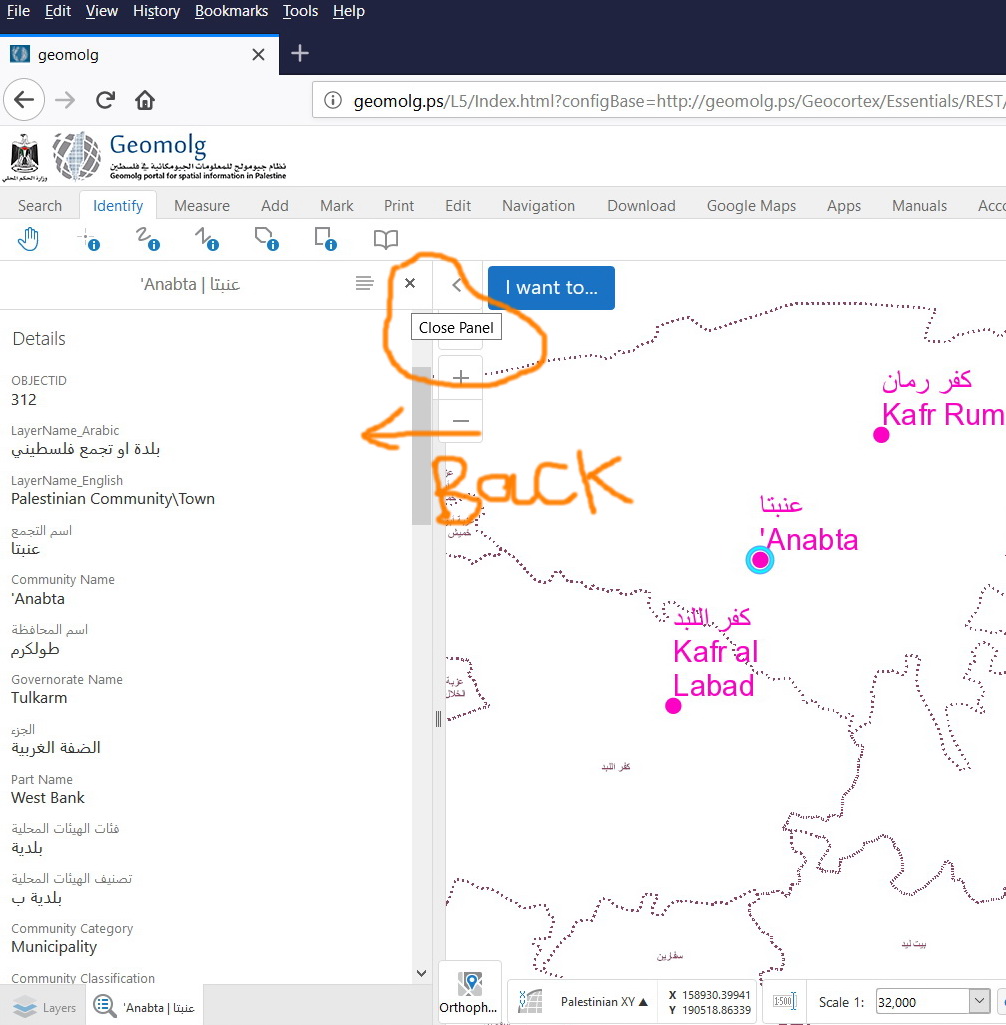
We have received feedback from users that they got confused when working with panels. For example, in the screenshot below, it does make sense if the “Close Panel” is replaced by “Back”
0
-

You can modify it in the translation files.
http://https://docs.geocortex.com/essentials/gvh/latest/admin-help/Default.htm#gvh/admin/translation.htm#Translate_Language_Files%3FTocPath%3DGeocortex%2520Viewer%2520for%2520HTML5%2520Translation%7C_____10 -
Hi Nico,
The link was not opened with me. I will be very appreciated if you resend it again.
I read some documents regarding this and I found that I need to harvest the strings stored in the “.dlls” and “.xml” files by running the language tool and choose of those file as I understood, and then merge the strings into a language pack file with“.lpx” extension.
I tried to harvest many files in the bin folder but with no result and I don’t have any file with “.lpx” extension.
The files that I choose them (.dlls and .xml) are in the below path:
C:\Program Files (x86)\Latitude Geographics\Geocortex Essentials\Default\REST Elements\Manager\bin
What might be the issue here?
By the way some tools and commands that I can change the text of them by modifying json files in the locales folder but I fails to fine the file related to the result panel.
Best,
Lubna0 -
I can't access the above doc link - but I think the back button is available in the latest version of GE - 4.9 0 -
Hi Sylvia,
I used GE 4.10.1 and it is not available
Best,
Lubna0 -
The link is https://docs.geocortex.com/essentials/gvh/latest/admin-help/Default.htm#gvh/admin/translation.htm#Translate_Language_Files%3FTocPath%3DGeocortex%2520Viewer%2520for%2520HTML5%2520Translation%7C_____1 and the files that Nico are referring to are located here -
C:\inetpub\wwwroot\Html5Viewer\Resources\Locales\
Regards,Wayne
0 -
Thank you Wayne.
I found the "Close Panel" inside "Mapping.Infrastructure.en-US.json.js" file, I changed the text from "Close Panel" to "Back" and it works fine
_img_ alt="User-added image" src="https://latitudegeo--c.na53.content.force.com/servlet/rtaImage?eid=907f2000000XdQe&feoid=Body&refid=0EMf2000000YB09" _/_img_
_img_ alt="User-added image" src="https://latitudegeo--c.na53.content.force.com/servlet/rtaImage?eid=907f2000000XdQe&feoid=Body&refid=0EMf2000000YB0E" _/_img_
Best,
Lubna0 -
I didn’t mean hear to change the text of the tip! I wanted to change the symbol as well.
Is this still possible?
_img_ alt="User-added image" src="https://latitudegeo--c.na53.content.force.com/servlet/rtaImage?eid=907f2000000XdQt&feoid=Body&refid=0EMf2000000YB1M" _/_img_0 -
The icon gets loaded via CSS from here -
C:\inetpub\wwwroot\Html5Viewer\Resources\Images\Icons\chevron-left-16.png
you can move your image to the same location and give it the same name, but it may be over-written with an upgrade and if it's too large, it can cause troubles. I would make this change with caution. The image may also be used in other places.
Regards,
Wayne Richard
Latitude Geographics Group Ltd.
Head Office: 300 – 1117 Wharf Street Victoria, BC Canada V8W 1T7
Tel: (250) 381-8130 | Fax: (250) 381-8132 | wrichard@latitudegeo.com
Developers of Geocortex web-based mapping software | www.geocortex.com
An Esri Platinum Business Partner0 -

Don't know if this still work in 4.10, but in previous versions you can change the viewer config setting to change the icon from an X to a back arrow.
{
"id": "DataFrameResultsContainerViewModel",
"type": "geocortex.essentialsHtmlViewer.mapping.infrastructure.ui.components.SmartPanel.SmartPanelViewModel",
"libraryId": "Mapping.Infrastructure",
"configuration": {
"containerRegionName": "DataFrameResultsContainerRegion",
"statusRegionName": "DataFrameResultsStatusRegion",
"headerIsVisible": true,
"backButtonOnRootView": true,
"showBackButtonAsX": false,
"showHostedViews": true,
"ordering": {
"ResultsListView": 0
}0 -
Hi John,
Where can I find this code? or I need add it in a specific file
Thanks
Lubna0 -
The code is in your Desktop.json.js config file. 0
Bitte melden Sie sich an, um einen Kommentar zu hinterlassen.
Kommentare
11 Kommentare