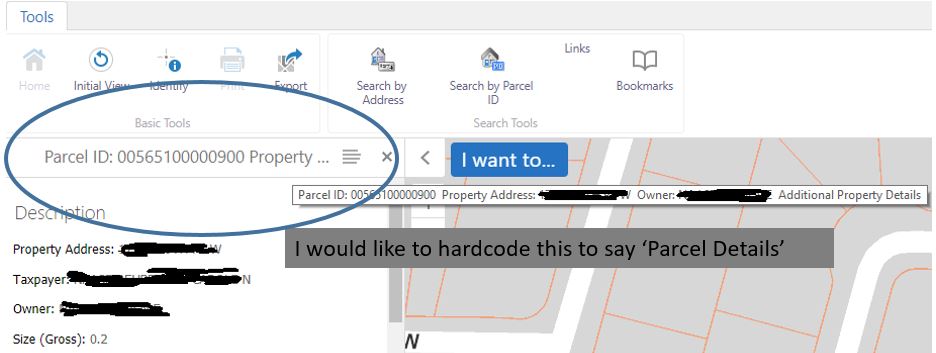
Can you change the default feature details title/label from what is set in the feature label when you use the Identify too and click on view feature details

I have the some basic html that I have used in the feature label to make the Identify Tool results appear more stylized but I would like to hardcode a value for the 'title' when you click view feature details. Currently in the title area it shows the html as a run on. I have combed through the js but cannot seem to find where to make the needed changes. Any help would be greatly apprecialted.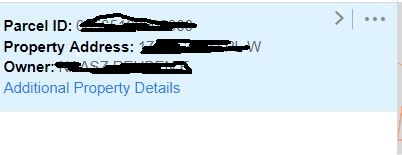
Identify Result:
After you click to view additional details:
0
-
Hi Daniel,
For any language/wording change have a look at the locale files. Search for the text you want to change in this file -
C:\inetpub\wwwroot\Html5Viewer\Resources\Locales\Mapping.en-US.json
and edit as required. My example assumes you are using a browser with the US locale.
Regards,
Wayne Richard
Latitude Geographics Group Ltd.
Head Office: 300 – 1117 Wharf Street Victoria, BC Canada V8W 1T7
Tel: (250) 381-8130 | Fax: (250) 381-8132 | wrichard@latitudegeo.com
Developers of Geocortex web-based mapping software | www.geocortex.com
An Esri Platinum Business Partner0 -
Hi Wayne,
I looked through that file and seem to be able to change any text except for the one part that I'm looking for in the image I have above. Can you give me a hint on where in the code that piece is located.
I also pointed my desktop.json.js file to the modified Mapping.en-US.json.js file so these changes are only reflected on this site.
Thanks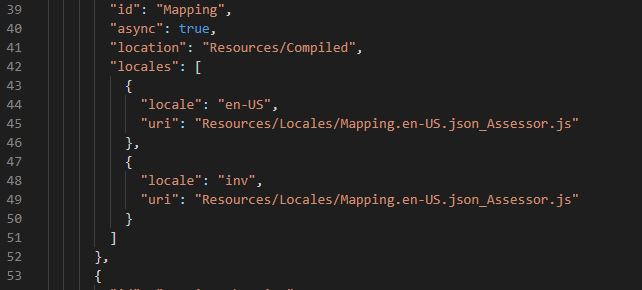 0
0 -
I ended up using CSS to make this change. Might not be the most eligant solution but it appears to be working.
.panel-header h2 {
font-size: 0;
}
.panel-header h2:after {
content: "Parcel Details";
font-size: 25px;
}0 -
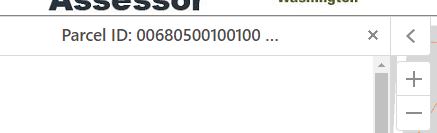
This is what I ended up going with in the end. Gives the best of both worlds by being dynamic and also not looking like a giant run on to end users.
.panel-header h2 {
white-space: nowrap;
max-width: 220px;
text-align: center;
overflow: hidden;
font-style: ubuntu;
font-weight: 600;
color: #4d4949;
padding-left: 30px;
} 0
0
Bitte melden Sie sich an, um einen Kommentar zu hinterlassen.
Kommentare
4 Kommentare