How can the attribute table be positioned to the left of the map instead of appearing at the bottom?

How can the attribute table be positioned to the left of the map instead of appearing at the bottom?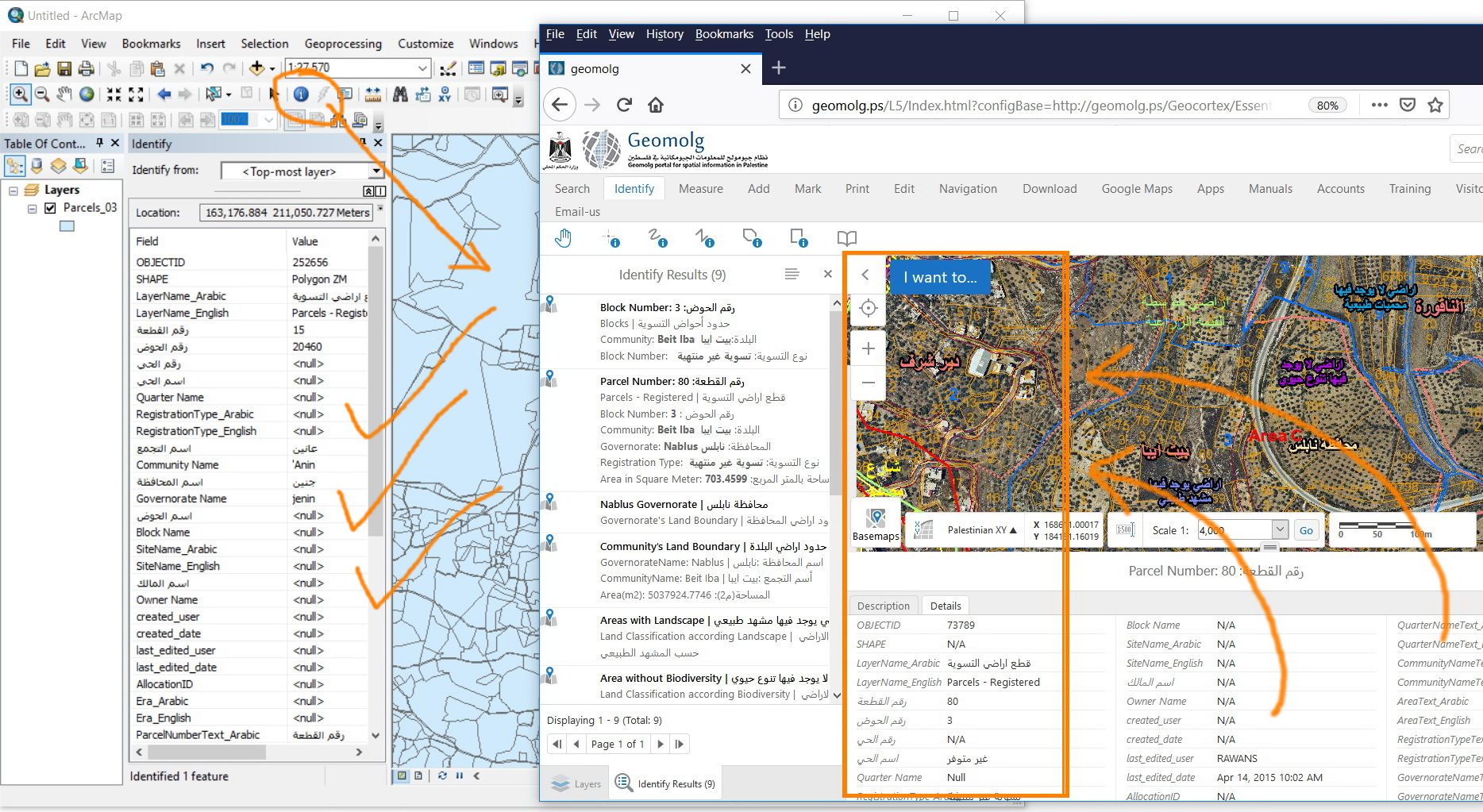
For example, in the ArcMap, when identifying a feature, the table can be positioned to appear to the left of the map with the ability to scroll up\down and resizing.
Is this still possible in the Geocortex?
Thank you
Best
Jamal
0
-
Hi Jamal,
I’m not sure if this is what you want but If you changed the Region in Desktop.jason.js file From “ResultRegion” to “DataFrameResultsContainerRegion” for the Result Table View you will have something like this.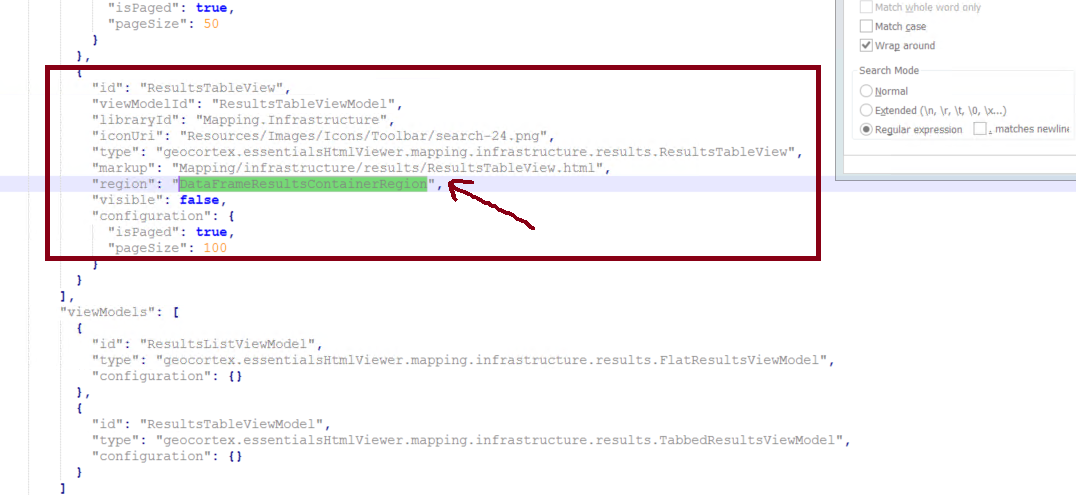
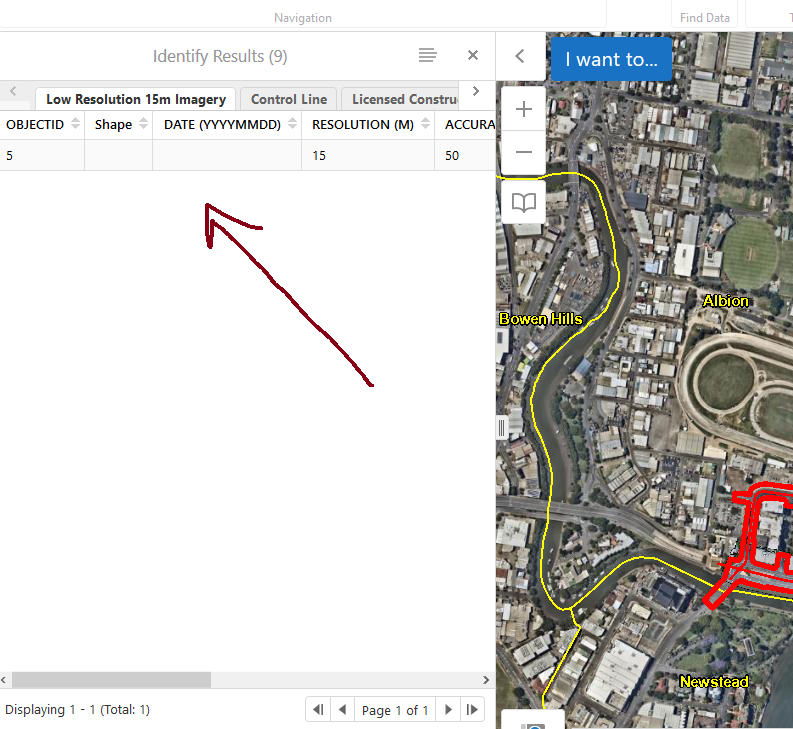
Cheers,
Rawan0 -
Many thanks Rawan for the help
I need the attribute table to be positioned along with the layer list (but not to be on top or hide it) and to have the fields arranged identically but not horizontally exactly as it appears in my previous screenshot
Is this still possible?0 -

Set the defaultViewMode parameter in the FeatureDetails module to "compact" in stead of "expanded". "moduleName": "FeatureDetails", "moduleType": "geocortex.essentialsHtmlViewer.mapping.modules.FeatureDetails.FeatureDetailsModule", "deferLoading": true, "configuration": { "defaultViewMode": "compact",0 -
Thank you all,
I tried your suggestions but is still apear on top of the layer list. I need the tabel to be positioned beside the layer list as shown in my second photo below. Is this applicable?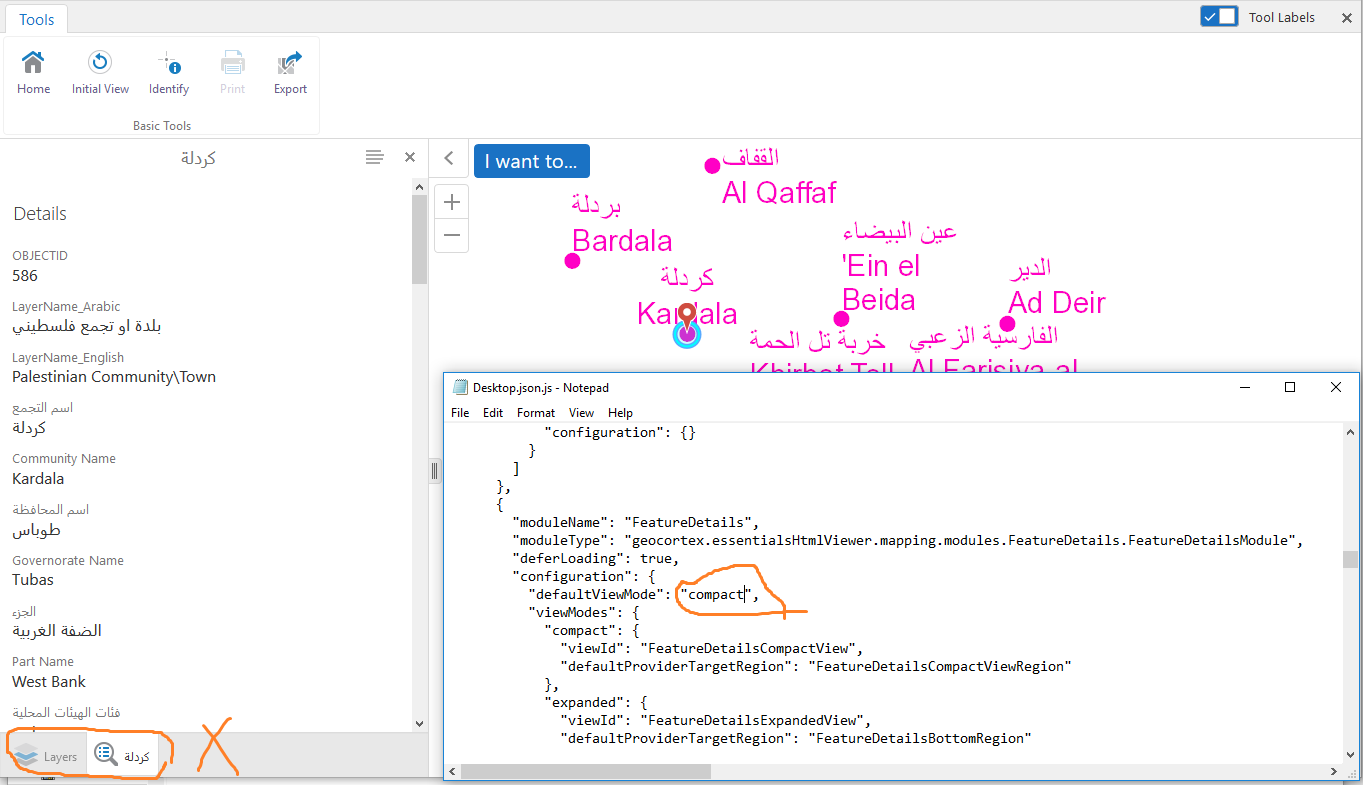
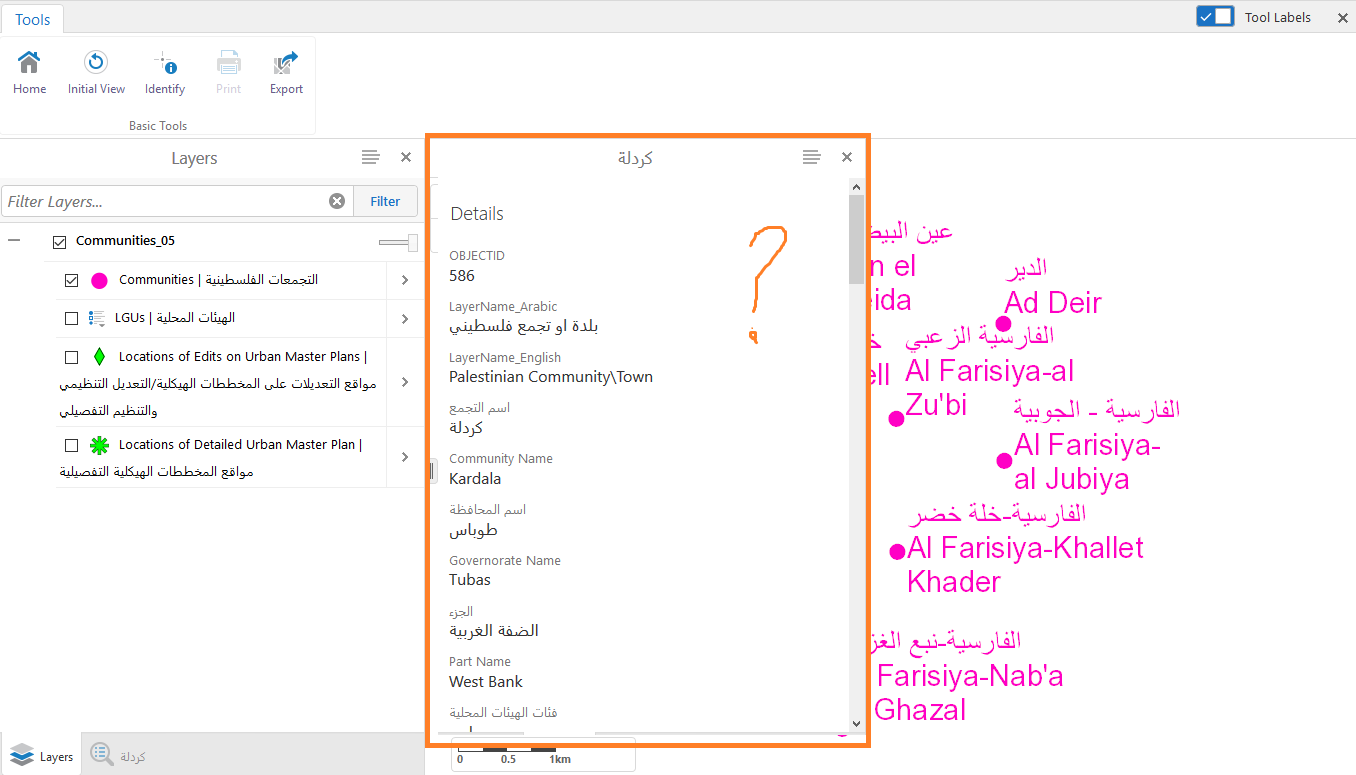
Regards,
Alaa0 -
I don't think this is possible.
You can try to use the MiddleLeftMapRegion, but I do not think this will work.
https://docs.geocortex.com/essentials/gvh/latest/admin-help/Default.htm#gvh/admin/regions.htm
But why not using a maptip? A fixed-location maptip (default maptip type) will be shown left above.0 -
Hi Nico,
Thank you,
Yes, "MiddleLeftMapRegion" didn't work as well.
Can you please provide us with some tips or a reference on how to apply the maptip?
Regards,
Alaa0 -
Hi Ala’a,
If you use the MaptipsRegion you will have to click on the map to see the table, It will not work in the same way that you have now.
You can use one of container Regions “SimpleQueryBuilderContainerRegion” in this case you still have the table come on top of list region but with an option to get back to layer list “Same Behaviour for query results”
One of other ideas that You can have the table as a pop up table instead of having it to the left of the map by use "ModalWindowRegion" option and make a tweak to the common/ Desktop.css files.0 -
Thank you Rawan for the prompt help.
Could you please elaborate a bite more regarding in how we can get the table popped up or having it floating? May you please provide screenshot for the results?0 -
Hi Jamal,
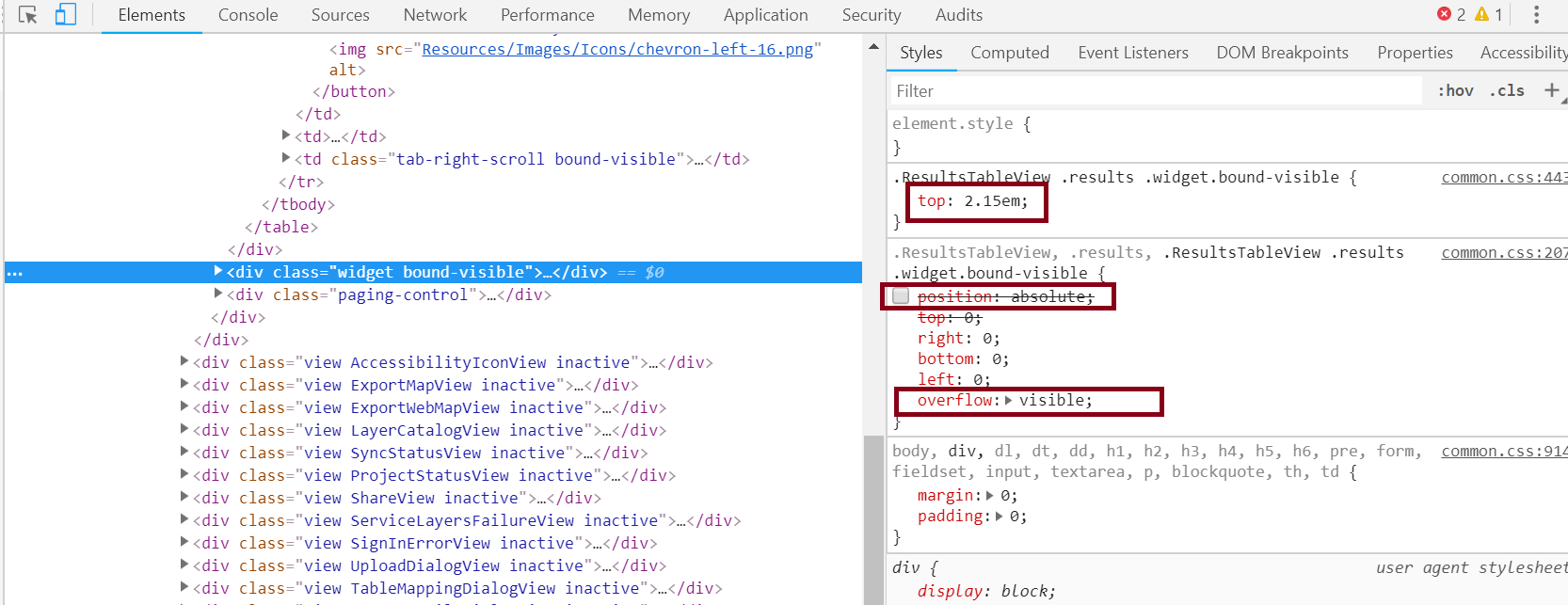
First of all, I edit the region for the result table as you can see in the first screenshot, then I started to make some edits on common/Desktop .css files (I marked some of these changes in the screenshot below) from the web page to have the final Result.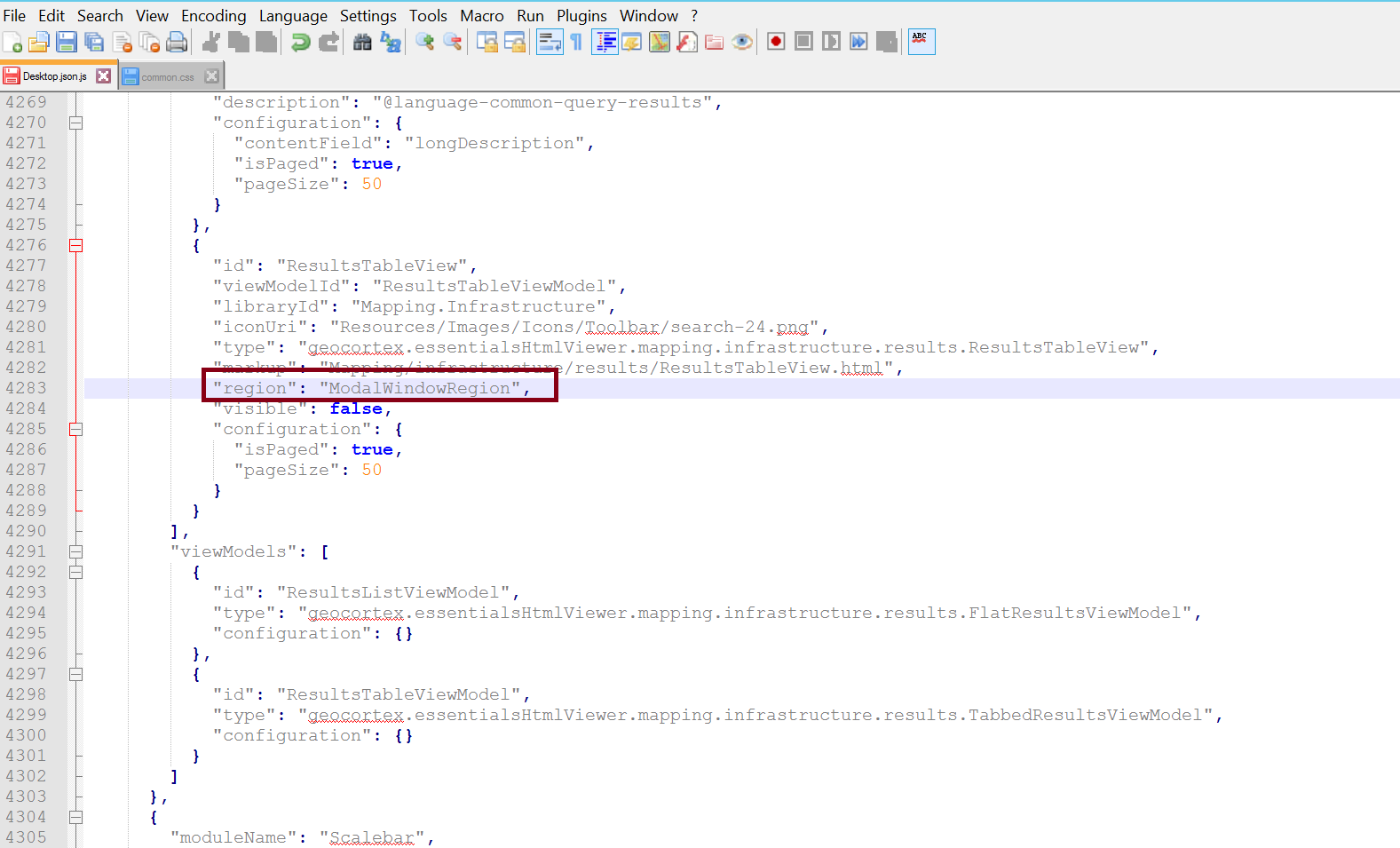
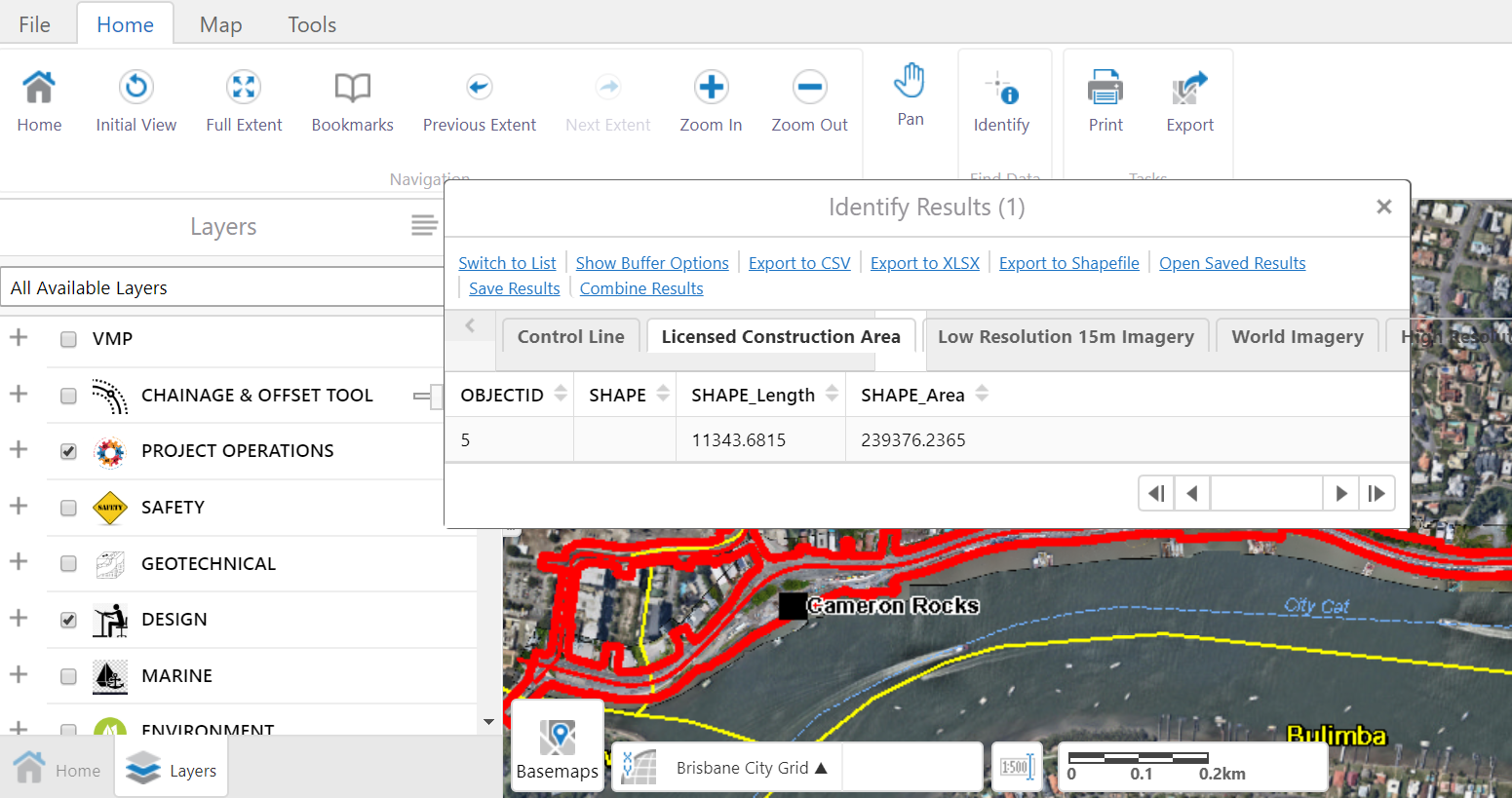 0
0 -
May be the following is not related to this specific issue but
I remembered that you asked about this {Selecting “show expanded view” gets the data frame collapsed} you can get ride from this behaviour by deleting the following lines from Desktop.jason.js as you can see below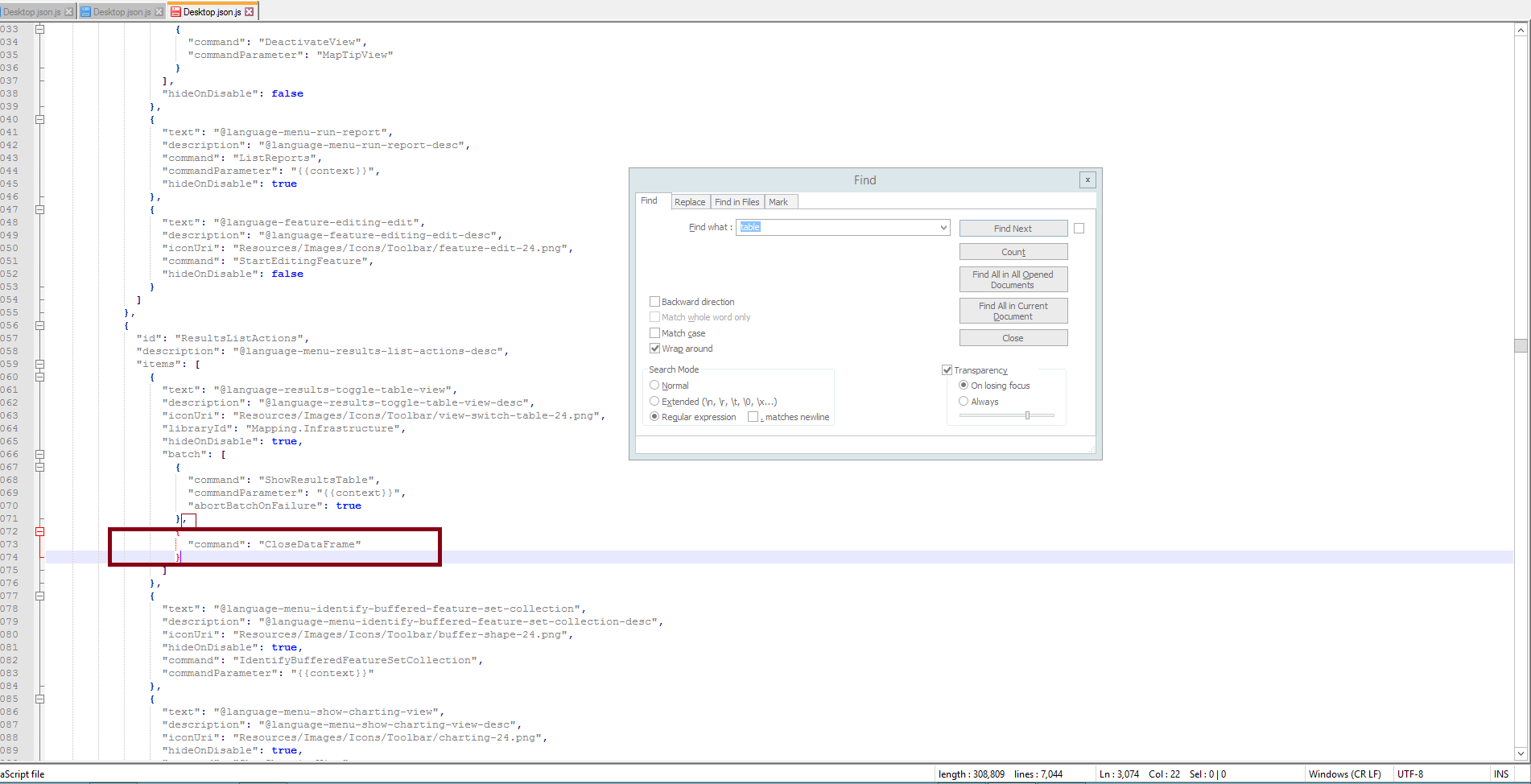
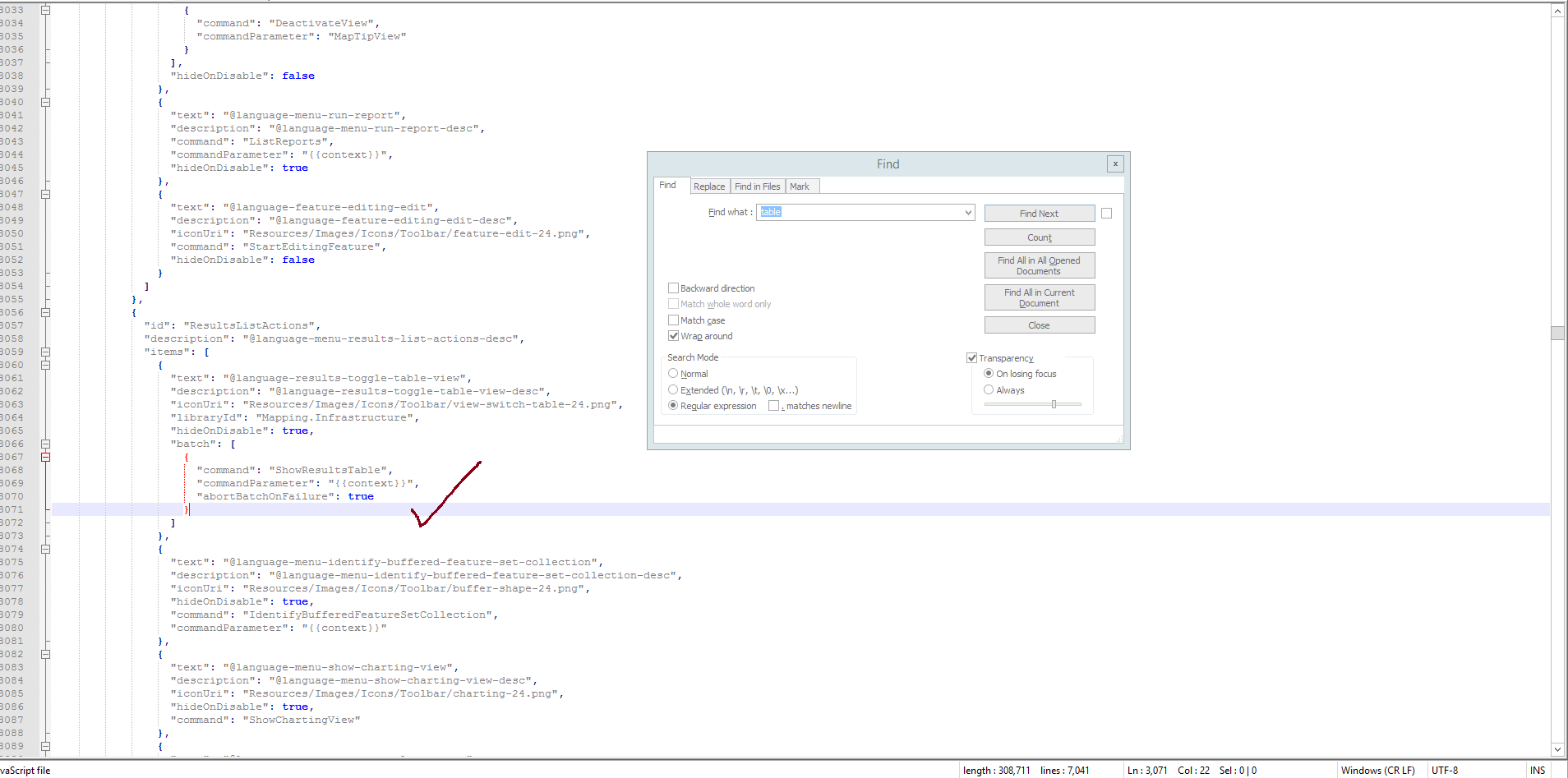 0
0 -
Thank you Rawan,
I changed the region of “ResultsTableView“ to be “ModalWindowRegion” and the result was as below: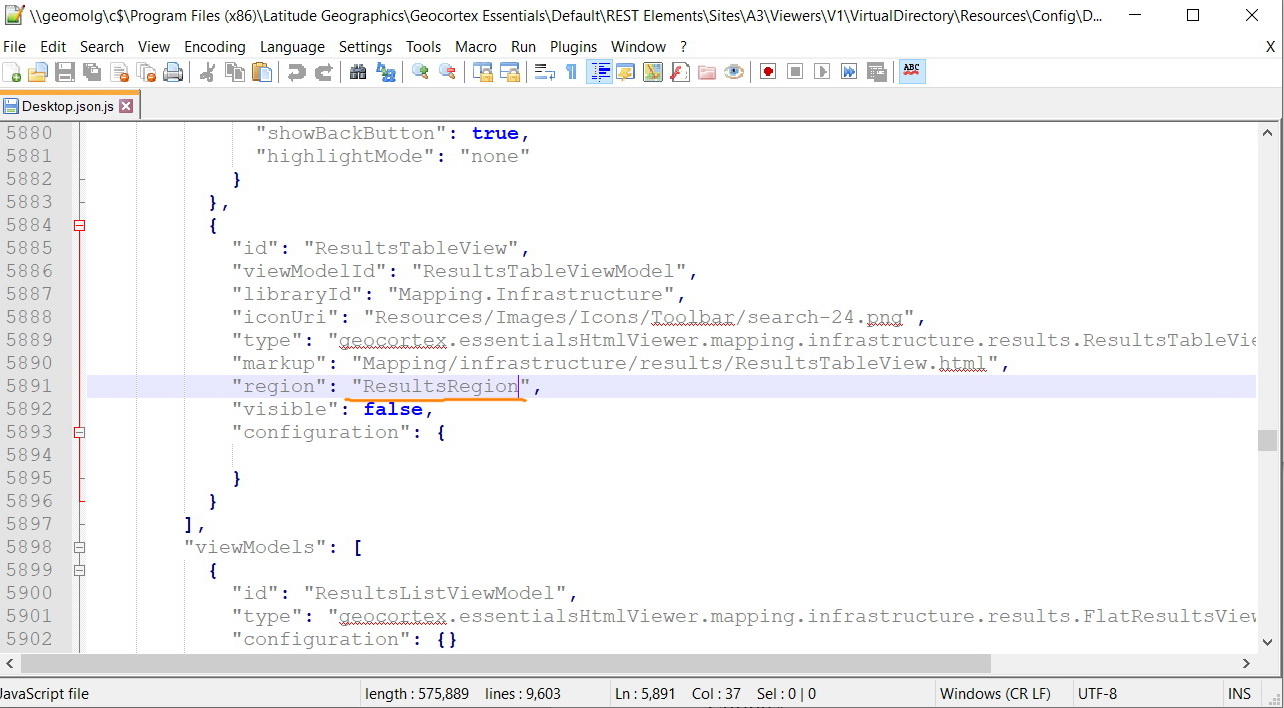
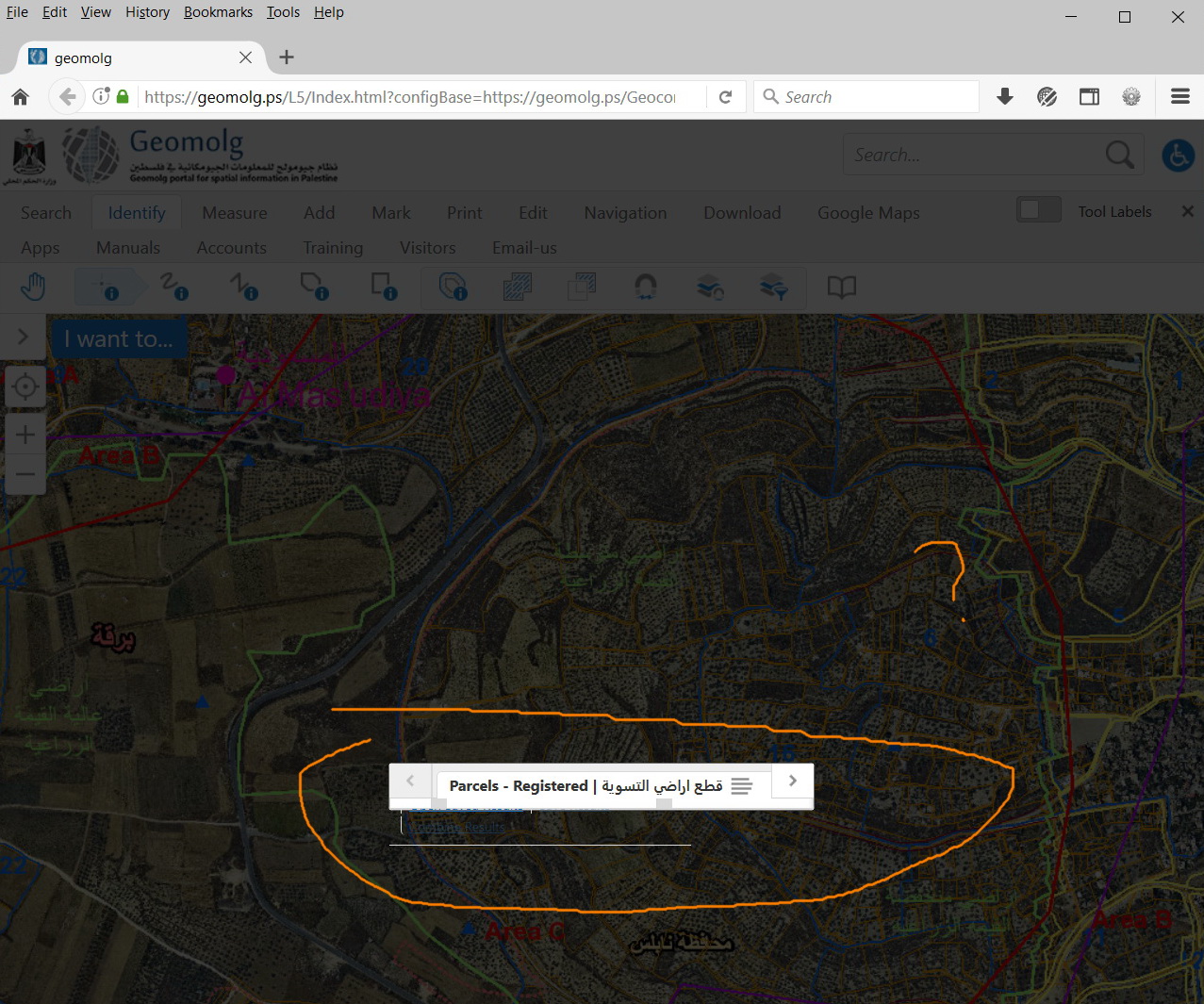
I tried to write some codes in the common file in the wwwroot folder which is by default empty (I previously added some codes to change the feature details styling) but with no effect regarding to results table view.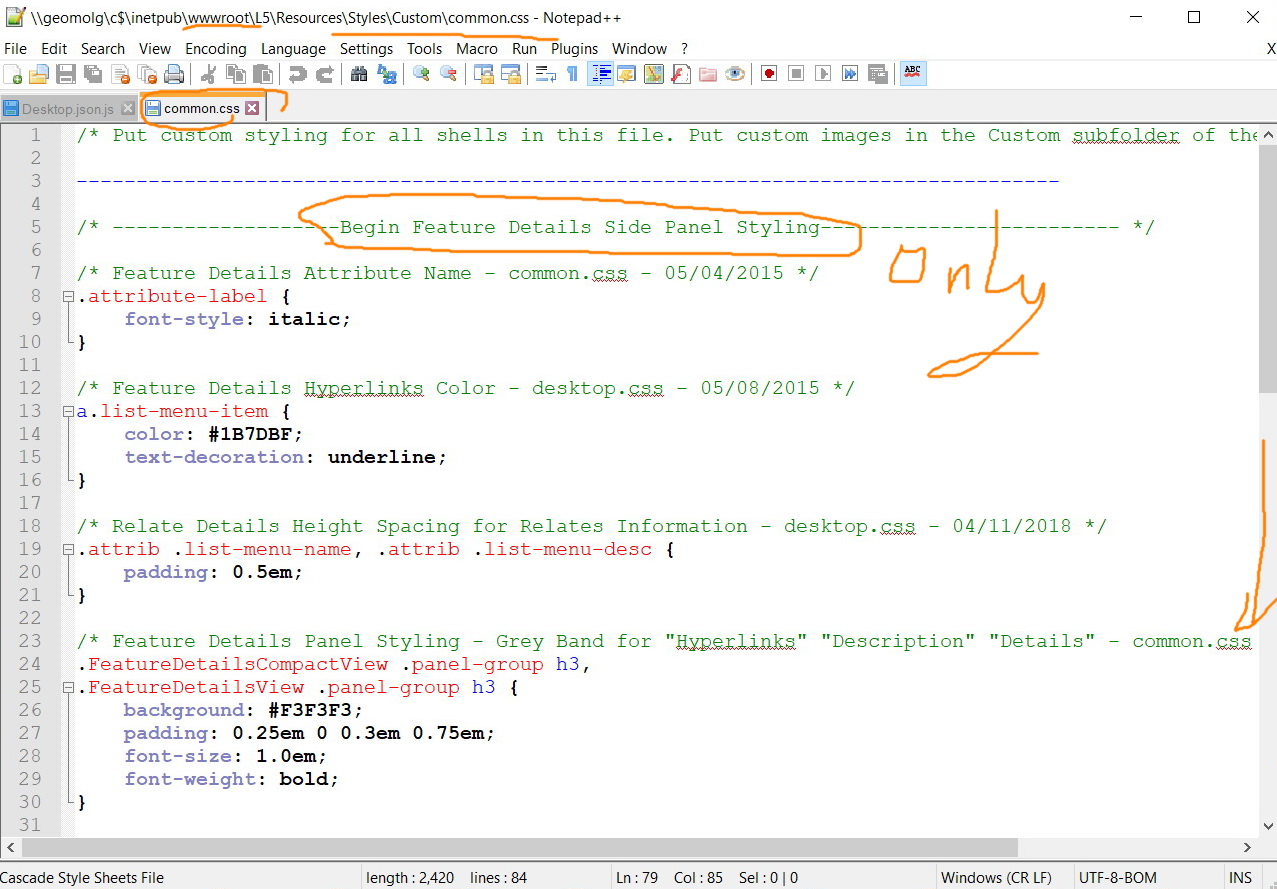
I will be very appreciated if you can write the codes that related to this panel to make it similar to what you have
Best,
Lubna0 -
Hey Lubna, I think there are differences due to the version of Geocrtex; I used the old one (GE 4.6, GVH 2.7.2).
I did several changes on Desktop.jason.js and common.css which is apparently changed in the new version as yo ucan see in the screnshot below, I advise you to open the web inspector and do your changes (all what you need to change length,width,overflow...) there then reflect it to the specific location.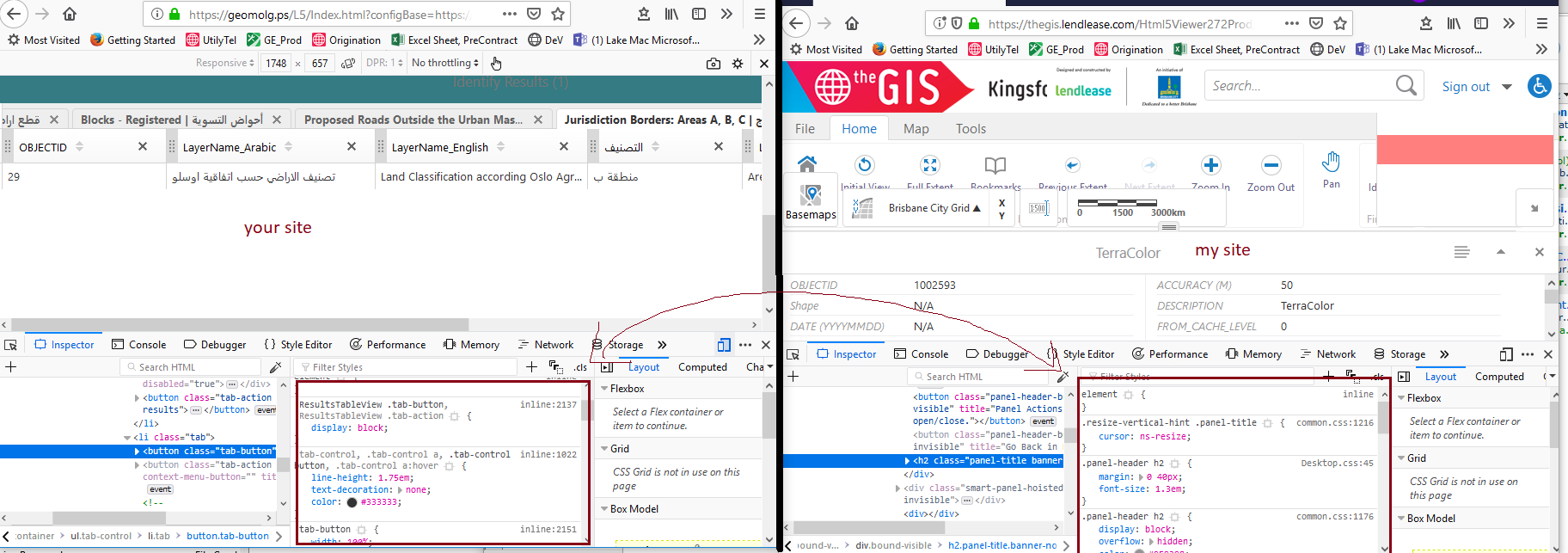 0
0 -
thank you rawan. 0 -
Thanks guys for the input.
Then, are we able to locate the attribute table next to the map instead of being below it?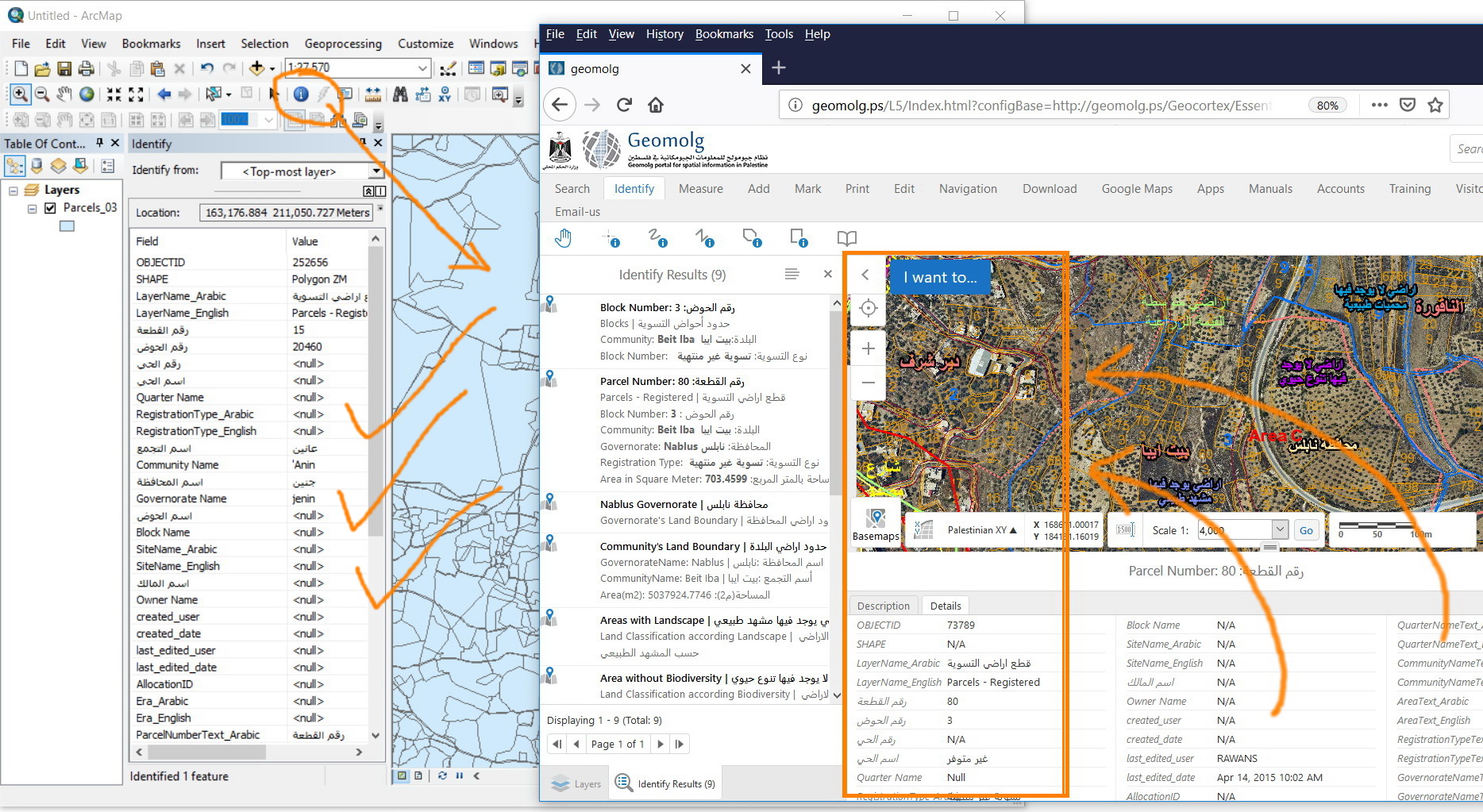 0
0 -
Any thoughts on this, guys? 0
Bitte melden Sie sich an, um einen Kommentar zu hinterlassen.
Kommentare
15 Kommentare