workflow auto Complete

I don't generally work with GIS or Workflow, but have been asked to see if i can help with forms.
I am just testing a simple form that is an auto complete. Searching for name(by last name)
Smith Jon
Smith Kathy
Smith Susan
When i select a name from the presented list, i want to populate individual fields, (first name, last name, address, etc)
I currently have a display form and then an alert.
The alert will show the first name, last name, but the form itself will not.
the form has an auto complete field and 2 text boxes. for first and last.
Can I and if so, how might i accomplish this task? Remember i don't know what i'm doing at this point .
-

Mike Smith
If the goal is to fill some text boxes based on an autocomplete value, you'll want to select that autocomplete in Workflow Designer and add a Change event from the right-hand panel:
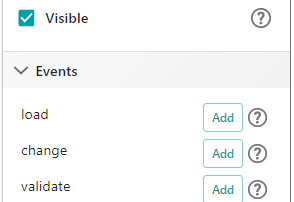
Within the change event, you'd add Query Layer to query the layer with the autocomplete's value, and use Set Form Element Property activities to update the Text Box values with the results from the query.
I set up a quick example. In Workflow Designer, use File > "Open by URL" to open https://www.arcgis.com/home/item.html?id=c8351e1a711149e389b14474e3ba6dc3 . Then use Info > "Run in Sandbox" to test it out. Keep in mind that the some of the expressions in this workflow are based on the layer I used. Eg. one of the Set Form Element Property activities uses =$query2.feature.attributes.OWNERFIRST, and OWNERFIRST is the name of a field from my layer. SO if you were adapting this for your layer you'd have to go through the activities and adjust things like that.
If your data doesn't have separate first and last name fields like the layer I used does, you could have the workflow use an expression to split a "full name" field into two parts. But it might be tricky to account for folks who have two last names or folks who write their full name with a middle name included.
0
Bitte melden Sie sich an, um einen Kommentar zu hinterlassen.
Kommentare
1 Kommentar