Close panel and or result list in Web Viewer from workflow

Hi,
I couldn’t figure out how to close a panel or the result list in web viewer. Is there a command for this? In the HTML5 Viewer, the CloseResultsFrame suits for this purpose. In my case, users click on features in the map, and they are presented with a results list. When clicking on a result in the list, feature details are displayed, and I have different buttons representing different workflows for the given feature. When the user clicks on one of these buttons, I would like the results to clear and the results list/panel to close. Now I’m only able to remove the results, leaving an empty result details and results list frame that the user must close manually. This is not very elegant. Any tips on how to solve this?
Best Regards,
Kristine
-

Hi Kristine,
you can easily deactivate UIs using the command "ui.deactivate" and given the corresponding id as a parameter. Here is an example in Workflow:
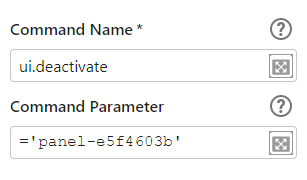
Here the link to the documentation: ui.deactivate
I hope it helps!
2 -
Great - thank you very much for helping out, Victor Catalán!
I wasn't aware of that command - it works exactly as I hoped for.Have a great day,
Best Regards
Kristine
0 -

Where can you find the component ID (ex. ='panel-e5f4603b') for the Result or Table Result panels?
Thanks,
Frank
0 -

Hey Frank,
You can download the app from web designer, download includes the app.json and xml file. Open the xml file in a code editor to find the id for the DOM element you want to interact with.

There should be enough info in the xml to identify which element it relates to, but if not, you can search the 'config' code in the app.json to drill down further.
You can also view it in developer tools via the "data-layout-id" tag.

Cheers,
Nick
0 -
Hey Nick,
Thanks so much for the information. I was able to find the component ID in the app .xml file. Worked like a charm.
Thanks again for helping me out!
Frank
0 -

Right in Studio Web Designer, if you are in Component and you click the gear in the upper right it will tell you the layout ID.
0 -
Jonathan,
I forgot to thank you for this suggestion. That makes it much easier to find the correct component ID. I appreciate it.
Thanks again,
Frank
0 -
One thing that seems to be an issue using the ui.deactivate command with a specific component ID is that the workflow can't be used in multiple web viewers. Is there a way to solve this issue?
Thanks,
Frank
0 -

Frank Martin
I have had this come up with Layer ID's from the map in to a workflow. I ended up sending the layer ID's as a input arguments like below and then using the “Get Workflow Inputs” activity to read them and pass those through to the Query Activities.
{"lineLayerID": "13147eb8ba4-layer-56",
"polyLayerID": "13147eb8ba3-layer-55",
"pointLayerID": “13147eb8ba4-layer-57”
}
0 -
Thanks Nelson,
That's a great idea for the layer IDs. I'm not sure how to determine in the web viewer the results panel component ID (results-list-6818e06d) which is different in each web viewer and then use it as a workflow input.
Thanks,
Frank
0 -
When you set up your workflow in your web viewer, there should be a spot for your Input Arguments. Type in your component ID there like this:
{"resultsPanelComponentID":"results-list-6818e06d"}
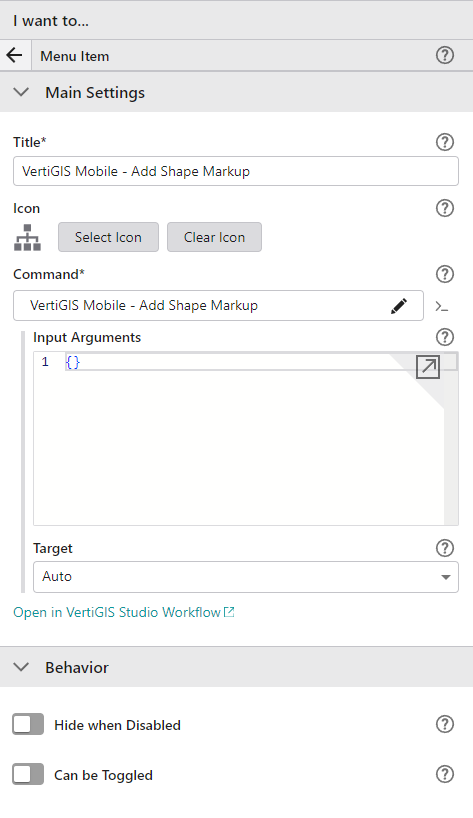
Then inside of your workflow, you have the Get Workflow Inputs (has no input).
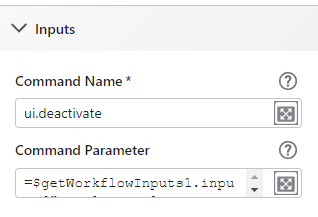
Then using a Run Command Activity, put in your Command Name: ui.deactivate then in the Command Parameter you can put your workflow input in there like this: =$getWorkflowInputs1.inputs["resultsPanelComponentID"]
 0
0 -
Thanks so much Nelson! This worked great. I appreciate the visual images. Much easier to understand.
Thanks again,
Frank
0 -

My case is slightly different.
1. The results table is filled by workflow A
2. I click on a record (representing a point feature) in the results table, and the route from a fixed point in the map to the thus selected point is shown (using workflow B)
3. After clicking in it, the results table should be made invisible automatically (see method above) so the map area gets bigger
4. There is a button in the map that runs workflow A again, so the same results table gets visible again
5. Steps 2, 3, 4 are repeated.
How to get this running? I think the main issue here is that the newly shown results table - though having always the same content - has another layer id because it's newly created?
0
Bitte melden Sie sich an, um einen Kommentar zu hinterlassen.
Kommentare
13 Kommentare